
Purpose: Once you've configured Dynamic Checkout, you can offer Same day delivery to your customers on your checkout page. Follow the steps below to create your Same day shipping methods and learn how Sendcloud helps you process them in time for delivery the very same day.
 Same Day Delivery through Dynamic Checkout
Same Day Delivery allows customers to place an order and receive it on the same calendar day. This delivery method is designed for time-sensitive shipments and customers who require immediate fulfillment.
Because of the operational precision required, Same Day Delivery is generally only available for domestic (national) shipments and through carriers that support same-day logistics.
When configured correctly, customers will only see the Same Day option at checkout within the availability window you define (based on handover days, operational hours/visibility, and cut-off time). This helps ensure customers only select Same Day when your warehouse and the carrier can realistically fulfil it.
Q: Which carriers offer Same Day Delivery?
Currently, the following carriers support Same Day Delivery through Sendcloud. For all carriers listed below (except DHL), a direct carrier contract is required:
- DHL (Netherlands)
- Cycloon (Netherlands)
- MRW (Spain)
- Storeshippers (Netherlands)
- Trunkrs (Netherlands)
Carrier availability and service conditions may vary depending on your location, contract type, and operational setup.
Step 1 Create or open a Dynamic Checkout configuration
To offer Same Day Delivery, first create a new Dynamic Checkout configuration or open an existing one.
- Go to Settings > Dynamic Checkout.
- If you are setting up Dynamic Checkout for the first time, click Get started. Otherwise, click Create new configuration.
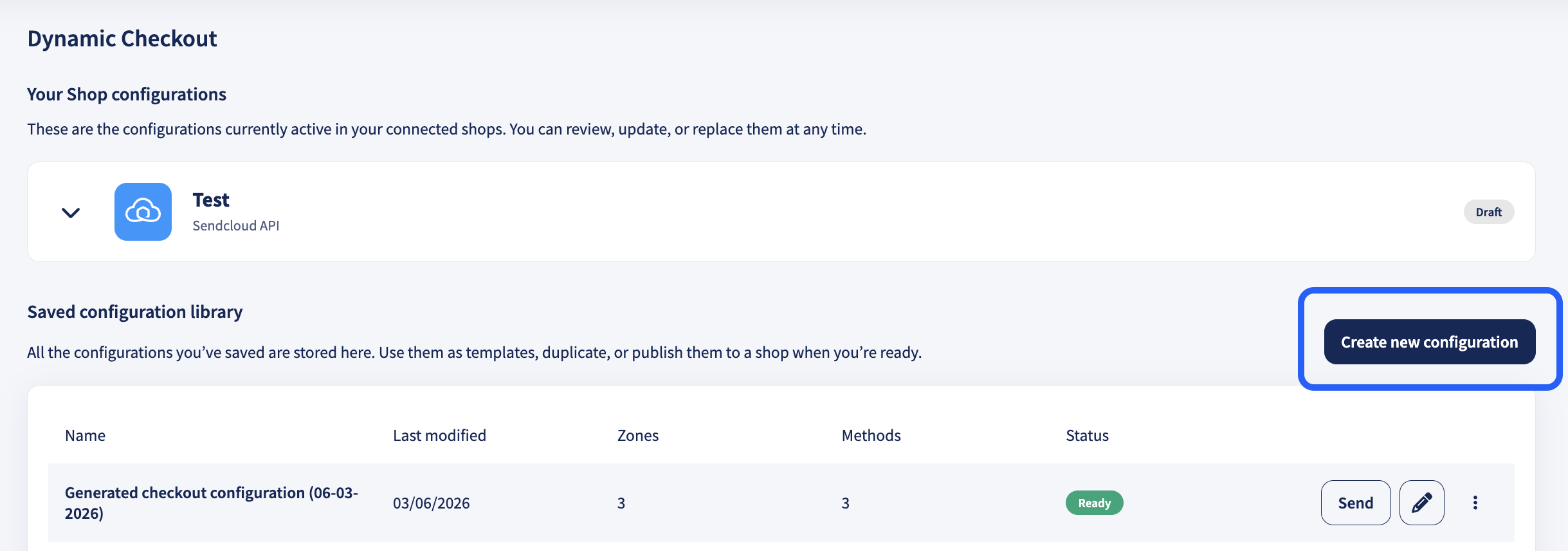
- During the setup, you will complete: Shipping destination → Delivery methods → Carriers → Configuration.
Step 2 Select shipping destination (sender address, time zone, destination)
In Shipping destination, select:
-
Sender address (the warehouse or location you ship from).
Make sure the correct sender address is selected in your configuration. You can change it using the dropdown menu.
The sender address determines which carriers and shipping services are available for Same Day Delivery. Selecting the correct warehouse location ensures accurate delivery options and transit times. -
Time zone (this should match the sender address location so cut-off and handover times behave as expected).
The time zone is based on your account settings by default. Make sure it matches the location of the sender address you use to fulfil these orders.
For example, if you ship from the UK, set the time zone to UTC+00:00 GMT. If you ship from the Netherlands, set the time zone to UTC+01:00. -
Destination country or countries you want to offer this configuration for.
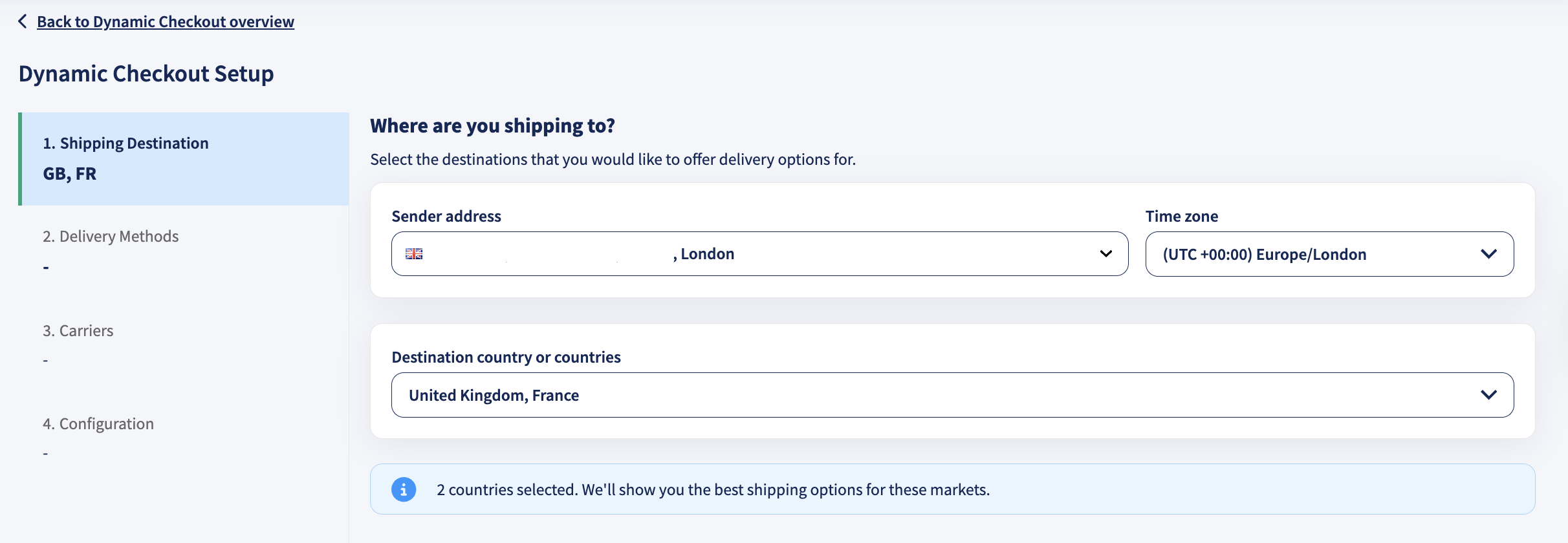
Important: Same Day Delivery is only available if you have an active sender address in the selected country and a supported carrier that provides same-day services.
When you are done, continue to Delivery methods.
Step 3 Choose delivery methods (enable Same Day Delivery)
In Delivery methods, select which delivery methods you want to offer. Enable Same Day Delivery.
You can enable additional methods, such as Service Point, Standard Delivery, or Nominated Day Delivery, now or add them later from the configuration overview.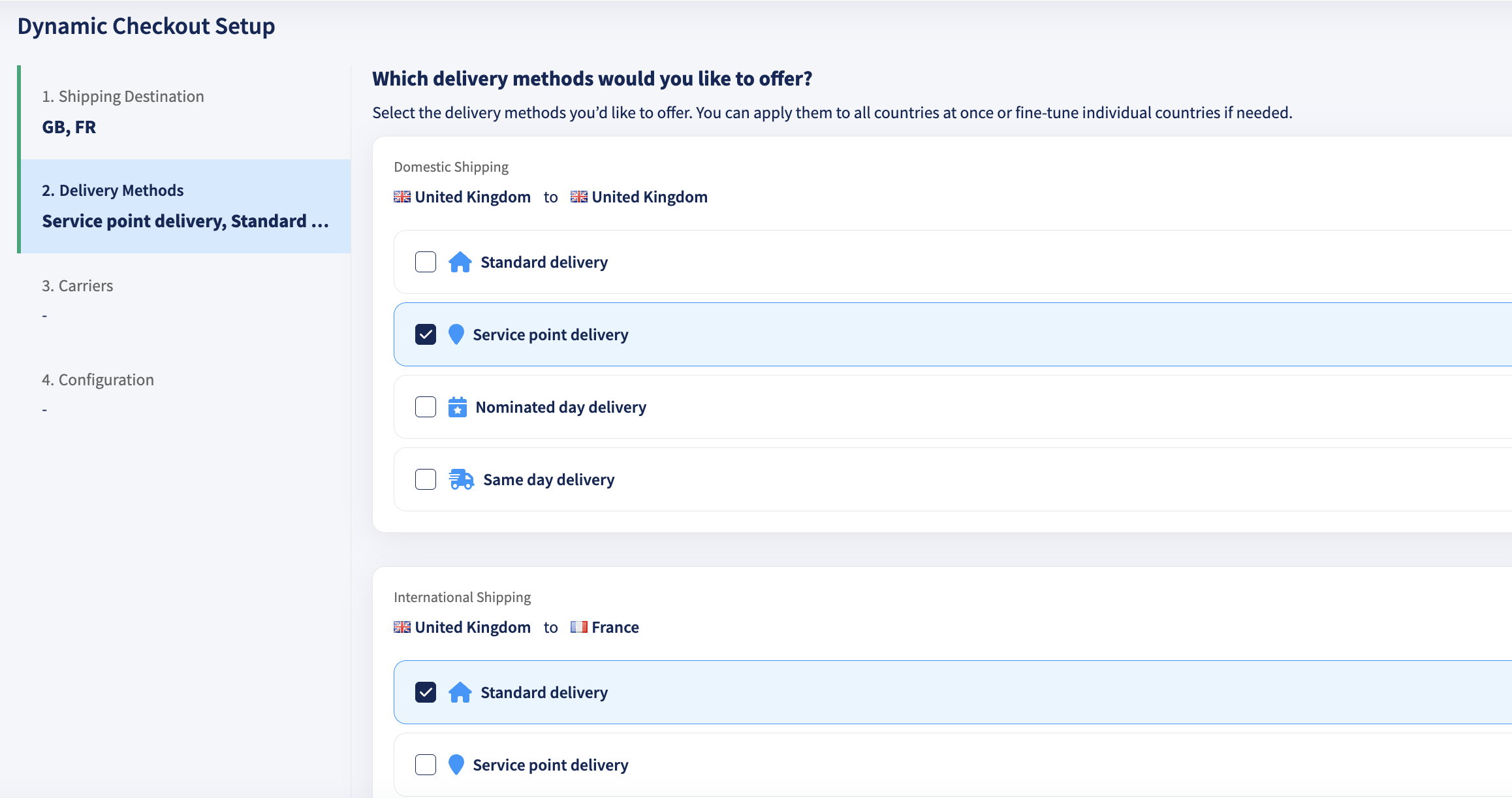
Step 4 Select your carrier or carriers
After enabling Same Day Delivery, go to Carriers and choose the carrier or carriers you want to offer at checkout for the selected destination or destinations.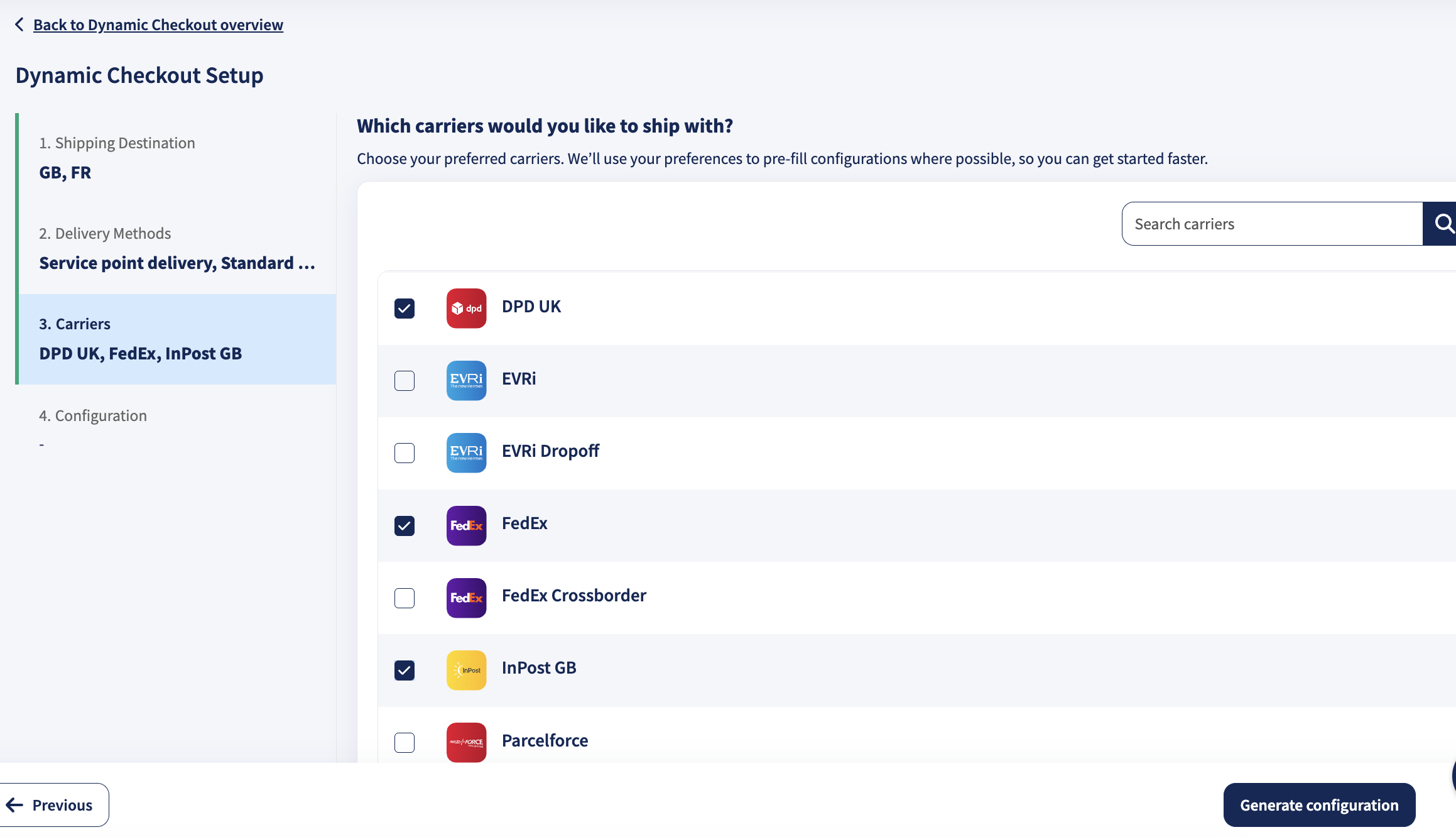
Use the carrier search if needed, then continue to Configuration.
Step 5 Review the generated configuration
In Configuration, Dynamic Checkout generates a configuration based on your selections. From here you can:
- Edit excluded postal codes for a destination.
- Add a new destination to extend the configuration.
- Add a new delivery method.
- Use the pen icon to open the delivery method editor and fine-tune the method.
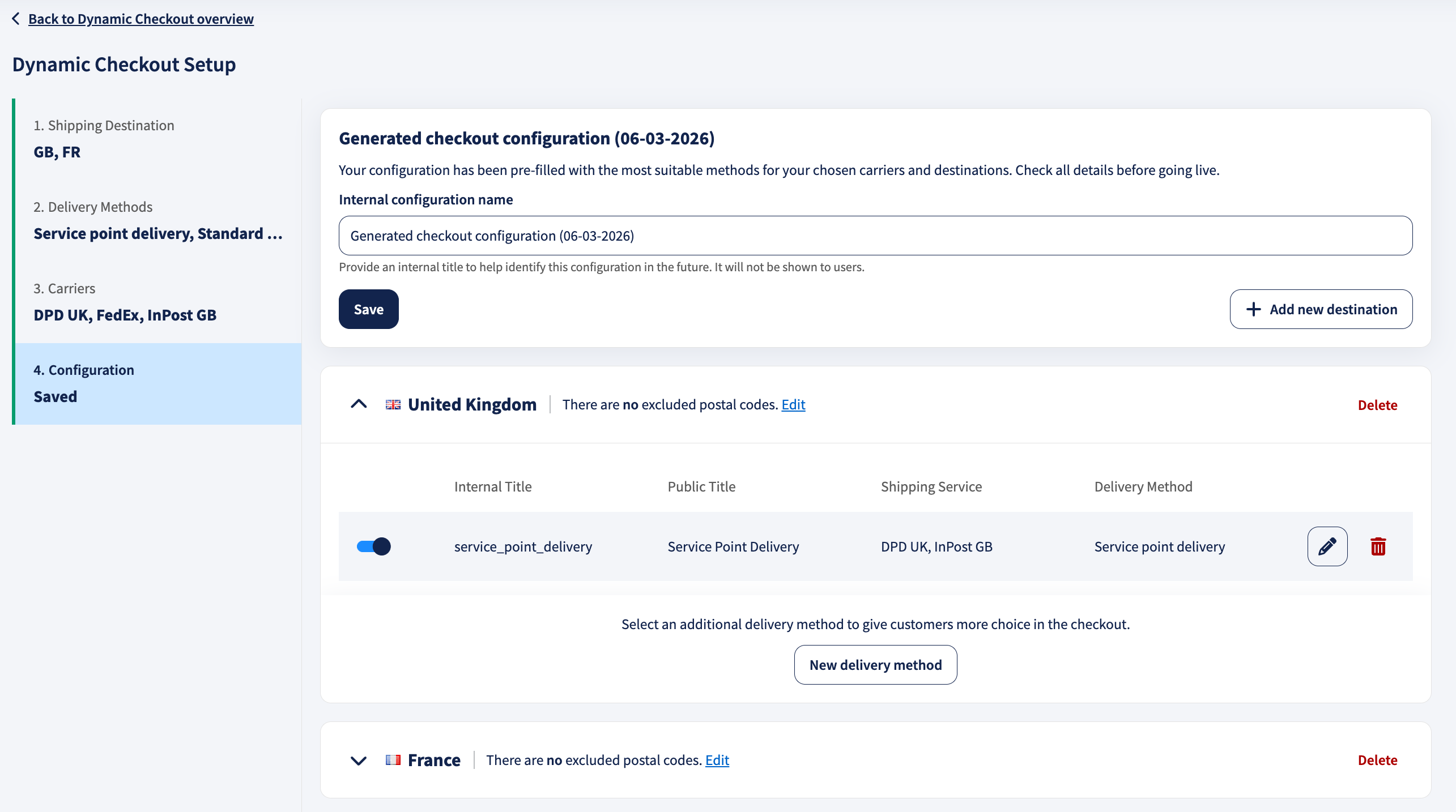
Step 6 Edit the Same Day Delivery method in the delivery method editor
Click the pen icon next to your Same Day Delivery method to open the editor.
The editor contains the same core sections as other delivery methods: Shipping service, Shipping rates, Handover schedule, Checkout rules, and General details.
For Same Day Delivery, the most important part is the Handover schedule, because it controls the operational window in which customers can select Same Day Delivery at checkout.
6.1 Shipping service
In Shipping service, select the shipping service you want to use for Same Day Delivery. A shipping service is a group of carrier methods. Sendcloud maps the best-matching underlying method automatically based on your configuration, such as weight classes and the selected settings.
Q: What is a shipping service?
A shipping service is a group of related shipping methods offered by a carrier. The specific shipping method is selected automatically when the order is imported, based on factors such as order weight and the configured settings.
If you only see a limited set of services, it is usually because only those services match Same Day Delivery requirements for your origin, destination, and enabled carriers or contracts.
Q: Can I select shipping functionalities, such as signature or age check, for Same Day Delivery?
It depends on the shipping service you select. Some services include multiple underlying shipping methods with different characteristics, for example with or without signature. In that case, Sendcloud may allow you to choose additional shipping method options in the editor.
If you do not see selectable options, it usually means that:
- The selected shipping service contains only one shipping method.
- All shipping methods in the service include the same functionalities, so Sendcloud applies them automatically.
- The carrier predefines the functionality, for example if signature is always included.
Tip: when selecting a shipping service, use + add filter if it is available to filter services by the functionalities you need.
Q: Why can I not see any carriers to select?
If no services appear, it may be because:
- You do not have a direct contract with a Same Day carrier.
- The carrier is not enabled in your account.
- No eligible same-day shipping methods are available.
Refer to the list of supported Same Day carriers earlier in this article.
6.2 Shipping rates
In Shipping rates, enable Set shipping rates in Sendcloud to set the checkout price for Same Day Delivery. Sendcloud can fetch these rates for you automatically instead of entering them by hand.
Because Same Day Delivery is typically a premium service, many merchants set a higher or fixed rate to reflect operational costs.
Optional: If available in your account, configure free shipping from a specific order amount.
Read How to add Dynamic Checkout rates for the full walkthrough, including when automatic fetching applies, weight classes, and free shipping.
6.3 Handover and cut-off times (handover schedule)
The Handover schedule determines:
- On which days Same Day Delivery can be offered, called handover days.
- During which hours it is visible at checkout, called start time and end time.
- Until what time customers can still select it, called the cut-off time.
- Whether you want to adjust the default transit time estimate, called override transit time, if shown.
- Which dates should be blocked entirely, called Closed day(s).
Because Same Day orders must be processed and handed over on the same calendar day, these settings must reflect your real operational capacity and the carrier’s collection schedule.
Handover days
Select the days of the week on which you hand parcels over to the carrier, either via collection or drop-off. If a day is not selected, Same Day Delivery will not be available on that day.
Start time and end time (visibility)
These times determine when the delivery method is visible at checkout. They do not automatically change carrier handling, but they help you control when customers can choose Same Day Delivery.
- Example: If your warehouse starts processing Same Day orders at 09:00, you can set the start time to 09:00.
Cut-off time
The cut-off time is the latest time customers can select Same Day Delivery. After this time, the delivery method disappears from checkout for the remainder of the day.
- Example: If your cut-off time is 15:00 and a customer places an order at 15:05, Same Day Delivery will no longer be available.
When setting the cut-off time, consider:
- Your warehouse working hours and picking and packing time.
- Your carrier’s collection schedule.
- Distance, region constraints, and realistic delivery capability.
Override transit time (if available)
Some screens show an override transit time field in hours. Carriers provide a default transit time estimate, but you can override it if your agreement differs. For Same Day Delivery, this can be useful if the default estimate does not reflect your actual service level.
Closed day(s)
Use Closed day(s) to block specific dates when you will not hand over parcels, for example public holidays, warehouse closures, training days, or planned downtime. If a date is marked as closed, Same Day Delivery will not appear at checkout for that date.
Enable Closed day(s), then click + Add Closed Day(s) to add dates.
6.4 Checkout rules
In Checkout rules, enable and configure rules if you want to automatically show or hide this delivery method based on conditions, for example destination area, basket value, parcel characteristics, or other supported conditions.
With Checkout Rules, you can:
- Display only relevant delivery options based on location, order value, parcel size, or other conditions.
- Create a smoother checkout experience for your customers.
- Improve accuracy in shipping availability and pricing.
To configure Checkout Rules:
- Go to Settings > Checkout Rules.
- Click Create new rule.
- Define your conditions and actions.
- Click Save.
You can find more details about Checkout Rules here.
6.5 General details
In General details, define how Same Day Delivery appears at checkout:
- Public title, which is what the shopper sees.
- Public description, which is optional helper text shown under the title.
- Internal title, for internal identification in Sendcloud.
Click Save in the editor when you are finished. Optional: use Copy method ID if you need the identifier for API or debugging flows.
Step 7 Save the configuration and send it to your shop
Once you complete the setup, click Save and then Complete setup. Your configuration will be available in your Saved configuration library.
From there, you can set it live in your shop by clicking Send and selecting the integration you want to send this configuration to.
- Select your integration.
- Click Send.
Click the pen icon to edit a configuration, or the 3 dots to rename, duplicate, or delete one.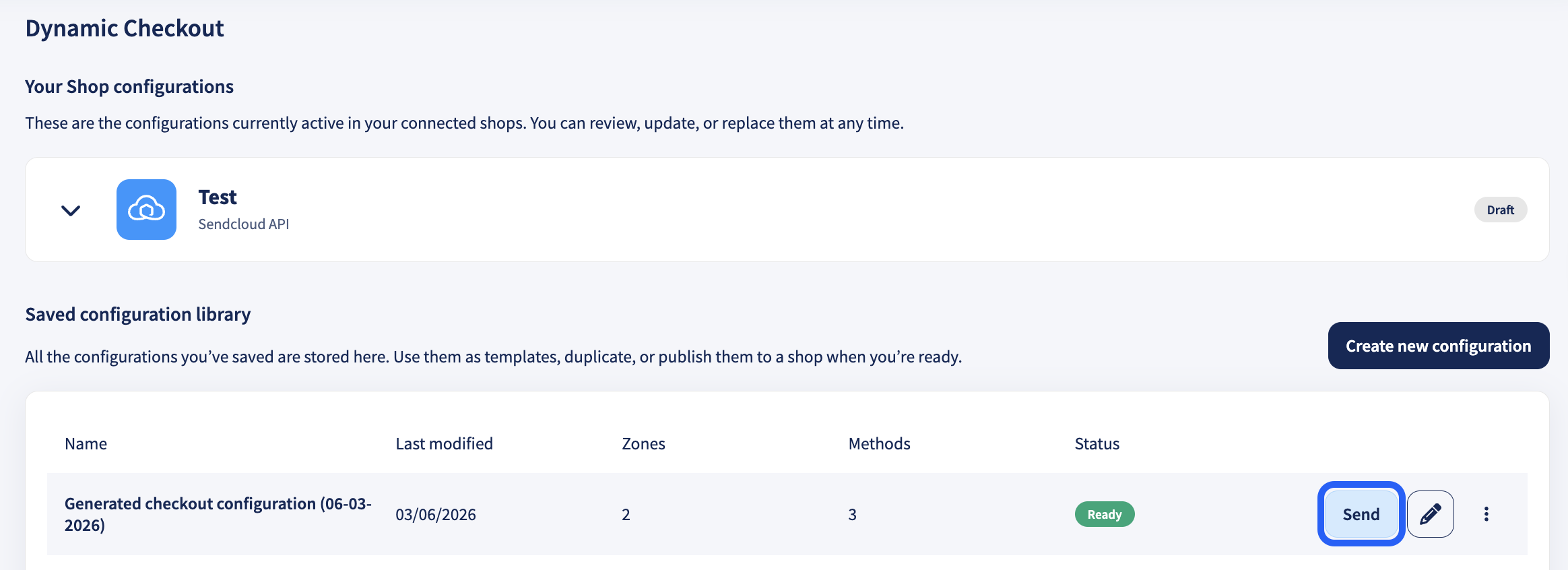
Step 8 Processing orders (Parcel handover date column)
Orders will appear in Shipping > Orders > Incoming order overview.
If you do not want to show that column, customise your column view via the column selector, ≡.
- Orders that must be processed today will show this icon:
- Overdue orders will show this icon:
Because Same Day Delivery requires same-day processing, it is essential to monitor this column closely to avoid missed shipments.
Filter by Parcel Handover Date
-
Filtering Same Day Delivery orders
You can filter your orders using the+ Add filterbutton.
For example, select: Parcel handover date: Anytime. -
Filtering other Dynamic Checkout orders
If you have configured additional delivery options, such as Next Day Delivery or Nominated Day Delivery, you can combine filters such as:- Parcel handover date: Anytime + Country
- Parcel handover date: Anytime + Carrier
Q: I do not want to see the Parcel Handover Date column. What can I do?
You can customise your column view in the Incoming order overview by clicking the column selector button ≡ next to the search bar.
For more information about filtering and adjusting your order overview, see: How to use the + Add filter function.
Q: Can I change the shipping method for a Dynamic Checkout order using shipping rules?
Yes. Shipping rules can also be applied to Dynamic Checkout orders.
The sender address and shipping service defined in your Dynamic Checkout configuration are automatically applied when the order is imported. However, you can:
- Manually change the shipping method or sender address in the order view.
- Use shipping rules to override the automatically assigned shipping method.
To specifically target checkout orders, use the rule condition: Is Dynamic Checkout order.
Please note: When changing shipping methods for Nominated Day Delivery or Same Day Delivery options, always verify the transit time. Switching to a method with a longer transit time may affect the delivery date shown to your customer.