
Purpose: Learn how to connect your Artbook Society shop to your Sendcloud account.
Before you start
To use the Artbook Society integration with Sendcloud, you'll need:
- An active Artbook Society account
- An active Sendcloud account
- Your Sendcloud account setup completed, including carrier selection and sender address
Connect your Artbook Society account to Sendcloud
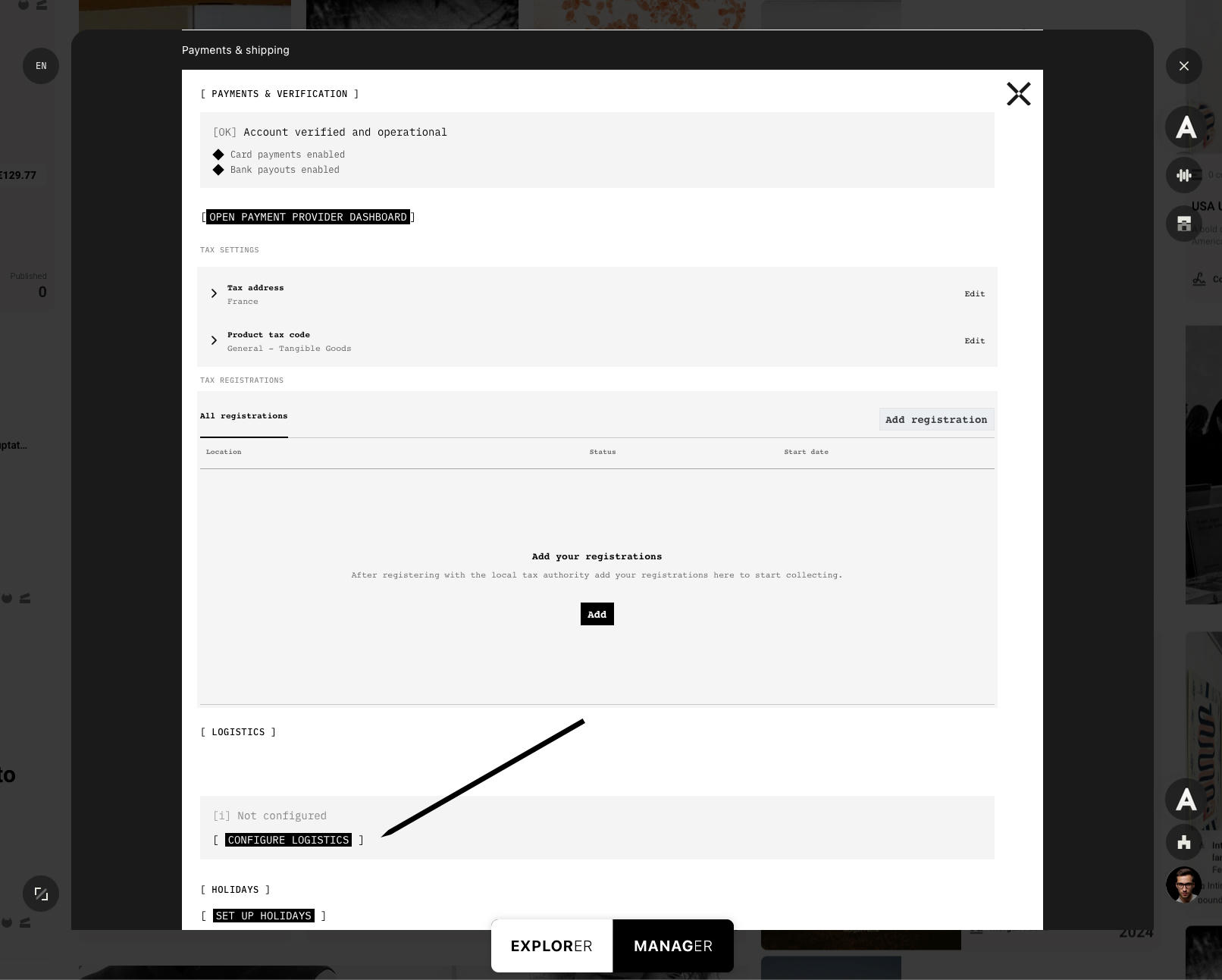
- In Artbook Manager, go to Account settings > Payments & shipping. If logistics hasn't been set up yet, the Logistics section shows Not configured. Click Configure logistics.
- On the next screen, choose whether to create a new Sendcloud account or connect an existing one, then click Continue.
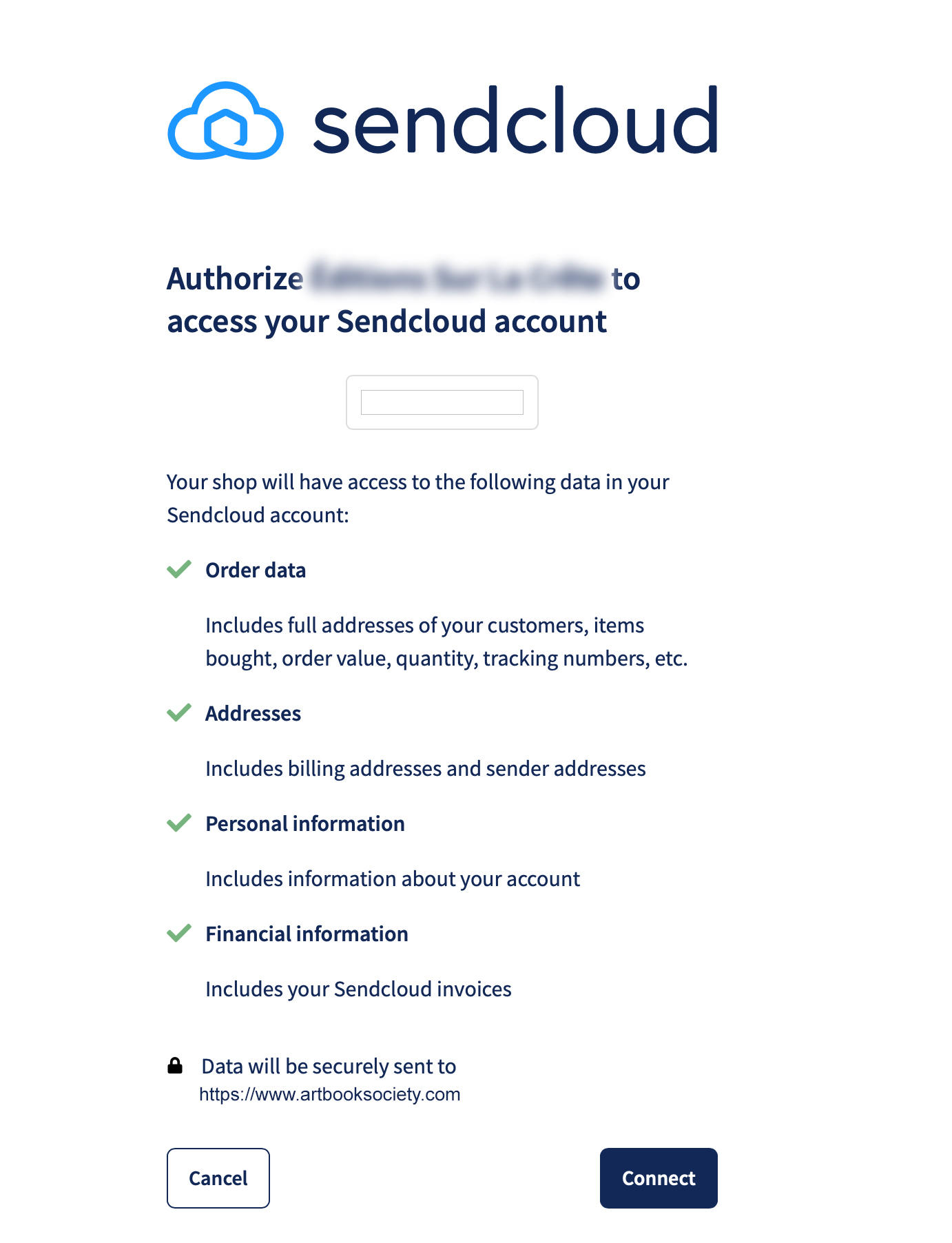
- You'll be redirected to the Sendcloud connection page. Log in to your Sendcloud account, if prompted. Review the requested permissions and authorize the connection by clicking Connect.
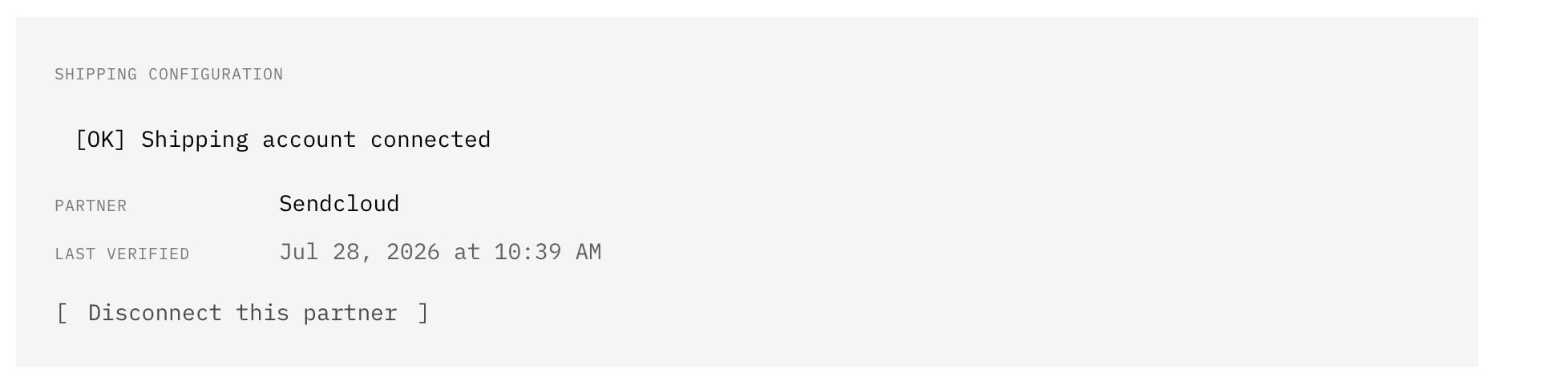
- Once authorized, you'll be redirected back to Artbook Manager. The Logistics section now shows the connection is active.
Sign in to Sendcloud with the account you want to use for shipping Artbook Society orders. If you don't have a Sendcloud account yet, you can create one during step 2.
Do you need extra help connecting your integration? Check our troubleshooting guide or contact us by logging a support ticket from your Sendcloud account.