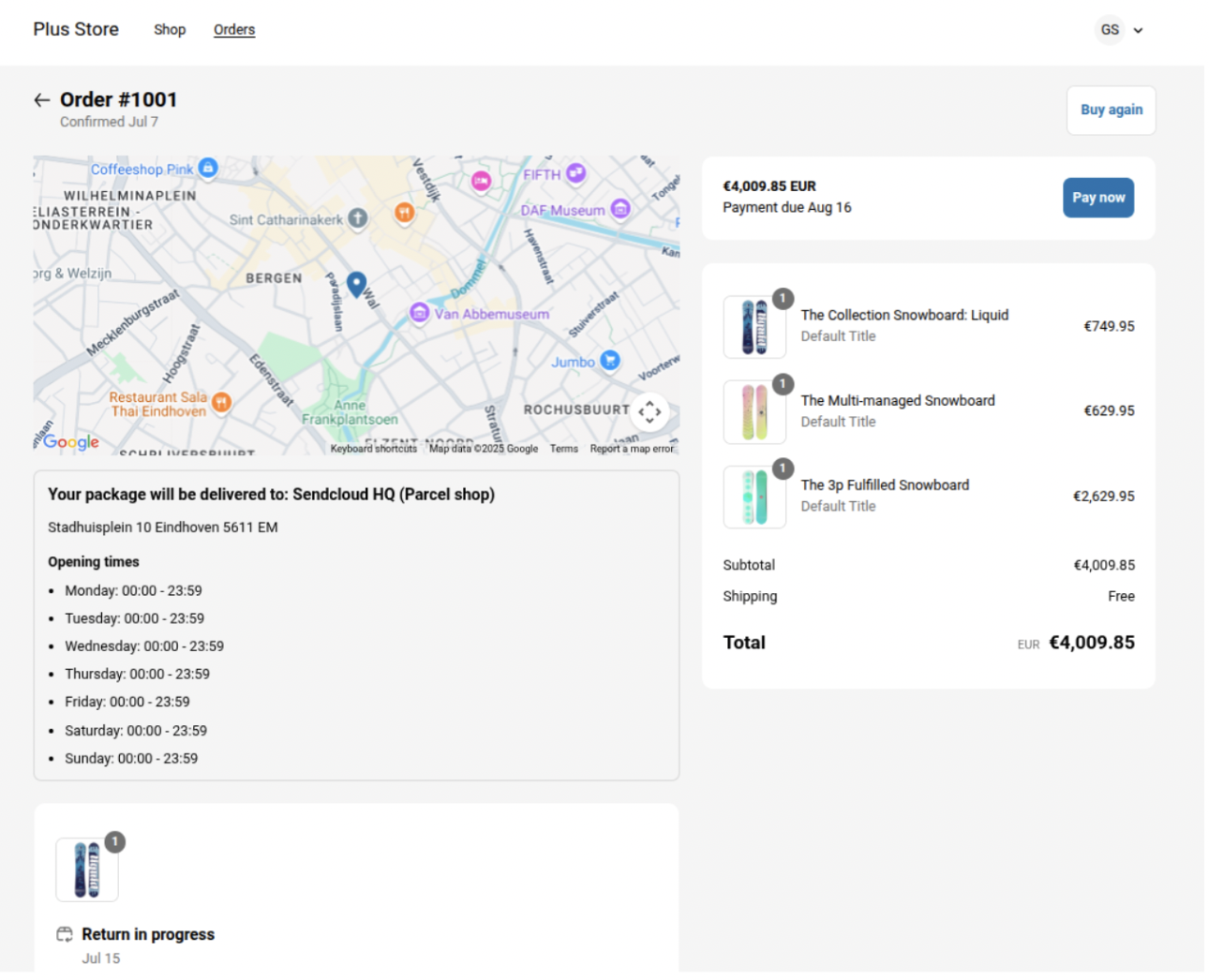
Purpose: This guide will walk you through the process of setting up service points in your Shopify checkout using Sendcloud.
Related articles
Before You Begin: Know Your Shopify Plan
| Your Plan | Where customers choose service points | Where customers see selected service point information |
| Shopify Plus | On the checkout page |
On the thank you page On the order confirmation page |
| Shopify Non-Plus | On the thank you page, after checkout | On the order confirmation page |
Step 1: Set Up Service Points in Sendcloud (applies to all Shopify plans)
- Go to your Sendcloud panel.
- Navigate to Settings > Integrations.
- Click Configure under your Shopify shop integration.
- Enable the Service Points option.
- Choose carriers from the Carriers list
- Click Save.
✅ Sendcloud is now ready to handle service point delivery.
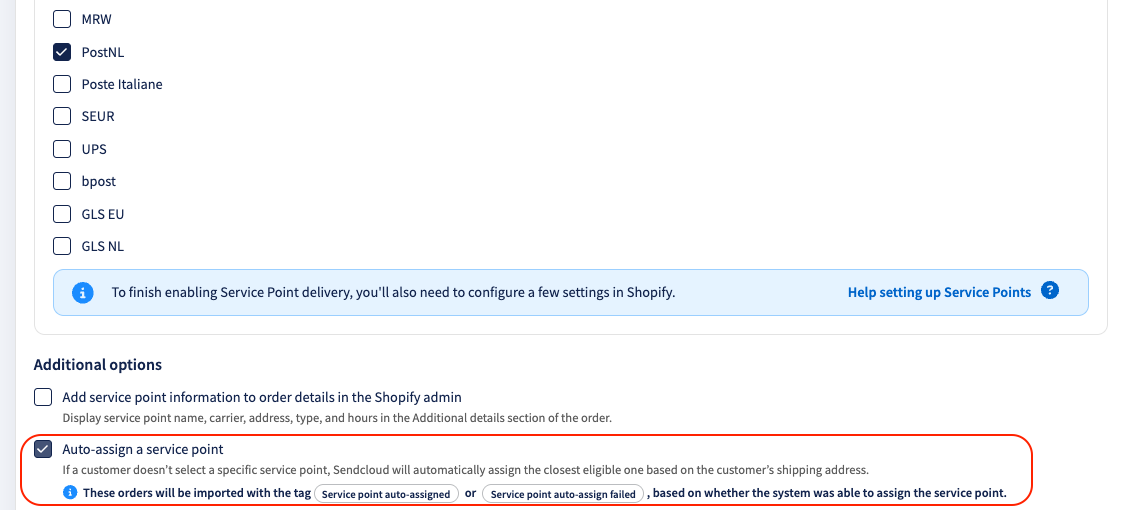
Auto-Assign Service Points (enabled by default)
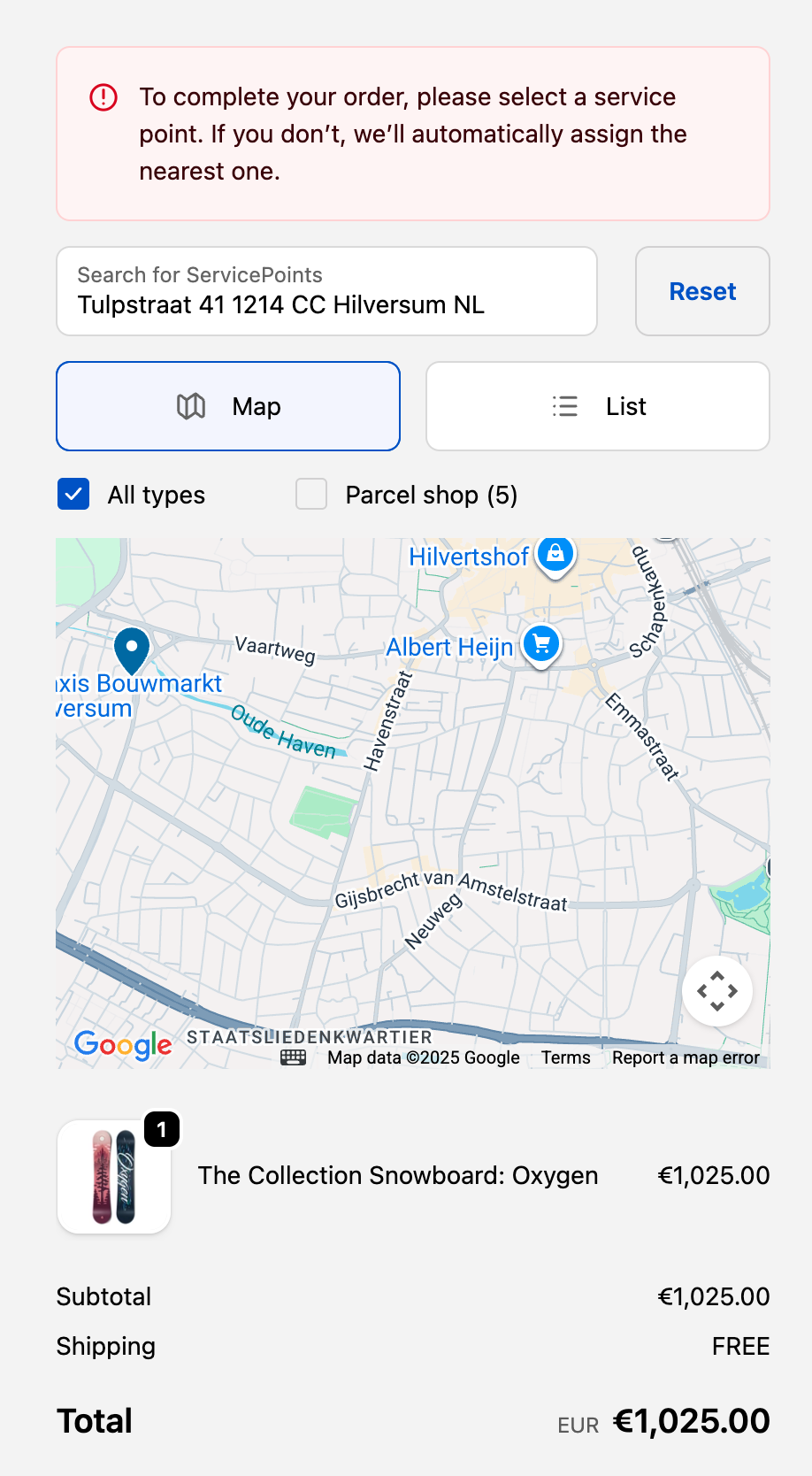
Auto-Assign Service Points is enabled by default for Shopify integrations. If a customer completes checkout without selecting a service point, Sendcloud automatically assigns the nearest available service point based on the shipping address, selected carrier, and delivery method. This helps ensure that service point delivery orders always include a valid service point, even when the selection step is skipped during checkout.
When a service point is automatically assigned, customers see an updated notification on the Thank You page. Customers can still review or change the assigned service point on this page.
See the notification message here
Manage Auto-Assign settings
- Go to Settings > Integrations in your Sendcloud panel.
- Open your Shopify integration.
- Disable/enable Auto-assigning a service point.
- Save your changes.
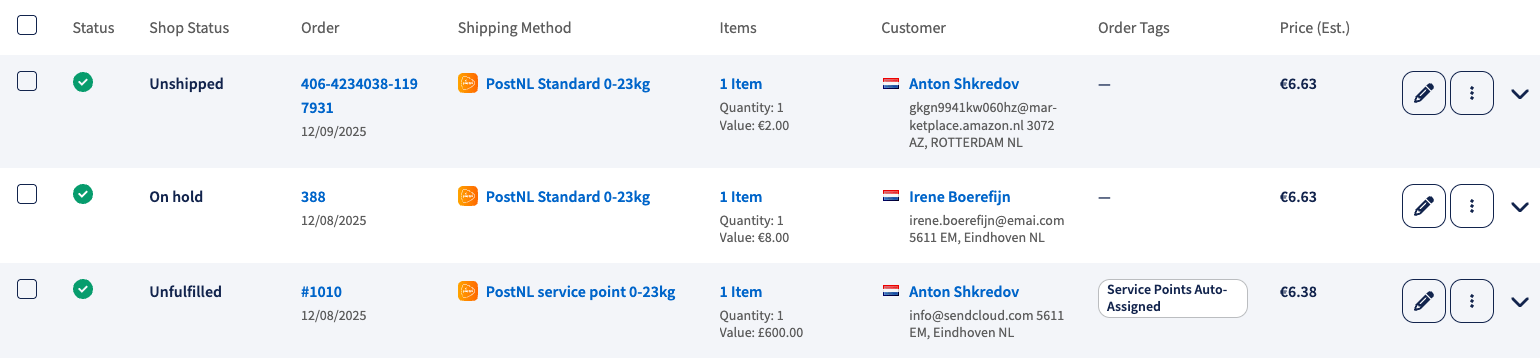
Order tags in Sendcloud
If a customer does not select a service point during checkout, Sendcloud automatically assigns one. These orders are tagged in Sendcloud as "Service point auto-assigned" or "Service point auto-assign failed" (if no suitable service point is found), making them easy to identify in Sendcloud. These tags are not visible in Shopify.
Step 2: Set up Carrier Delivery methods and shipping rates in Shopify
- Go to Settings > Shipping and Delivery in Shopify.
- Under “Shipping,” open General shipping rates.
- For each Shipping Zone, click Add rate.
Name your rates like this:
- Service Point Delivery UPS
- Service Point Delivery PostNL
- Or just: Service Point Delivery (to show all the available carriers at once)
See image here
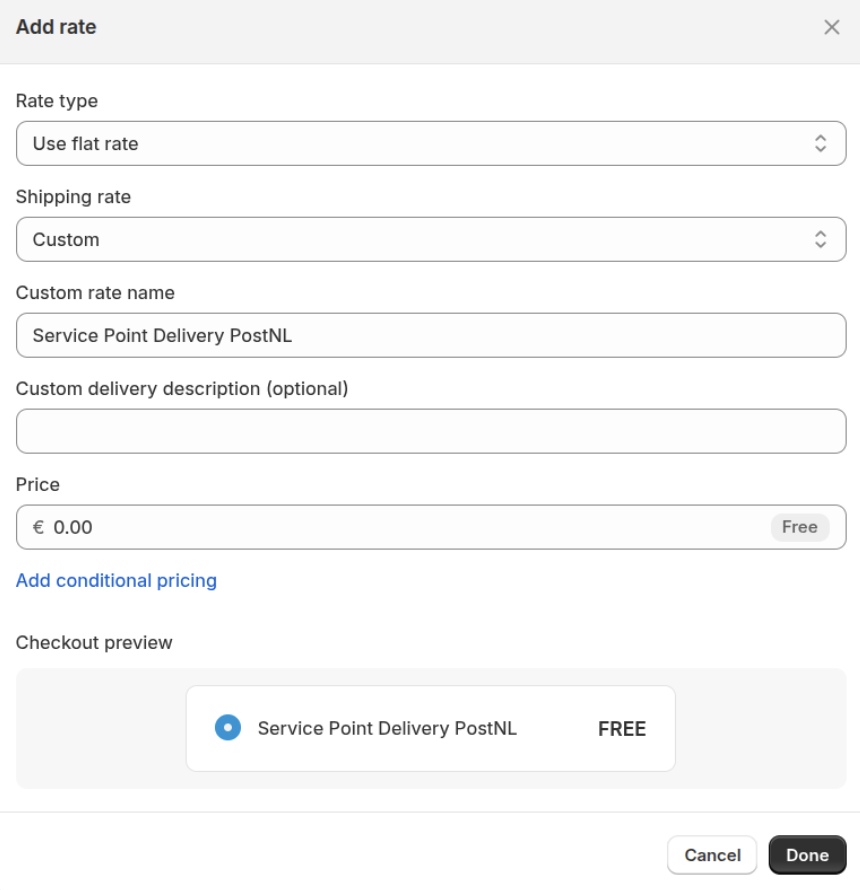
For multilingual stores, use these translations:
- 🇬🇧 English: Service Point Delivery
- 🇳🇱 Dutch: Servicepunt
- 🇩🇪 German: Paketshop Zustellung
- 🇫🇷 French: Livraison en Point Relais
- 🇪🇸 Spanish: Recogida en Punto de Servicio
- 🇮🇹 Italian: Consegna al Punto di Servizio
Valid Service Point names per language
German
- Servicepunt Levering
- Paketshop Zustellung
- Paketshopzustellung
French
- Livraison en Point Relais
- Livraison Point Relais
- Service Point Relais
Spanish
- Recogida en Punto de Servicio
- Punto de Servicio
Italian
- Consegna al Punto di Servizio
- Consegna al Punto di Ritiro
- Consegna al Pick Up Point
- Consegna al Punto di Raccolta
- Punto di Servizio
- Punto di Ritiro
- Punto di Raccolta
English
- Service Point Delivery
- Pick Up Point
- Service Points
- Click & Collect
- ParcelShop Delivery
- Parcel Shop Delivery
- Pickup Shop
- Pickup Point
- Local Collection Point
- Collection Point
- Locker Delivery
- Lockers & Shops
- Collect from Lockers & Shops
- Pickup from Lockers & Shops
- Click & Collect – Lockers & Shops
Dutch
- Postpunt
- Afhaalpunt
- Servicepunt
- Servicepoint
- Service-point
- Service point
- Ophalen bij PostNL Locatie
- Pickup Location - DHL/Postnl Pickup Location
Add it under “Custom delivery description,” for example:
"(Select your service point after payment)"
See image here
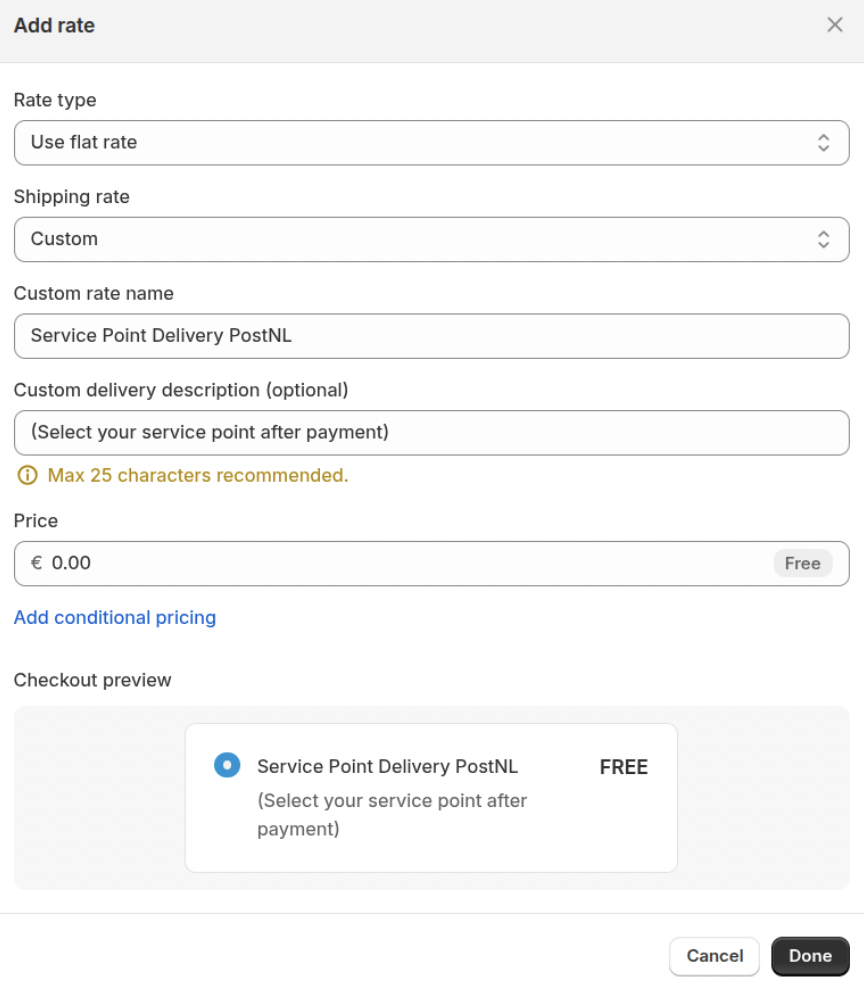
Check Shopify’s native pickup point map
Shopify offers a native feature that allows pickup points to be displayed directly from the shipping settings.
If this option is enabled at the same time as Sendcloud pickup points, two pickup point maps may appear at checkout, which can be confusing for your customers.
When using Sendcloud pickup points, we recommend that you disable the following Shopify option:
“Ship to pickup points from shipping”
How to check this setting:
- In your Shopify admin, go to Settings > Shipping and delivery
- Check whether the option “Ship to pickup points from shipping” is enabled
- Disable it if you want to use only the Sendcloud pickup point selector
Step 3: Choose based on your Shopify plan
Shopify Plus
Setup instructions: add Service Point Picker to Checkout
Watch the video
Note: If the video appears blurry, please change the quality to 1080p.
- In your Shopify Admin, go to Settings > Checkout.
- Under “Checkout configuration,” click Customize.
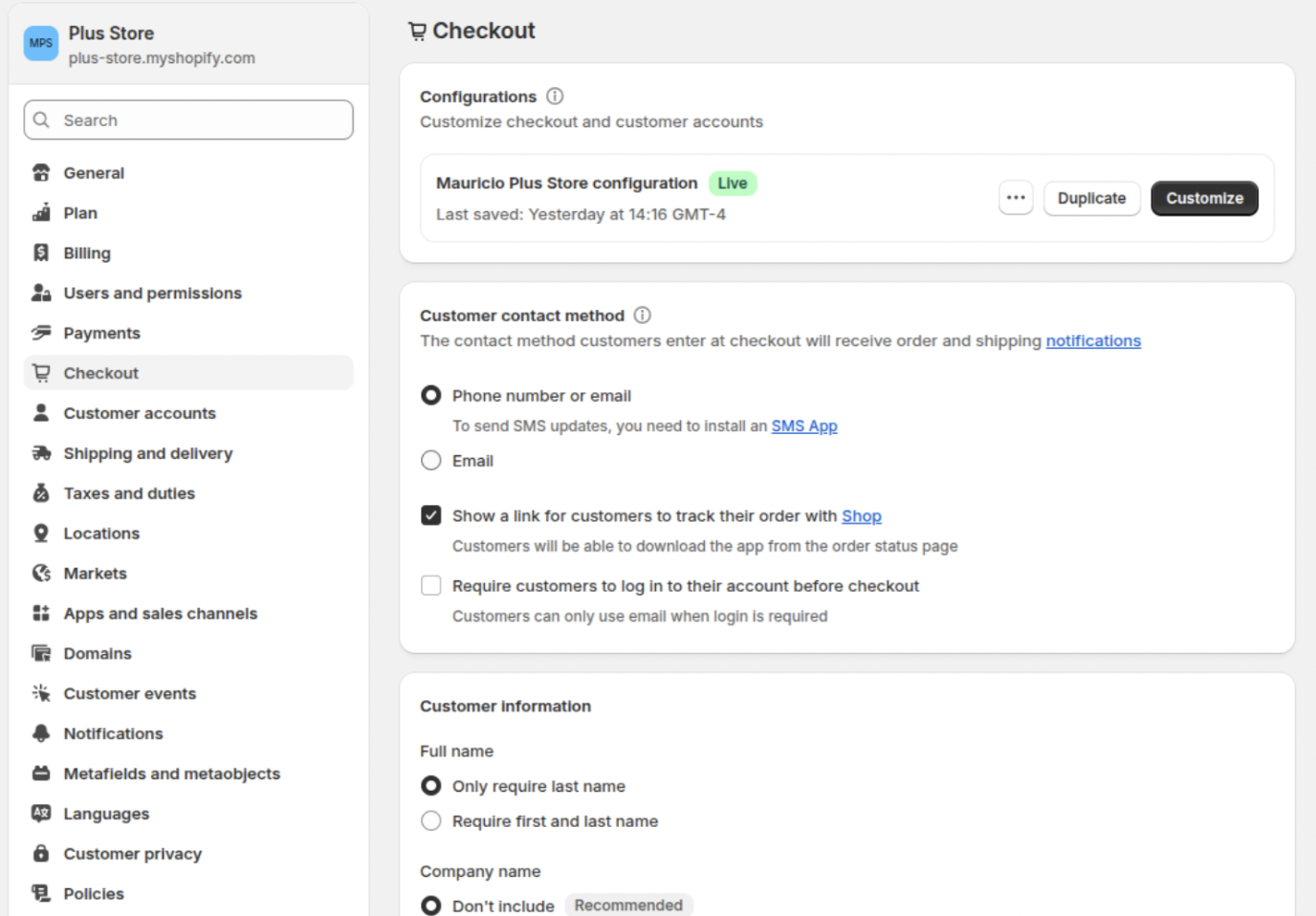
- In the theme editor, select Checkout from the dropdown menu.
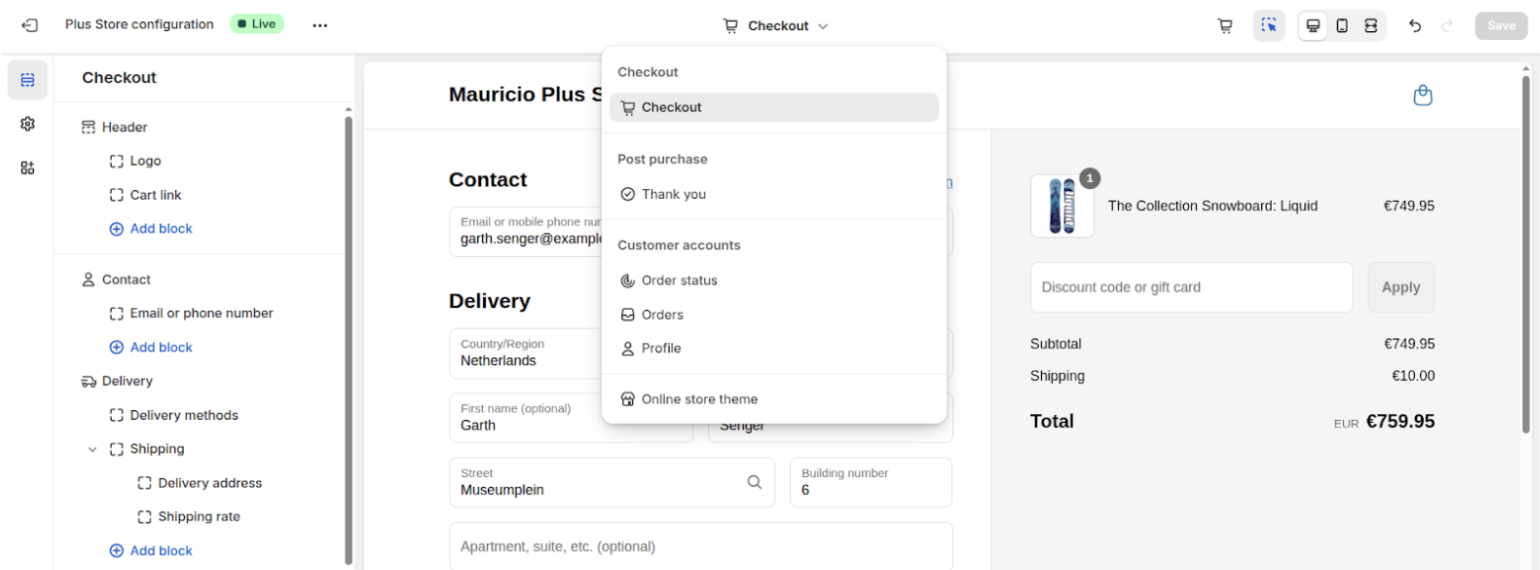
- At the bottom-left, click + Add app block.
- Choose Shopify Plus Service Picker.
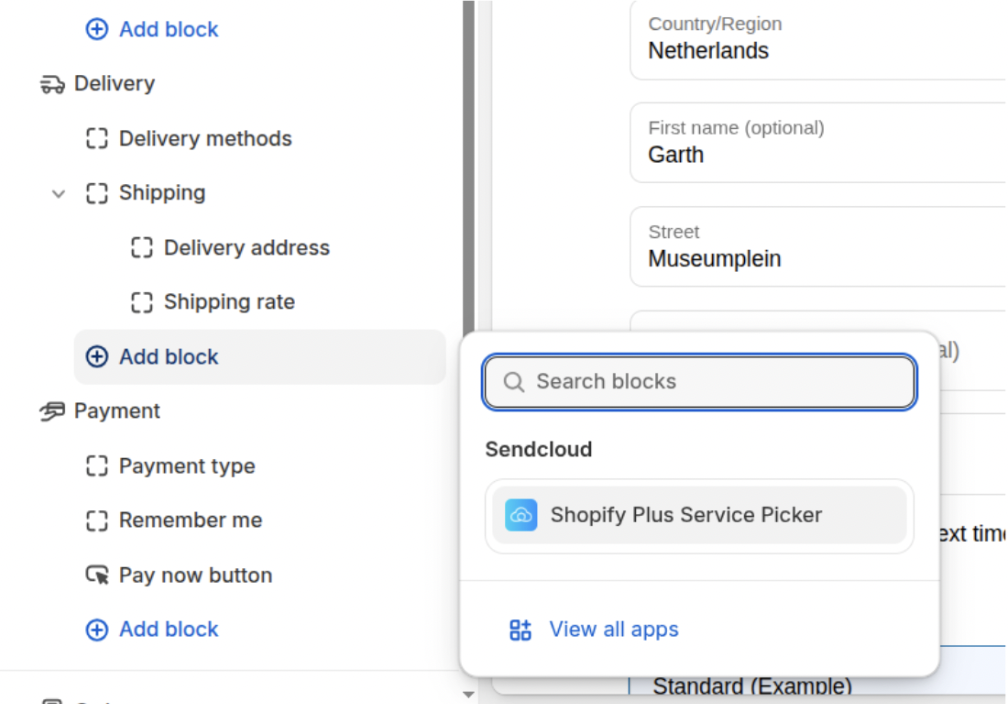
- Click Save (top-right)
Your customers can now choose a pick-up point at checkout!
Enforce service point selection with Express Payment (Shopify Plus only)
Shopify offers two different ways for customers to pay quickly: Express payment methods and Express checkout buttons. These options behave differently when it comes to selecting and validating a service point.
Express payment methods
These are express payment options selected during the regular checkout flow, after the customer has entered their shipping details, such as PayPal, Apple Pay, Google Pay, and Shop Pay.
When these payment methods are used, Shopify still processes the cart through its standard checkout flow, so we recommend enabling the Cart validation function to ensure a service point is selected before checkout is completed.
How to enable:
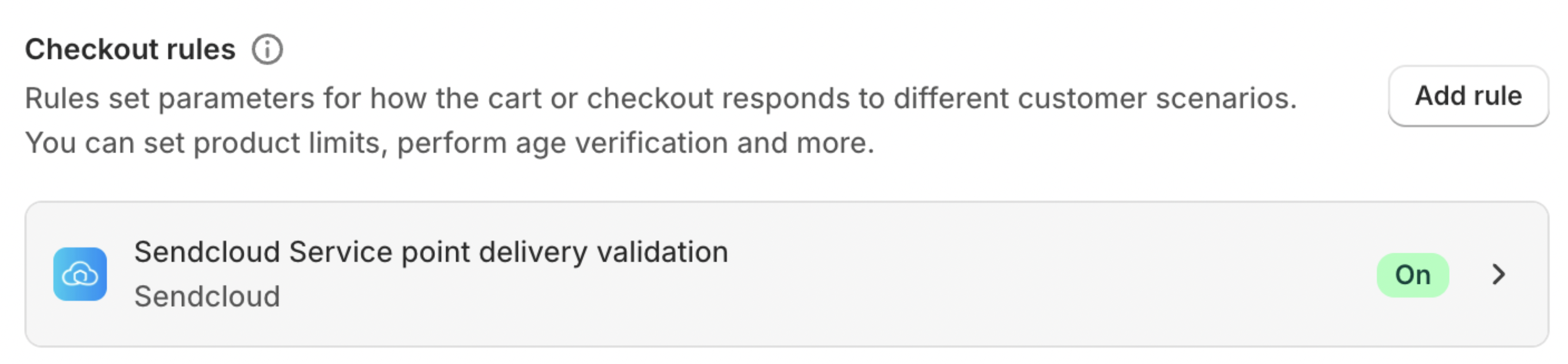
- In your Shopify Admin, go to Settings > Checkout > Checkout rules.
- Click Add rule.
- Select Sendcloud Service point delivery validation from the list.
- Click Save, then Turn on.
Express checkout buttons
These are payment buttons shown at the top of the Shopify checkout page that allow customers to pay immediately, without completing the regular checkout flow. Examples include PayPal, Apple Pay, and Google Pay.
Because these buttons bypass Shopify’s regular checkout flow, cart validation is not applied, so customers cannot select or validate a service point when using them.
Shopify Non-Plus
Setup instructions: add Service Point Picker to Checkout
Watch the video
Note: If the video appears blurry, please change the quality to 1080p.
- In your Shopify Admin, go to Settings > Checkout.
- Under “Checkout configuration,” click Customize.
- In the theme editor, select Thank You from the dropdown menu
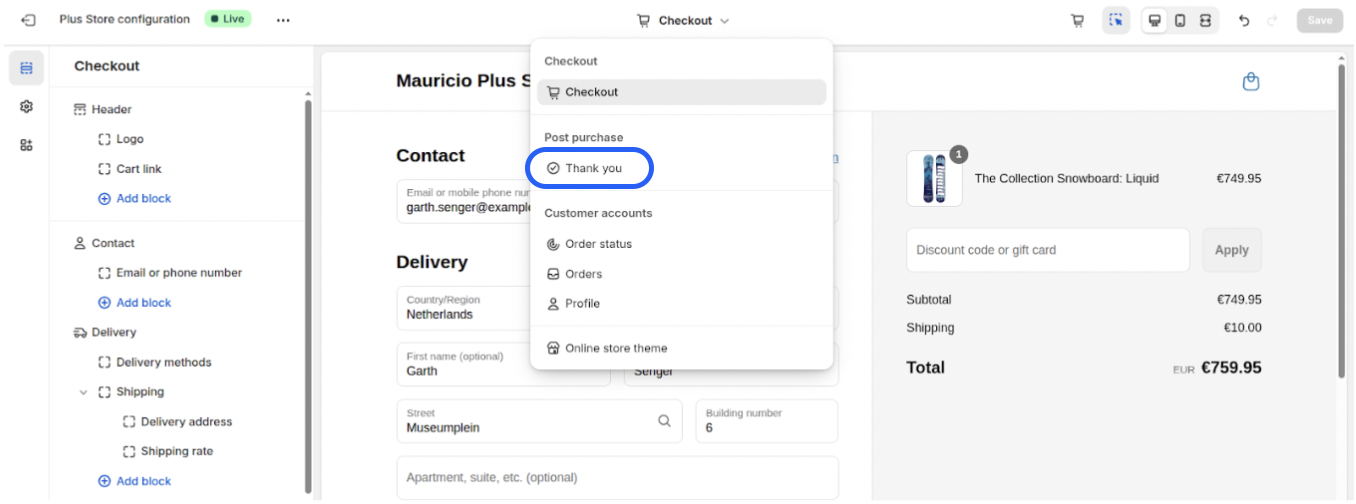
- Click + Add app block.
- Choose Non-Plus Service Point Picker.
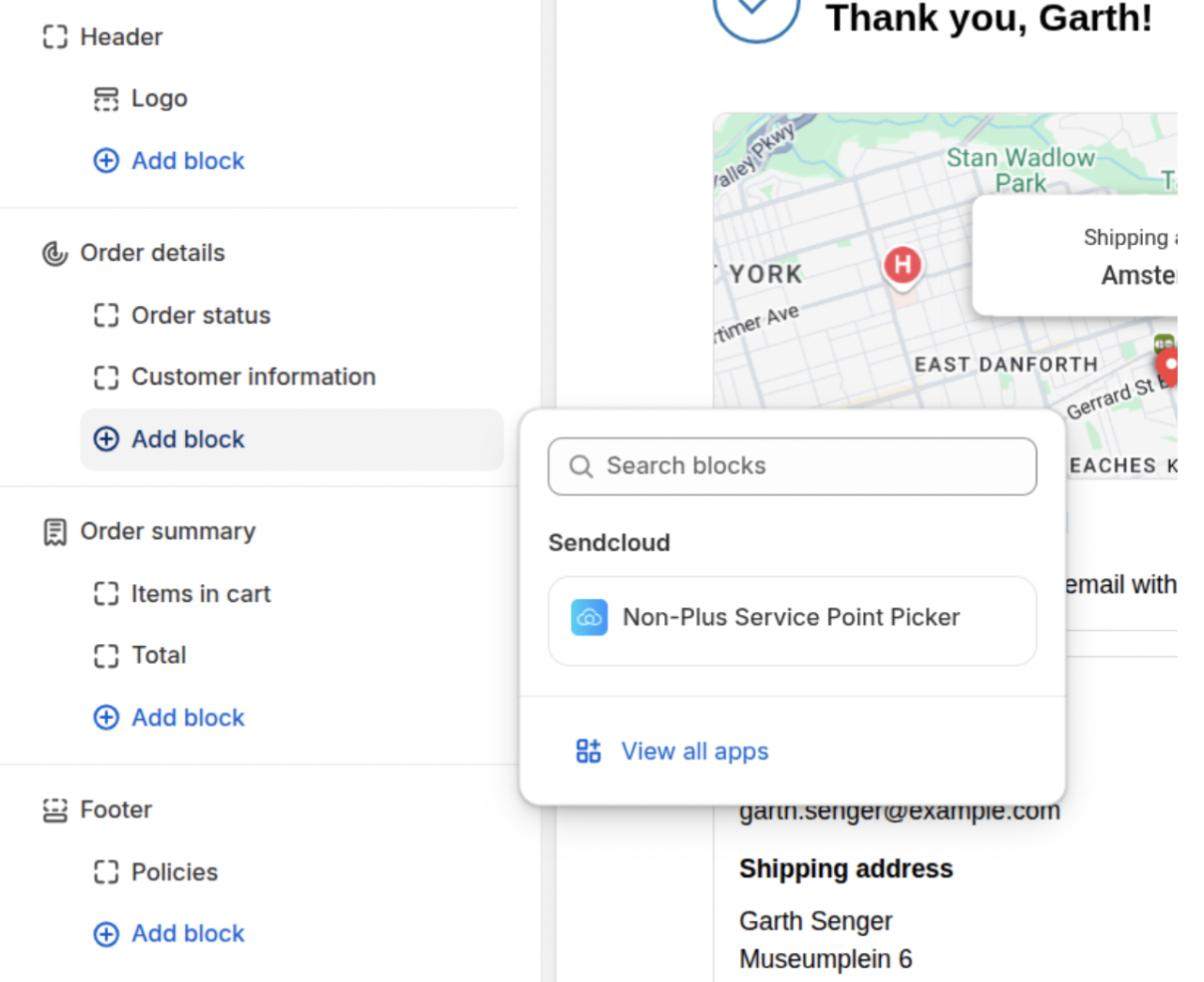
- Click Save (top-right).
Your customers can now choose a pick-up point at checkout!
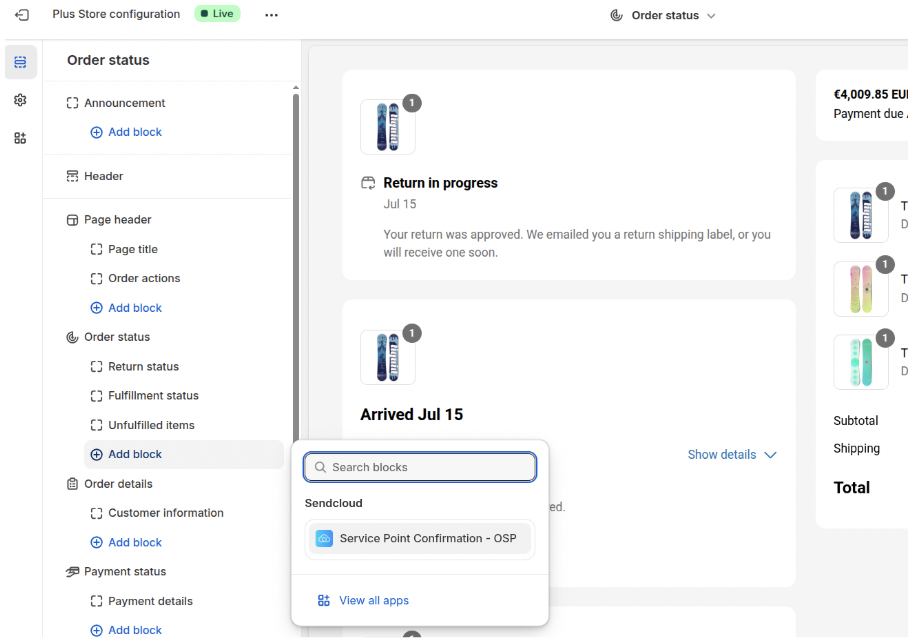
Step 4 (Optional): Show pick-up Point on Order Status Page (applies to all Shopify plans)
Let customers view their selected point (with map + opening hours) after placing their order.
To enable:
- Go to Settings > Checkout > Customize.
- From the dropdown, select Order Status.
- Add the app block: Service Point Confirmation.
- Drag it into position.
- Click Save.
How customers access it:
They’ll get an order confirmation email with a “View my order” button. That link takes them to the Order Status page with map + opening hours.