
Purpose: Learn how to create a return for an international order from outside the EU, and which shipping options you can use.
How to create an international return
There are two ways to create an international return in your Sendcloud panel: from an outgoing shipment, or with the return form. You can also let customers create international returns in your return portal. For the shipping options you can use, see Available shipping options for international returns.
Method 1: Create a return from an outgoing shipment
If the original shipment was created in Sendcloud, the return form is filled in with its details, including the customs information of the items. You don't need to enter it again.
- Go to Shipping > Orders and click Shipped.
- Find the shipment you want to create an international return for, and click the eye icon to open its details.
- Click Actions and select Create return.
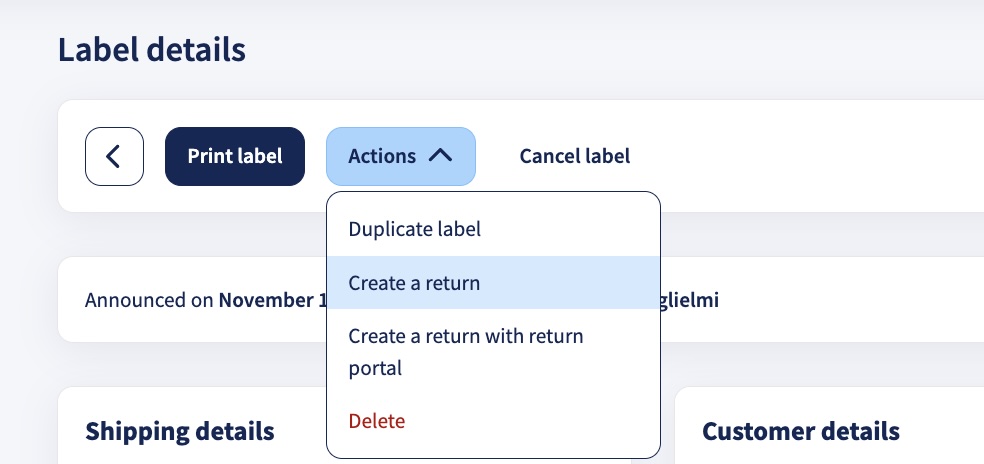
- Check the details in the return form. Remove any items that aren't being returned.
- Select an international return shipping option and click Create label.
- Go to Returns > Overview > In Transit and click the eye icon next to the return you created. Click Actions to download the customs documents and send them to your customer. If you didn’t tick Send return label to the customer when you created the label, click Resend return label to email it to your customer.
Method 2: Create a return with the return form
If the original shipment wasn't created in Sendcloud, create the return with the return form and enter the customer, customs and item details yourself. To open the form, go to Returns > Overview and click + New return.
Step 1 Fill in your shipment details
In Your shipment, fill in:
- Return address: the address the parcel is sent back to. To add a return address, go to Settings > Addresses.
- Incoming order number (optional): the order number of the original order, so you can match the return to it later.
Step 2 Select a brand
If you use more than one brand, select the brand this return belongs to in Select a brand. To learn more about brands, see How to set up your brand.
Step 3 Enter the customer's details
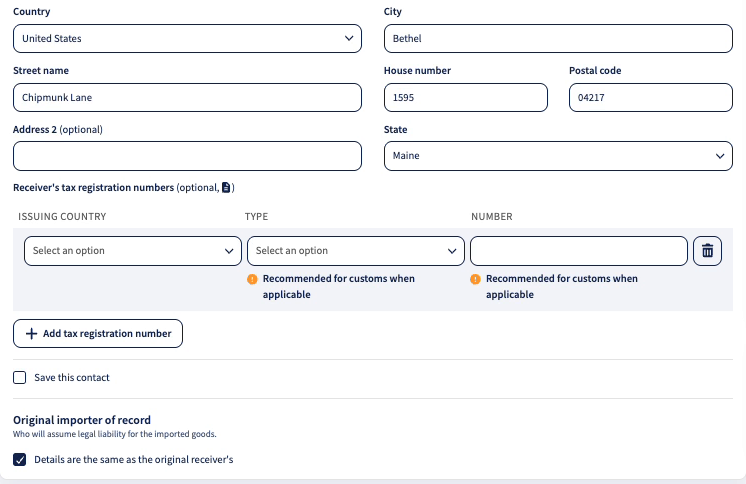
In Customer information, under Sender (original receiver), enter the details of the customer who received the order and is sending it back, including their country. If you saved this customer before, select them from the dropdown, or search by name or address.
When the customer's country requires customs documents, these fields appear in this section:
- Receiver's tax registration numbers (optional): your customer's tax numbers, such as their VAT number or Economic Operators Registration and Identification (EORI) number. Click + Add tax registration number, then select the issuing country and type, and enter the number. Customs may need these numbers, depending on the country.
- Original importer of record: the person or company that took legal liability for importing the goods when the order was delivered. If that's your customer, keep Details are the same as the original receiver's ticked. If it's someone else, untick the box and enter the importer's details.
Step 4 Fill in the international information
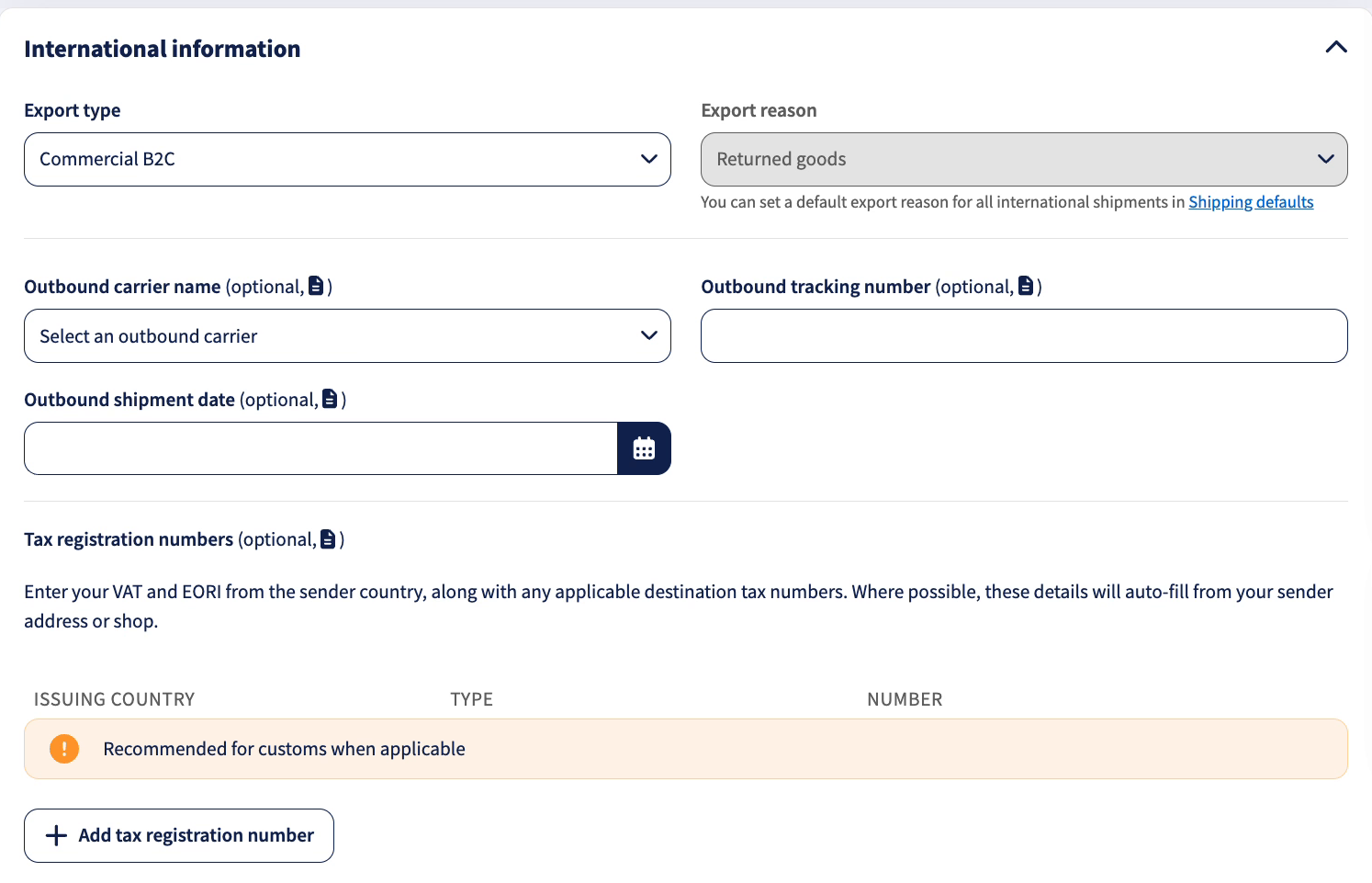
The International information section holds the details customs needs about the return as a whole:
- Export type: the type of shipment, for example Commercial B2C for a return from a consumer.
- Outbound carrier name, Outbound tracking number and Outbound shipment date: the details of the original shipment to your customer. Customs uses them to match the return to that shipment.
- Tax registration numbers: your own VAT and EORI numbers from the sender country, and any tax numbers the destination country requires. Where possible, these are filled in from your sender address or shop.
- Discount, Freight costs, Insurance costs and Other costs: the discount applied to the order and the costs your customer paid. Together with the value of the items, they make up the Total invoice amount.
- Invoice number and Invoice date: the details of the invoice for the original order.
- Notes & statements: add General notes about the return, or click + Add declaration statement to add your own statements to the customs documents.
Step 5 Add the parcel and the items with their customs details
In Parcels, click + Add item for each returned product. Customs uses these details to identify and classify the goods:
- Description, Quantity, Value and Weight: what the item is, how many units are returned, and the value and weight of one unit.
- Origin country: the country where the item was produced.
- HS code: the Harmonized System (HS) code that classifies the type of product. You can look it up on the European Customs Portal.
- Mid code (optional): the Manufacturer's Identification (MID) code of the item. Only needed for returns sent to the US.
- Intended use and Material content (optional): what the item is used for, and what it's made of, for example 100% cotton.
- Manufacturer product identifier (optional): select the Identifier type and enter the Identifier value.
Some products need extra details:
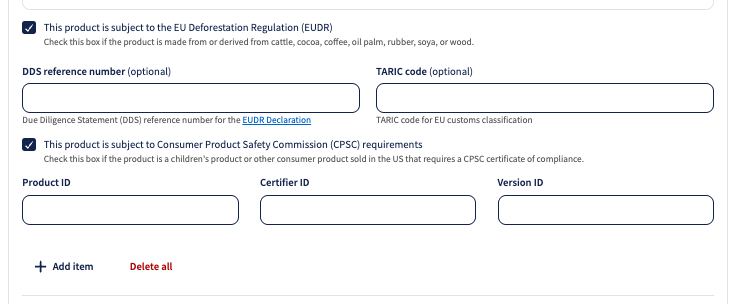
- Tick This product is subject to the EU Deforestation Regulation (EUDR) if the product is made from or contains cattle, cocoa, coffee, oil palm, rubber, soya or wood. Then enter the DDS reference number, the reference number of the Due Diligence Statement (DDS) in your EUDR declaration, and the TARIC code, the code that classifies the product in the EU's integrated tariff (TARIC).
- Tick This product is subject to Consumer Product Safety Commission (CPSC) requirements if it's a children's product, or another consumer product sold in the US that needs a CPSC certificate of compliance. Then enter the Product ID, Certifier ID and Version ID. These fields are required once the box is ticked.
Finally, enter the Parcel weight and, optionally, the dimensions. If you saved boxes in your settings, you can select a Box instead of entering the dimensions.
Step 6 Choose a shipping option
In Shipping options, select an international return shipping option under Selected shipping option. The Shipping option information box shows the maximum dimensions the shipping option accepts.
If you ship with your own carrier contract, also select the contract under Select contract.
Step 7 Add shipment details (optional)
In Shipment details, you can add:
- Order currency and Total order value: the currency and value of the original order.
- Delivery notes: extra instructions for the carrier. Depending on the carrier, notes are printed on the label or sent digitally. Not every carrier supports them, and some limit their length.
Step 8 Choose shipment protection
In Sendcloud Shipment Protection, choose whether to protect the return parcel against theft, loss and damage:
- Select Add shipment protection and enter the amount to protect under Sendcloud protection. The form shows the total protection per parcel and the premium.
- Select No thanks, I'll risk it to create the return without extra protection.
You need to choose one of these options before you can create the label.
Step 9 Check the summary and create the label
The Summary on the right shows the addresses, the shipping option and the number of parcels. Under Indicative total prices, you can see the estimated price of the label. Click View price breakdown to see how the price is built up. Surcharges may be added after the carrier processes the parcel.
Before you create the label, tick any of these options:
- Send return label to the customer: emails the return label to your customer.
- Print return label: prints the label right after it's created.
- Create another return: opens an empty return form after this return is created.
Click Create label.
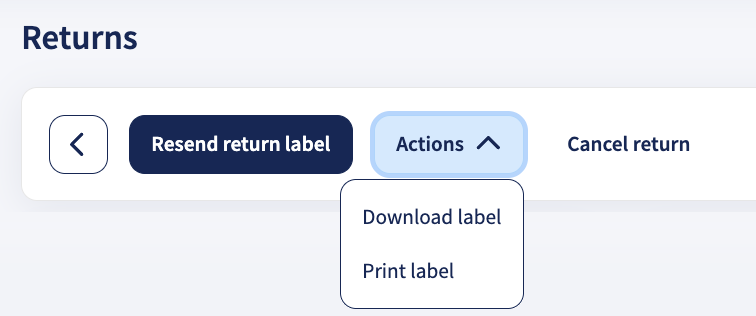
Once the label is created, go to Returns > Overview > In Transit and click the eye icon next to the return. In the return details, you can:
- Click Resend return label to email the label to your customer. Use this if you didn't tick Send return label to the customer when you created the label, or if your customer needs the label again.
- Click Actions to download the customs documents and send them to your customer.
Offer international returns via the return portal
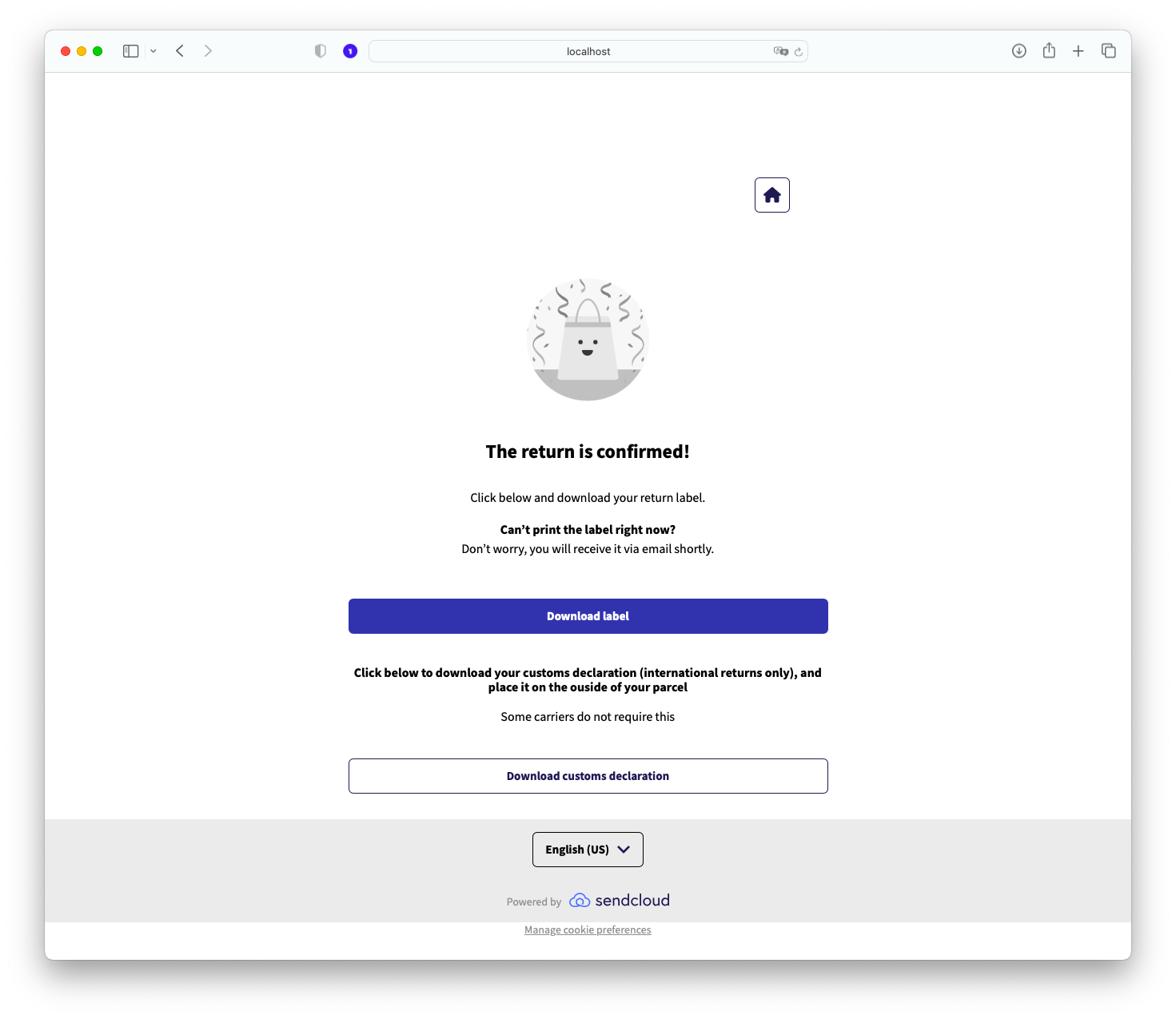
International returns in the return portal are only possible for outgoing shipments created in Sendcloud. The return then already has all the information needed for international shipping, such as the HS code, the origin country and the parcel items.
Your customer can download the return label directly in your return portal, or later: they also receive an email with the return label and the customs documents attached. Some carriers don't need printed customs documents, because they support paperless trade. See Paperless trade.
To set up your return portal, see How do I set up my return portal?
Paperless trade
UPS supports paperless trade: the customs documents are sent to customs digitally, in the countries where this is possible. To learn more, see how paperless trade works in Sendcloud.
See the countries where UPS supports paperless trade.
Available shipping options for international returns
Shipping options without a direct contract
You can ship international returns from outside the EU with FedEx without a direct contract:
- FedEx International Economy® Returns: from 0 to 68 kg, in steps of 0.5 kg
For more details, see the FedEx shipping conditions.
Shipping options with a direct contract
These shipping options are only available with a direct contract with the carrier.
Show all shipping options with a direct contract
- FedEx International Economy®
- Returns 0-68kg - Incoterm DAP
- Returns 0-68kg - Incoterm DDP
- FedEx International Priority®
- Returns 0-68kg - Incoterm DAP
- Returns 0-68kg - Incoterm DDP
- UPS Express Saver Return
- UPS Express Saver Return 0 - 70kg Incoterm DAP
- UPS Express Saver Return 0 - 70kg Incoterm DDP
- UPS Express Saver Return - 1 Pickup Attempt 0 - 70kg Incoterm DAP
- UPS Express Saver Return - 1 Pickup Attempt 0 - 70kg Incoterm DDP
- UPS Express Saver Return - Exchange 0 - 70kg - Incoterm DAP
- UPS Express Saver Return - Exchange 0 - 70kg - Incoterm DDP
- UPS Standard Return
- UPS Standard Return 0 - 70kg - Incoterm DAP
- UPS Standard Return 0 - 70kg - Incoterm DDP
- UPS Standard Return - Exchange 0 - 70kg - Incoterm DAP
- UPS Standard Return - Exchange 0 - 70kg - Incoterm DDP
- DHL Express
- DHL Express Worldwide Return Drop-off 0-70kg - Incoterm DAP
- DHL Express Worldwide Return Drop-off 0-70kg - Incoterm DDP
- DHL Express Worldwide Return Pick-up 0-70kg - Incoterm DAP
- DHL Express Worldwide Return Pick-up 0-70kg - Incoterm DDP
For more details, see the FedEx shipping conditions and the UPS shipping conditions.