Topic: This article explains how to log in to Sendcloud and manage your account credentials.
Logging in to Sendcloud
Sendcloud uses an identifier-first login. This means you always start by entering your email address. Once recognized, the system will dynamically show the next step based on your account settings, for example a password or a one-time code (OTP) sent to your email.
You can also log in using Google or Facebook. See Social Accounts below.
⭐️ New to Sendcloud
After completing the standard email code verification when creating a new account, setting a password is optional.
- If you choose to set a password, you will use your email and password to log in going forward.
- If you choose not to set a password, you will log in using a One-Time Password (OTP) sent to your email for all future logins.
Manage your account
- Log into your Sendcloud panel and go to Account > Profile
- Scroll to Account overview to view your associated email addresses.
- To manage your login preferences and/or change your password, click Manage your account
- You will be redirected to the account management page: https://account.s endcloud.com/
Email Address
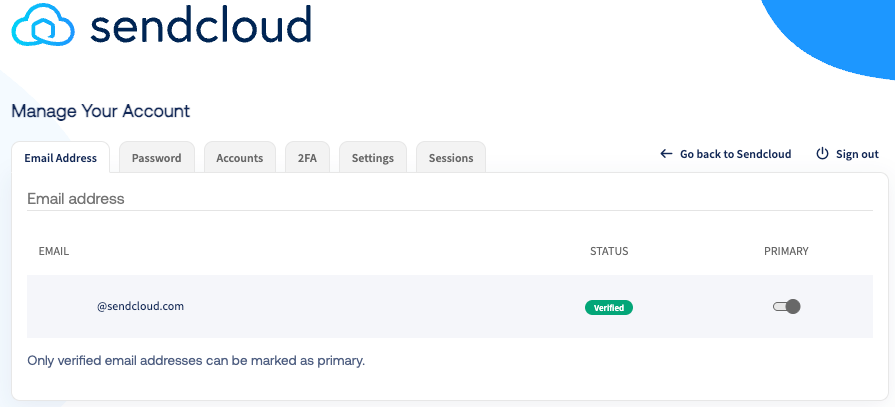
If you have more than one email address you want to use to access your Sendcloud account, you can add them here. One email must be marked as the primary email address by toggling the switch on. Email addresses that have been verified by email, or not yet verified, will be noted here. Only verified addresses can be marked as the primary email address.
If you want to use an email address that is currently linked to another Sendcloud account, you must first remove it from that account before adding it to your main account. This also applies to email addresses associated with sub-users.
To transfer an email address from one Sendcloud account to another, follow these steps:
- Log in to the Sendcloud account currently associated with the email address you want to use.
- Go to Account > Email addresses.
- Add a new email address and verify it.
- Set the newly verified email address as the primary address.
- Remove the original email address from this account.
- Log out and sign in to your main Sendcloud account.
- Go to Account > Email addresses.
- Add the original email address and complete the verification.
Password
In this tab you can change your current password. If you have forgotten your password and cannot access your account, you can reset it on the Sendcloud account page.
Social Accounts
Here you can connect or disconnect your Sendcloud account with your Google or Facebook account so that you can log in to Sendcloud using those credentials.
To disconnect your social account from Sendcloud, you can do this directly in your Google or Facebook settings. Please note that these settings are managed by Google and Facebook directly, so the steps may vary depending on your account.
- Disconnect your Facebook account via Facebook Settings
- Disconnect your Google account via Google Account Connections
Sendcloud 2-Factor Authentication
Two-Factor Authentication (2FA) adds an extra layer of security to your Sendcloud account and protects it against hackers. When enabled, you will verify your identity with a code each time you log in. At Sendcloud you can choose between two methods:
- Email code: a code sent directly to your email inbox
- Authenticator app: the most secure method, via an authenticator app on your phone
Setting up the Authenticator App
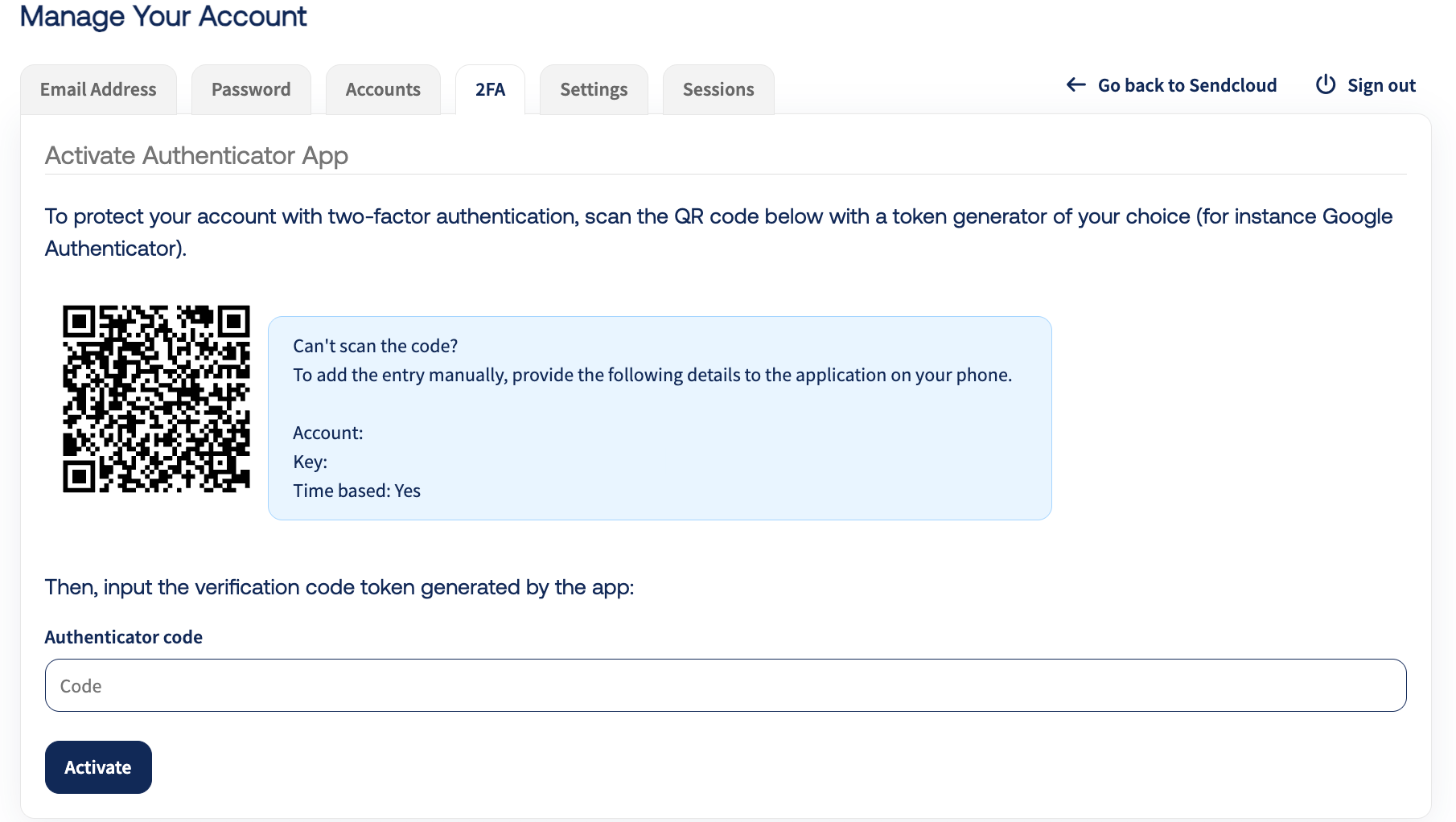
- Go to your 2FA activation page
- Use an app like Google Authenticator to scan the QR code
- Type the 6-digit code from your app into the "Verification code" field
- Click Verify to confirm that 2FA is correctly set up on your mobile device
Once confirmed, your recovery codes will be displayed. Save these in a safe place before continuing.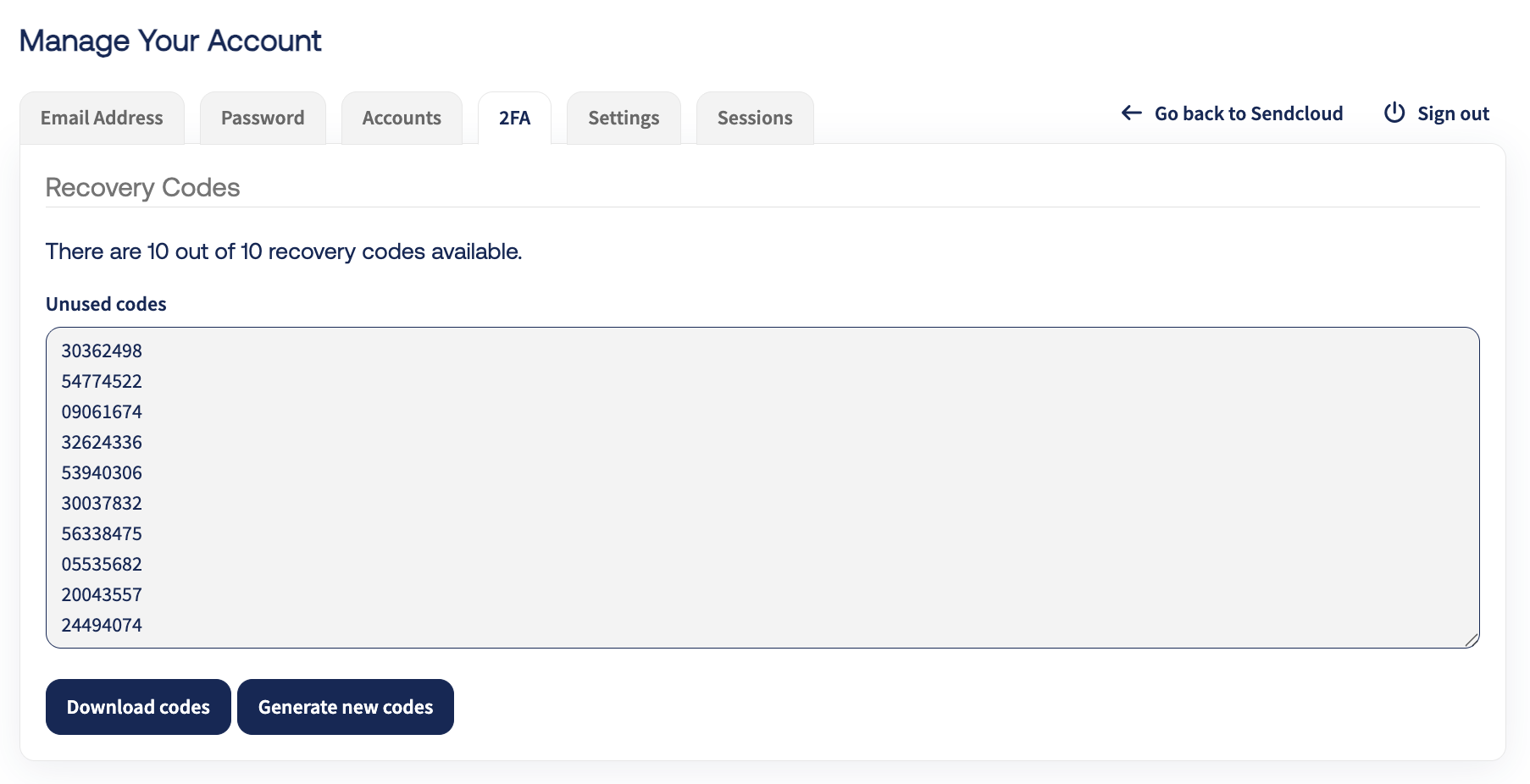
How to login with 2FA
After entering your email, you will be prompted to enter a verification code. If you have set up the authenticator app, enter the 6-digit code from your app. If not, enter the 9-digit code sent to your email inbox.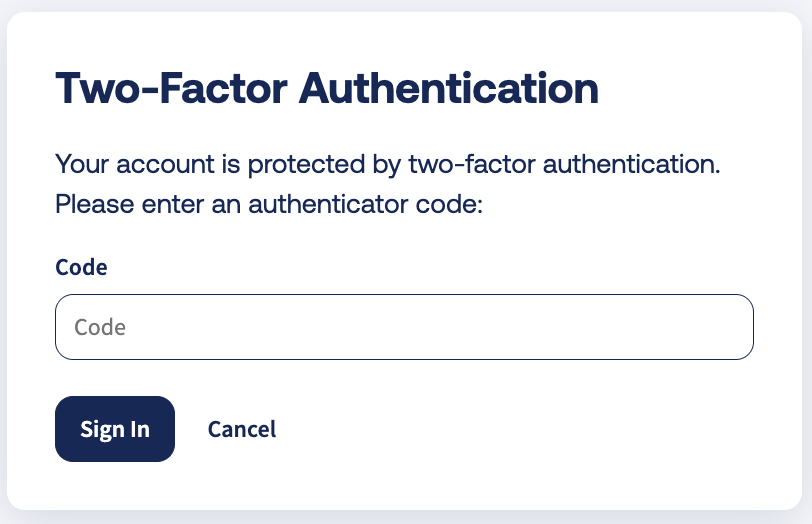
How to regenerate recovery codes
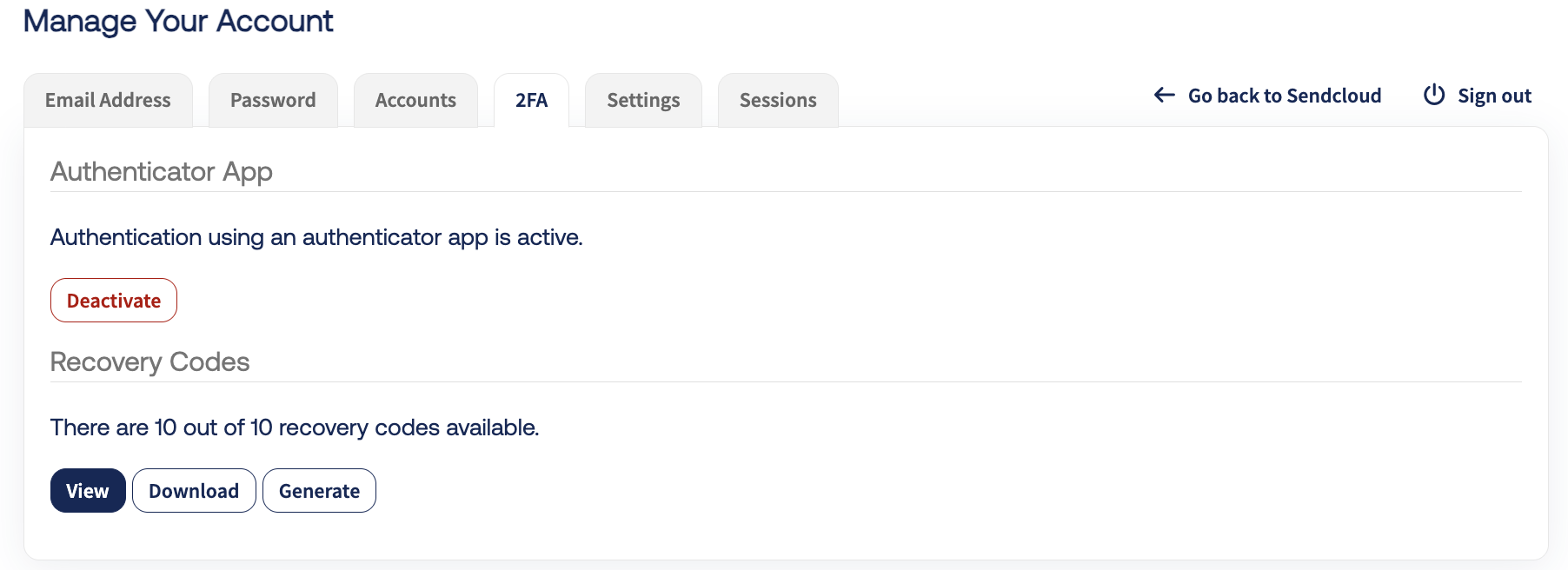
If you have used up or lost all your recovery codes, you can regenerate them on your 2FA settings page.
How to disable 2FA
You can disable 2FA on your 2FA settings page. After clicking the Disable two-factor button, you will be asked to confirm before 2FA is turned off.