
Purpose: This is a guide on how to easily cancel a label, and what happens if you miss the cancellation deadline.
How to cancel a label
Select the shipment(s) that you want to cancel in your Created Labels overview. Select Cancel from the dropdown menu (next to Print label). Confirm the cancellation and the label will be moved to your Cancelled labels tab.
Note: the label's cancellation can take up until two weeks to be completed.
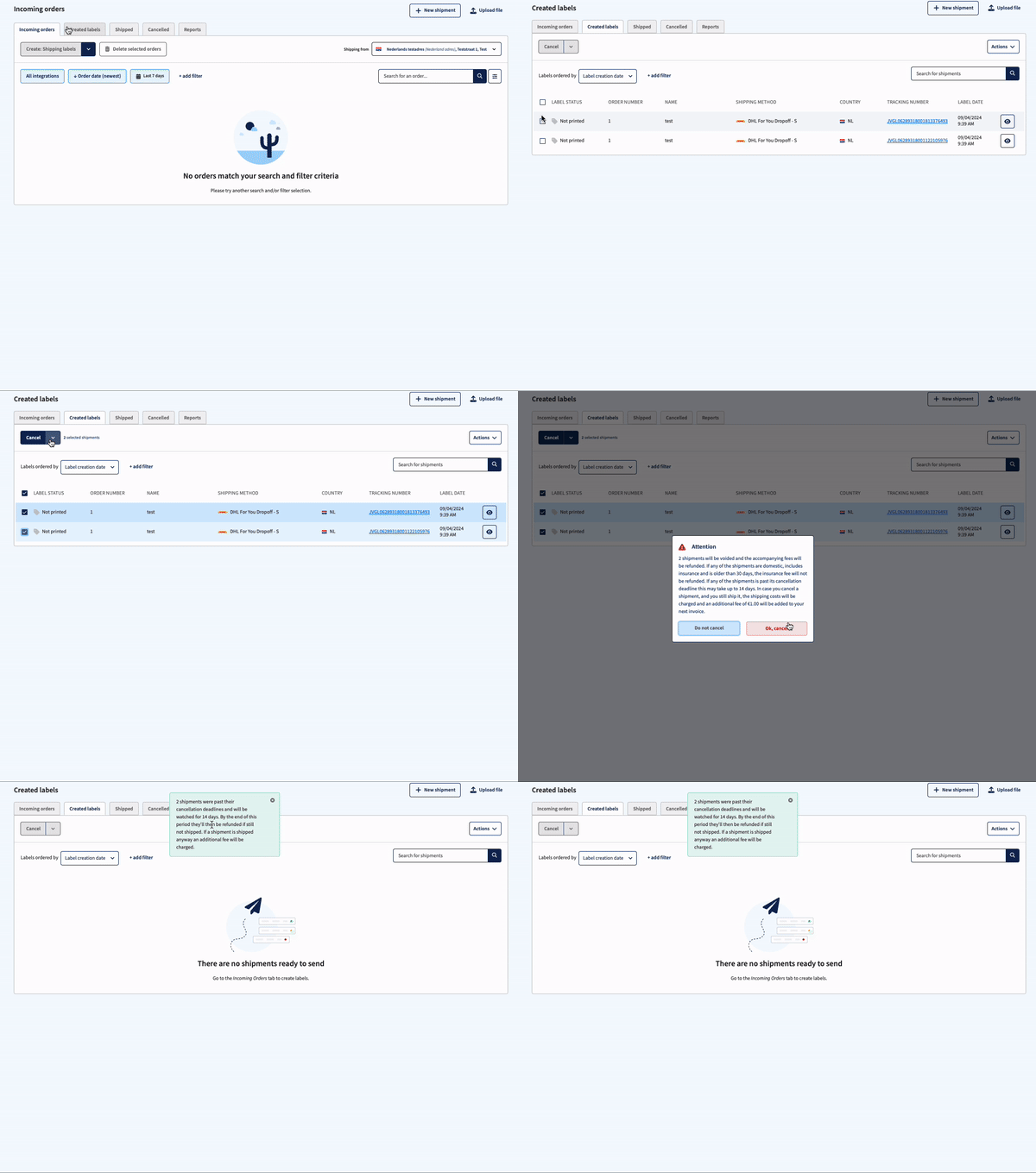
Please pay attention to the different cancellation deadlines carriers use.
*Note regarding DHL Germany:
For labels created before 16:00, the cancellation can be done until 17:55. After this time the labels cannot be canceled. For labels created after 18:00, the cancellation can be done within 2 hours after the announcement time (e.g., if announced at 19:00, it can be canceled until 21:00). You will also receive a pickup report for these labels created after 18:00.
*Note regarding Chronopost (France):
You can cancel the label yourself until 18:00 on the day of creation. After this time, your label can be canceled for up to 42 days, but you will need to contact our customer service to cancel it for you.
*Note regarding XCover:
If your parcel has not been shipped yet, both the origin and destination countries are the same (domestic), and the label is older than 30 days, you can only cancel the parcel itself. The insurance cannot be canceled at this stage. You will receive a refund for the parcel cost, excluding the insurance charges.
*Note regarding UPS (Paperless Trade):
When you create a UPS label for a shipment outside the EU, Sendcloud automatically sends the commercial invoice to UPS via Paperless Trade. Once UPS forwards this invoice to customs, the shipment is activated and the label can no longer be canceled.
For this reason, we recommend double-checking the shipment details before creating UPS international labels.
Optional: How to delete a label
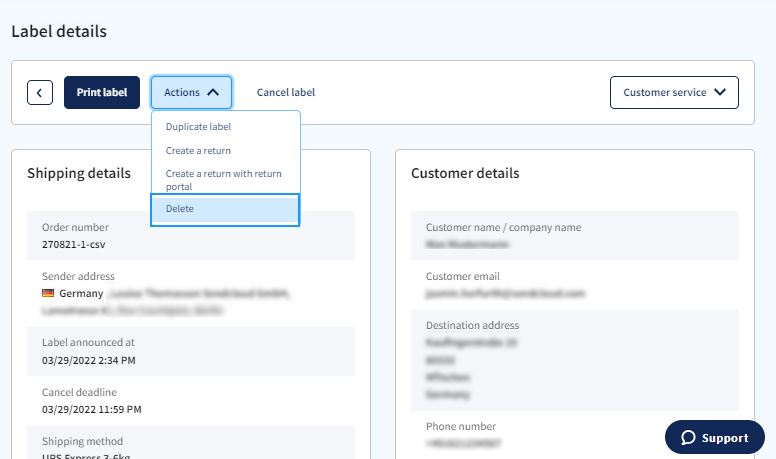
You are also able to delete a shipment from the 'Shipment details. Click on the "Actions" button and then "Delete". This action will cancel the label and visually delete it from your Sendcloud account.
Delete incoming orders
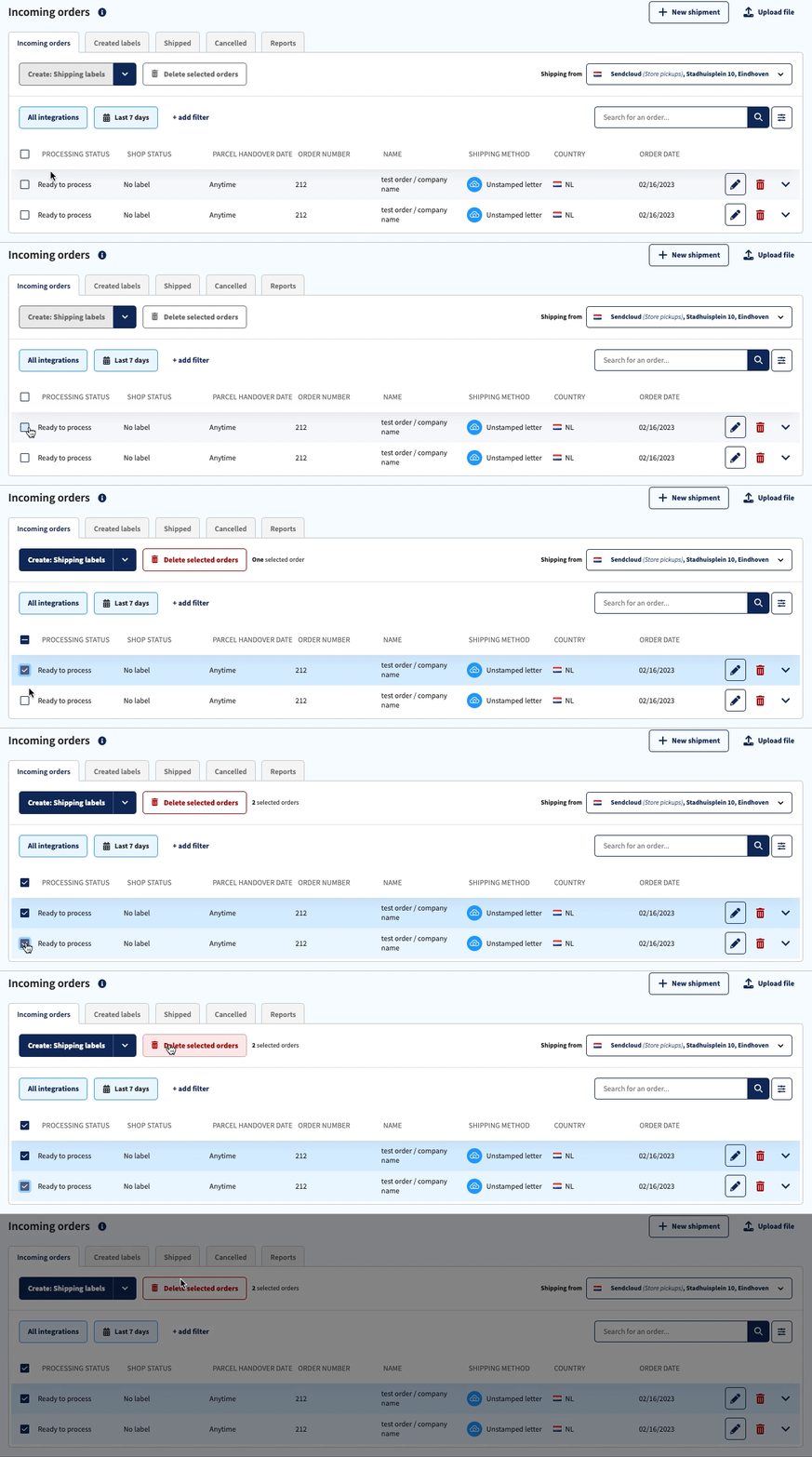
If you want to delete incoming orders in Sendcloud, you need to select the order(s) by clicking on the check box in front. Next, you click on the button with the trash can icon Delete selected orders. You can select one order, or delete multiple orders in bulk.
What should I do if the order gets reimported in Sendcloud
If the orders are reloaded back into Sendcloud after deleting, it means that the fulfilment status of the order in your webshop hasn't changed yet. This leads to Sendcloud importing the order again, thinking it hasn't been processed yet. To avoid this, you can mark the order as fulfilled in your shop system. The order should then no longer be reimported.
Store pick-ups
When you don't want to delete orders from Sendcloud but you also don't want to create a shipping label - for example, when customer pick up their order at your store - we have another workflow that might help. Please consult our How to process a store pickup article to read more.
FAQ
What's the difference between cancelling and deleting a label?
If you choose to delete a label instead of cancelling it, the entire order will be deleted and you will no longer be able to view it in your account. The label will also be cancelled, but it will not appear in the Cancelled labels tab. We only recommend deleting a label if it's necessary for GDPR purposes, because once deleted, it can no longer be retrieved.
I canceled a label, but it appears again under the Created labels tab. Why is this, and what do I do now?
This sometimes occurs when Sendcloud sends a cancellation request to a carrier, and they disallow cancellation of the shipment. The following carriers do not respond to cancellation requests:
- DHL UK
- DPD AT
- GLS NL
For the cancellation to be processed, you need to also delete the label in Sendcloud to prevent it from re-appearing in Created labels. The above section [Optional: How to delete a label] describes the steps you need to take.
Am I charged for canceling a label?
If you cancel a label within the cancellation deadline, the shipping costs and label fee will be refunded. In some cases, the label may still appear on your invoice first, but the amount will be corrected later through a refund or credit note.
If you use a label after cancellation, you will be invoiced:
- The original shipping costs + 1 EUR fee for the "Reversed cancellation"
- The label fee
- Any potential surcharges applied at the time of the initial announcement
What happens when I miss the cancellation deadline?
Don't worry, you will still be able to cancel your shipment within 42 days after creating the shipment. (For UPS, the deadline is 21 days.) The costs for this shipment will be corrected on your next invoice. If you do not manage to cancel your shipment within those 42 days, the costs of the shipment can no longer be credited.
I have an outstanding invoice for a label that I have already canceled, what should I do?
You will need to pay this bill for now, but there’s no need to worry. Our system will automatically apply a credit to your next invoice, so the amount will be reimbursed to you.
How does Sendcloud reimburse me for shipping costs?
Once you have cancelled a shipping label, the cost of the label will be automatically deducted from your next invoice.
What happens to my insurance after I cancel the label?
When the label is cancelled, so is the insurance; we won't charge the insurance costs. If you use the label of a cancelled parcel, it's no longer insured.
How can I recover my cancelled label?
Once a label is cancelled, it cannot be recovered. However, you can create a new label by duplicating it. Simply go to the Cancelled section, click the eye icon next to the shipment, select Actions, and choose Duplicate Label.