
Purpose: This article is a guide on how to read and how to download the invoices you receive from Sendcloud.
How to download invoices
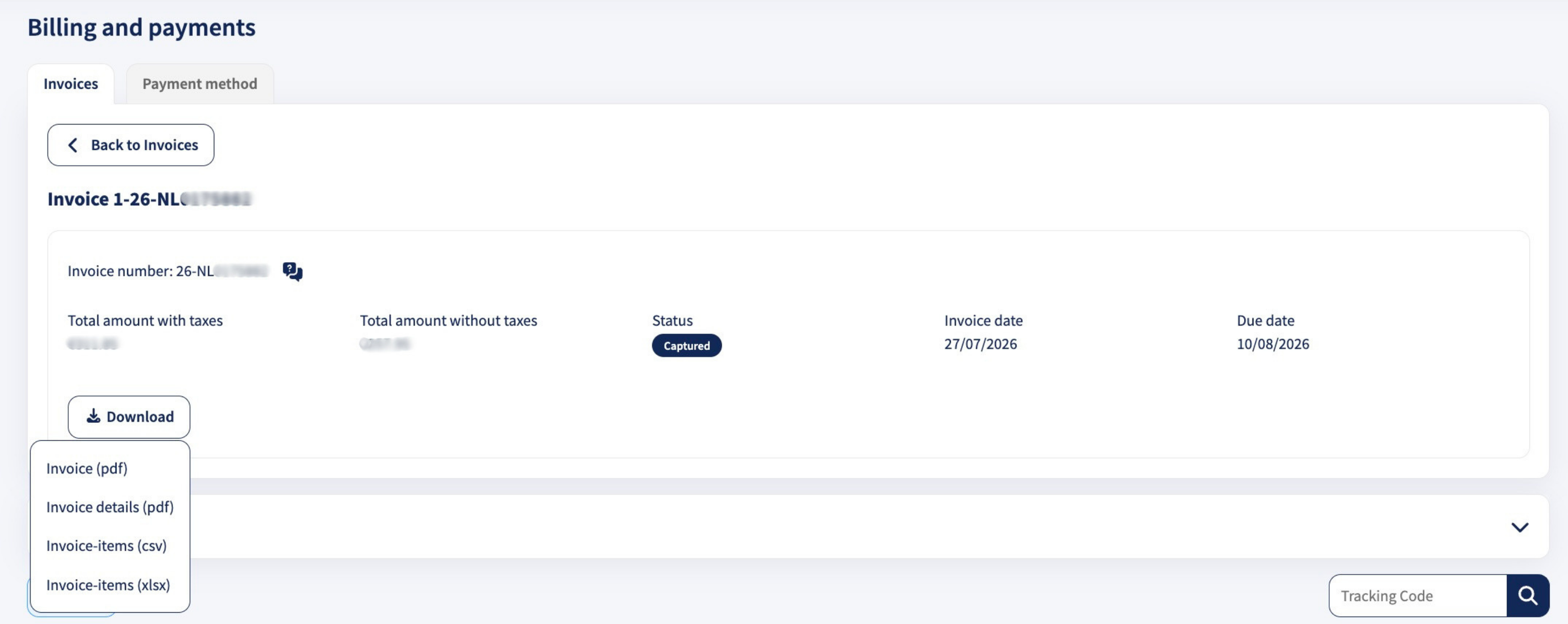
If you want more insight into your invoices, you can view them in your Sendcloud account under Account > Billing > Invoices. Find the invoice you want and click the download icon  next to it. This opens a menu where you can download the invoice as:
- Invoice (pdf): a summarized overview of the invoice.
- Invoice-items (xlsx): a detailed breakdown of all shipments and charges, including surcharges linked to a tracking number, in Excel format.
- Invoice-items (csv): a detailed breakdown of all shipments and charges, including surcharges linked to a tracking number.
Not sure which format to pick? For a quick total, download Invoice (pdf). To reconcile costs per shipment, download Invoice-items (xlsx), it opens ready to read, with no extra steps.
How to read your invoice in PDF
This section describes the new Invoice (pdf) format. If you're looking at Invoice details (pdf) instead, your invoice lists each shipment individually, without the carrier and item-type grouping described below.
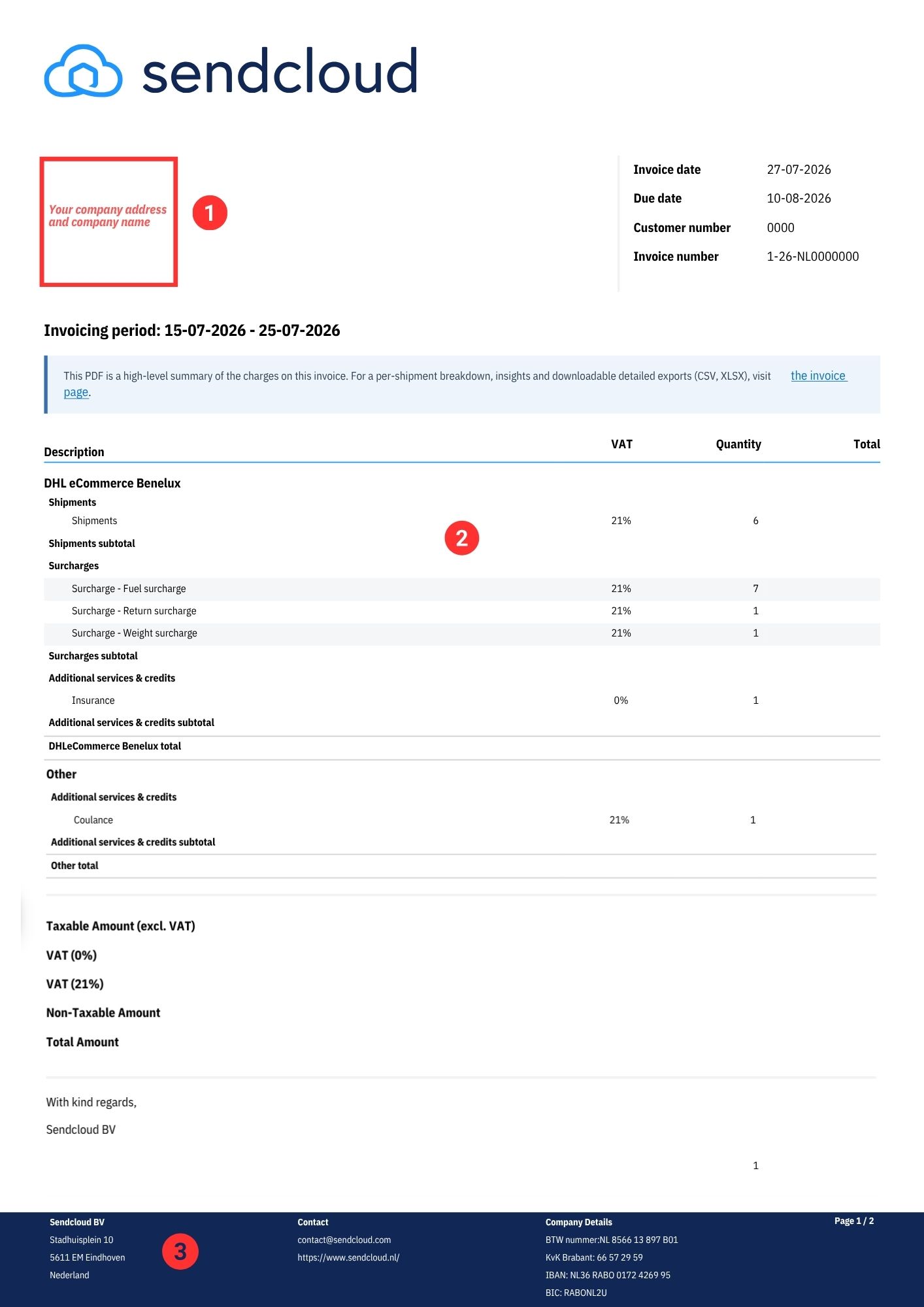
1. Information about the merchant, and invoice reference details
Merchant's details
- Company name and address: These are the details that you have entered in Settings > Addresses > Invoice address.
- Customer number: This is your Sendcloud user ID. This unique number allows us to identify you.
- Customer VAT number: This is your company's VAT number. You can enter your VAT number in Settings > Addresses > Invoice address.
Invoice reference information
- Invoice date: The date that the invoice was issued.
- Invoice number: Unique, sequential record number assigned to each invoice that Sendcloud uses.
- Invoicing period: The date range the invoice covers.
2. Services purchased, grouped by carrier
Your PDF invoice groups all charges by carrier first, and within each carrier, by item type. This makes it easy to see at a glance what you were charged for each carrier you shipped with:
- Shipments: Labels created and labels cancelled, with a shipments subtotal for that carrier.
- Surcharges: Extra costs that carriers can apply to a shipment (for example dimensional, fuel, or remote area surcharges) and any surcharge refunds, with a surcharges subtotal for that carrier. More details here: Surcharges FAQ.
- Additional services & credits: Refunds, claims, coulance payments, insurance, and tracking SMS linked to that carrier, with a subtotal.
- Each carrier section ends with a carrier total (shipments + surcharges + additional services & credits subtotals).
Subscriptions and label fees
- Subscription: Fixed (monthly or yearly) fee that you pay only if you have one of our paid plans.
- Label price (label processing fee):This is not the shipping cost but the fee for creating the label using our software. Label fees are always billed monthly, even if you are on a yearly subscription. This applies to Lite, Growth, and Premium plans.
At the end of the invoice you'll see the overall Taxable Amount (excl. VAT), the VAT amount per rate, any Non-Taxable Amount, and the Total Amount due.
3. Sendcloud contact details
At the end of the invoice you will find Sendcloud's company details, including financial information and how to contact us.
How to read your invoice in Excel (XLSX) format
If you want to see the different items of your invoice in detail, we recommend that you download Invoice-items (xlsx). When you open the file, it's already organized into columns, ready to read.
💡Tip: If you want to check the exact cost of a specific shipment, use the Reference column to search by tracking number. This helps you identify shipment-level charges such as shipping costs, surcharges, insurance, and refunds.
Sort and filter your Excel file
You can add filters to sort the information easily. Select the first row and click Filter. Click the arrow to view the drop-down menu with all search filters available for each column. Select the values that you want to view and click OK to confirm.
Read your Excel file
Your Invoice-items (xlsx) file has the following columns:
- Description: The name of the item: subscription; shipping method (label created); surcharge; insurance purchased; refunded credit for cancelled labels; etc.
- Date
- Reference: Tracking number of the shipment
- Amount: Price of the item: shipping costs, surcharge, etc.
- Type: Type of item: surcharge, shipment, insurance...
- Order number: The number of the order for which you created a label
- Merchant's information: The merchant's sender address, which includes several FROM columns: From Address, From House Number, From City, From Postcode, From Country
- Customer's (recipient) information: The recipient's delivery address, which includes several TO columns: To Address, To House Number, To City, To Postcode, To country
How to read your invoice in CSV format
If you prefer CSV, download Invoice-items (csv). It contains the same data as the Excel (xlsx) file above, laid out in the same columns. The only difference is that a CSV file doesn't open already organized into columns, so in Excel you'll need one extra step first.
Arrange your CSV file in a clear way
Microsoft Excel
When you download the file (comma delimited) and open it for the first time with Excel, the content may not be organized by columns. To arrange the content in a clear and visual way, follow these steps:
- Once you have downloaded the CSV file, open it in your computer
- Select the first column
- Click Data and then Text to Columns
- When the Convert Text to Columns Wizard opens, select Delimited and click Next
- Under Delimiters, unselect tab and select Comma, and click Next
- Click Finish to save the preferences
You can also add filters to sort the information easily. To do this, select the first row and click Filter. Click the arrow to view the drop-down menu with all search filters available for each column. Select the values that you want to view and click OK to confirm.
Numbers on Mac
If you use Numbers, when you download the CSV file and open it, it will already be organized in columns.
All items will be mixed. To make it more clear, you can sort by type or by reference (tracking number). To do this, click the name of the column that you want to sort > click the arrow to show the menu > click "Sort ascending" or "Sort descending".
Read your CSV file
Your CSV file has the same columns as the Excel (xlsx) file: Description, Date, Reference, Amount, Type, Order number, the merchant's sender address (From Address, From House Number, From City, From Postcode, From Country), and the recipient's delivery address (To Address, To House Number, To City, To Postcode, To Country).
How to identify refunds in Sendcloud invoices
If you cancel a label within 42 days, you can receive a refund from Sendcloud. In your invoice-items file, the description is "credit requested for shipment"; next to it, you will see the tracking number (reference) of the shipment it refers to. In your PDF invoice, refunds appear as a Refund line under that carrier's Additional services & credits.
Related articles:
→ How do we charge and invoice your shipments?
→ FAQ about subscription invoicing