
Purpose:Learn how you can offer flexible shipping options and customize your PrestaShop shipping rates with the Sendcloud integration.
Step 1: Activate the carriers in Sendcloud
The first step to offer different shipping methods in your PrestaShop checkout is to choose your carriers in your Sendcloud panel.
- To do this, go to Shipping > Carriers. Here you can activate the carrier you want (note some are only available with a direct contract).
- If you wish, you can activate a default shipping method in Shipping > Shipping defaults > Preferred shipping method. This will be the shipping method that our system will automatically assign for your orders, unless you manually configure them.
- If you need help on which carrier to choose and what shipping methods you can offer to your customers, you can use our Price list.
Step 2: Determine your shipping rates in PrestaShop
Sendcloud does not automatically import fees to PrestaShop. This is to give you the flexibility to choose how much you want to charge your customers for their shipments independently. Or if you want to offer free shipping when certain conditions apply, for example, if the purchase is greater than € 50.
In PrestaShop, you can create fixed rates in your checkout for any order. This, as we mentioned above, gives you flexibility in terms of price conditions by zones, by zone, and/or by purchase value. To create a rate in PrestaShop, follow the steps below:
In the International section, click Locations. Here, you can create and manage the areas you need to create based on flexible rates.
At the top right, click Add new Zone
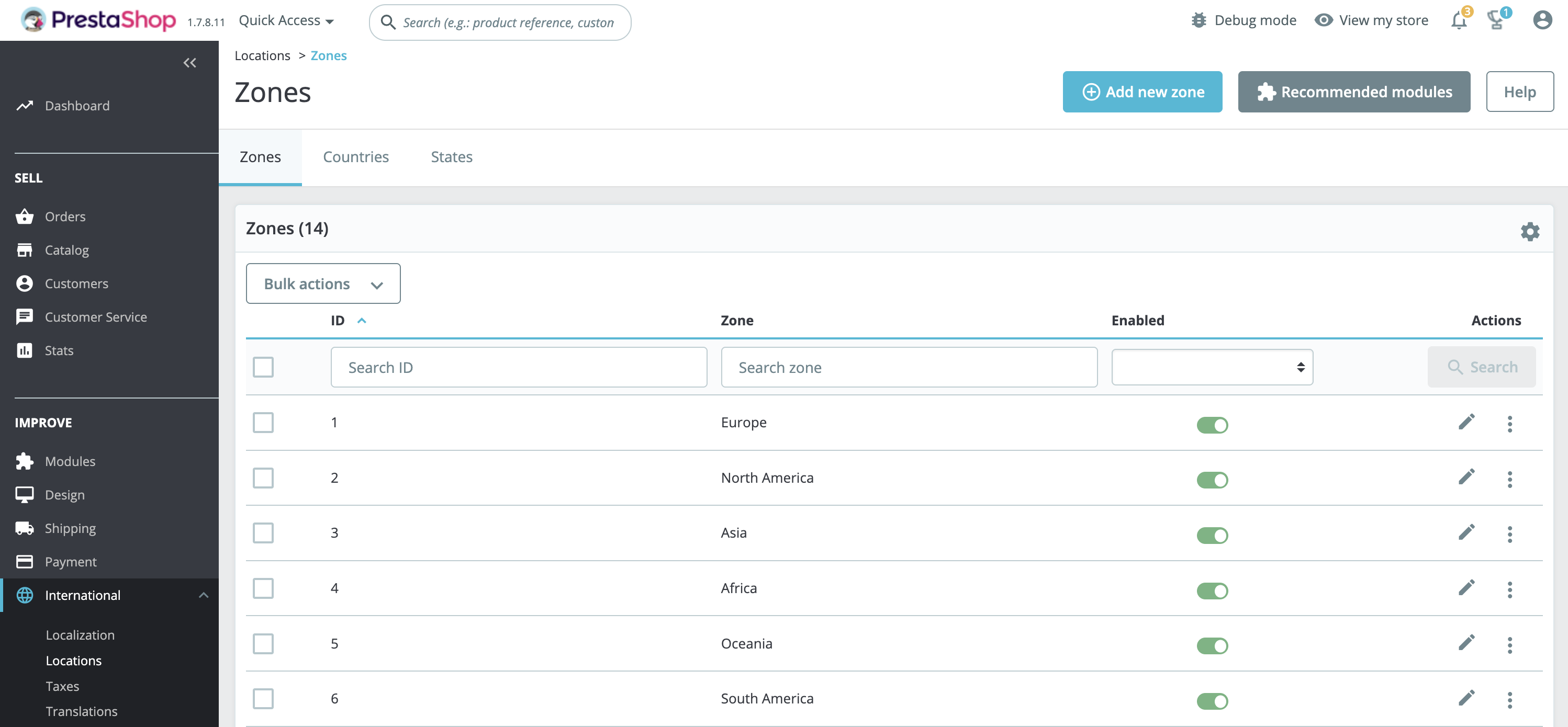
-
Enter the name of the zone and then click Save.
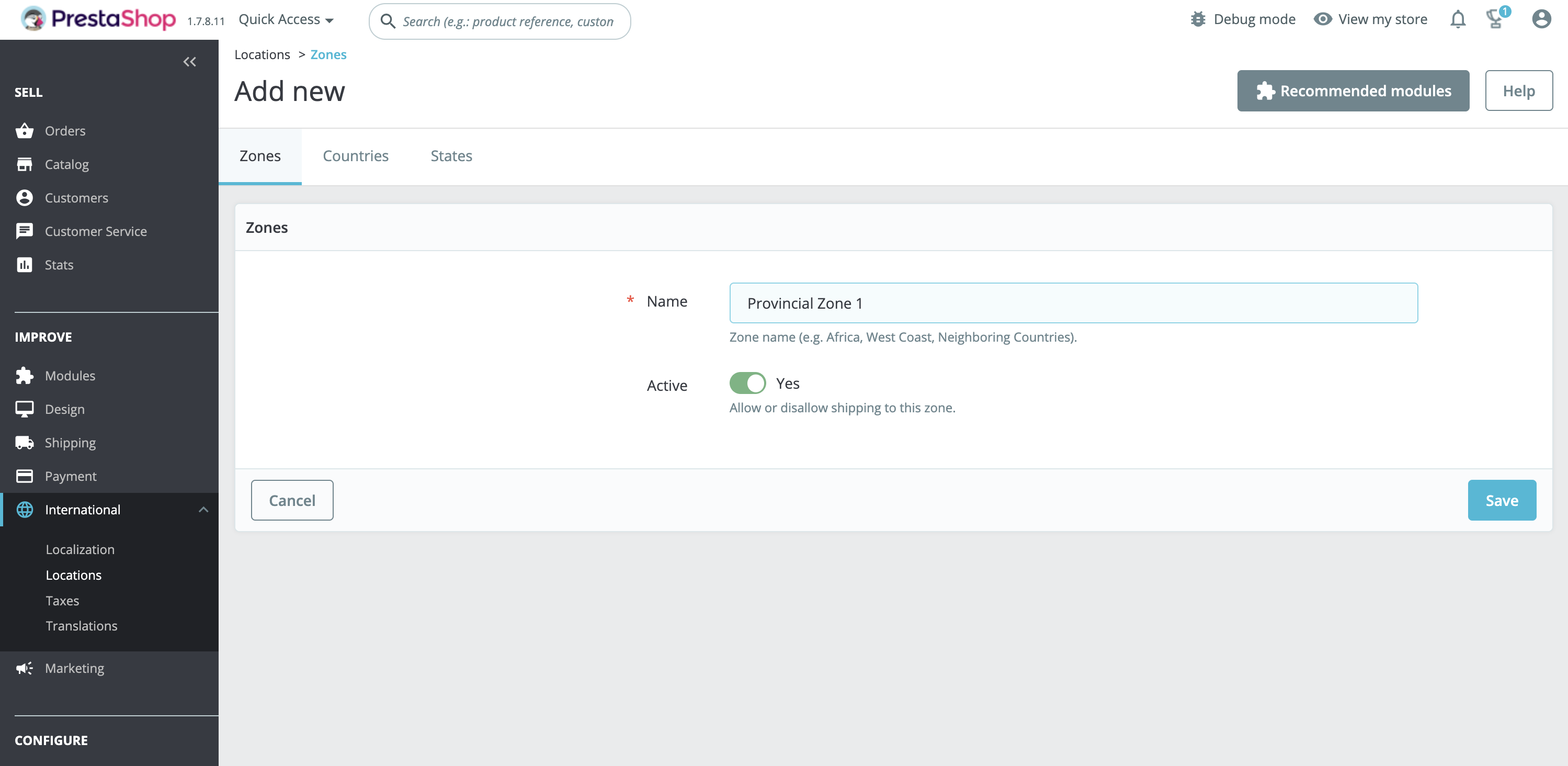
Zones you have to add ( these are based on carrier rates). See below:Provincial Zone 1: shipping within the same province
Border Zone 2: shipment to the neighboring province
Peninsular Zone 3: shipping to the rest of the mainland
Once you have added the zones, access the Transportation section and click on Carriers
In the upper right, click Add new Carrier
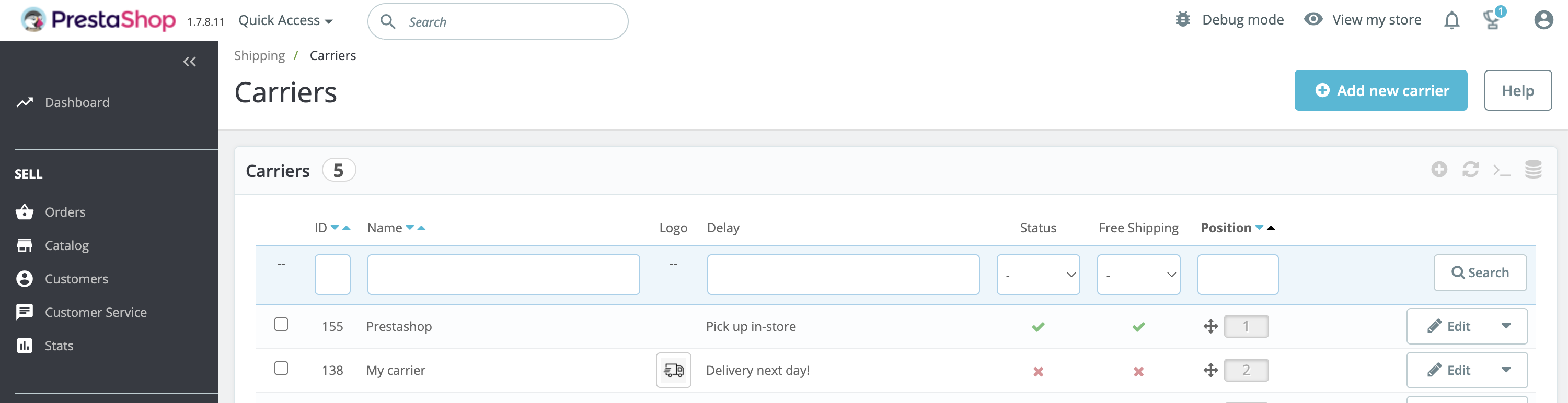
Proceed to fill in the information required in the steps to add a new carrier
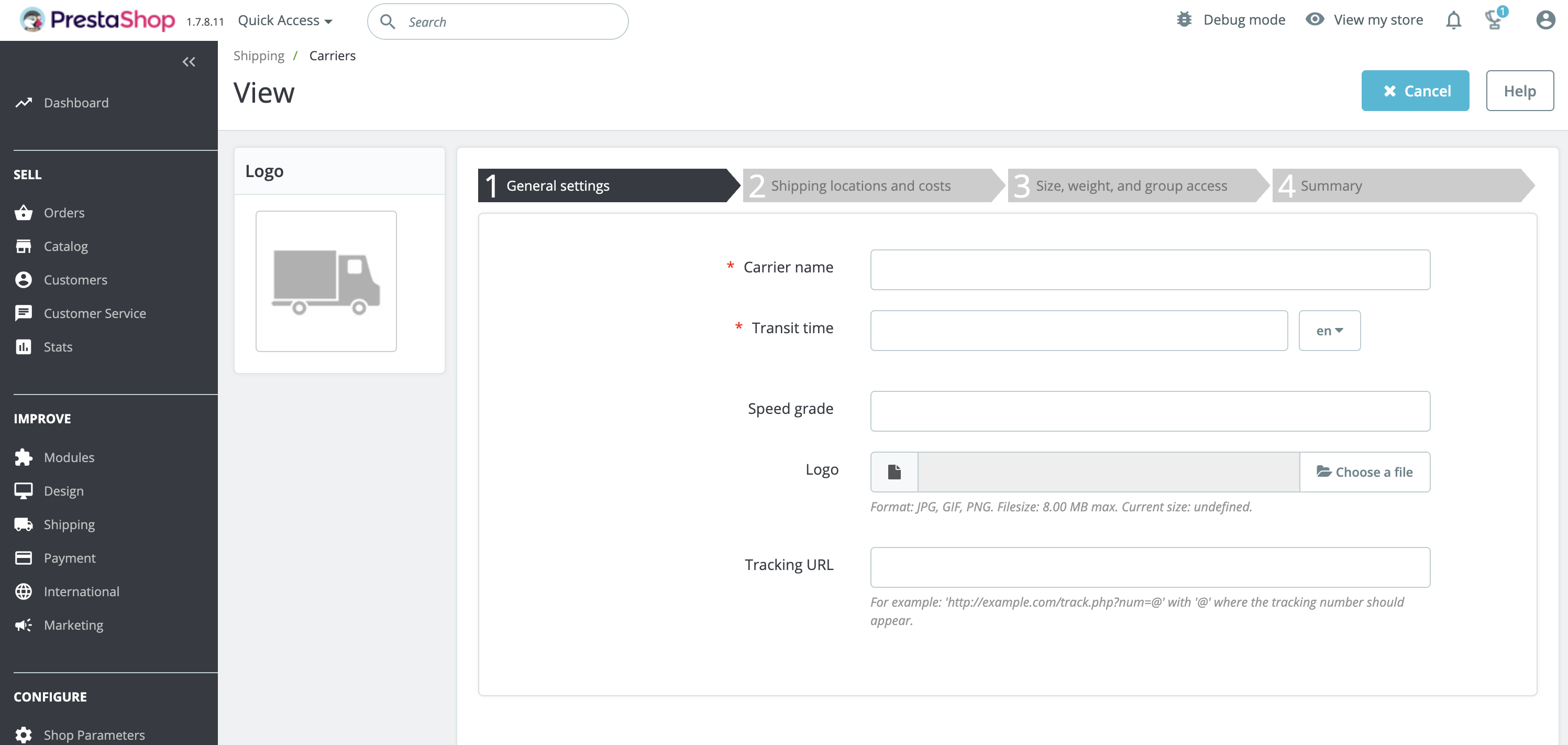
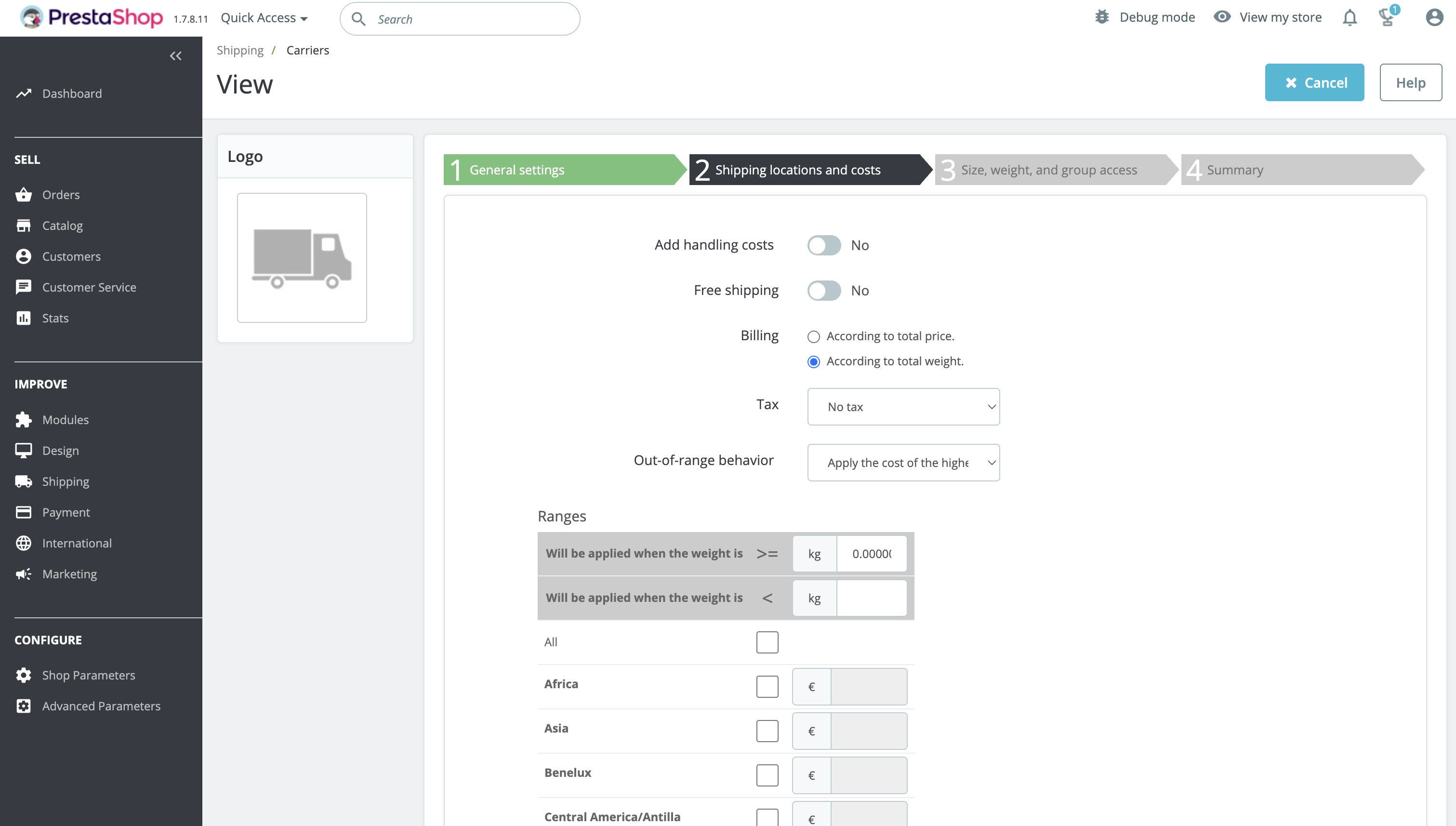
Step 2: 'Shipping location and shipping costs', you will have to add the corresponding rates for each area or decide if you would like to offer free shipping for this zone.
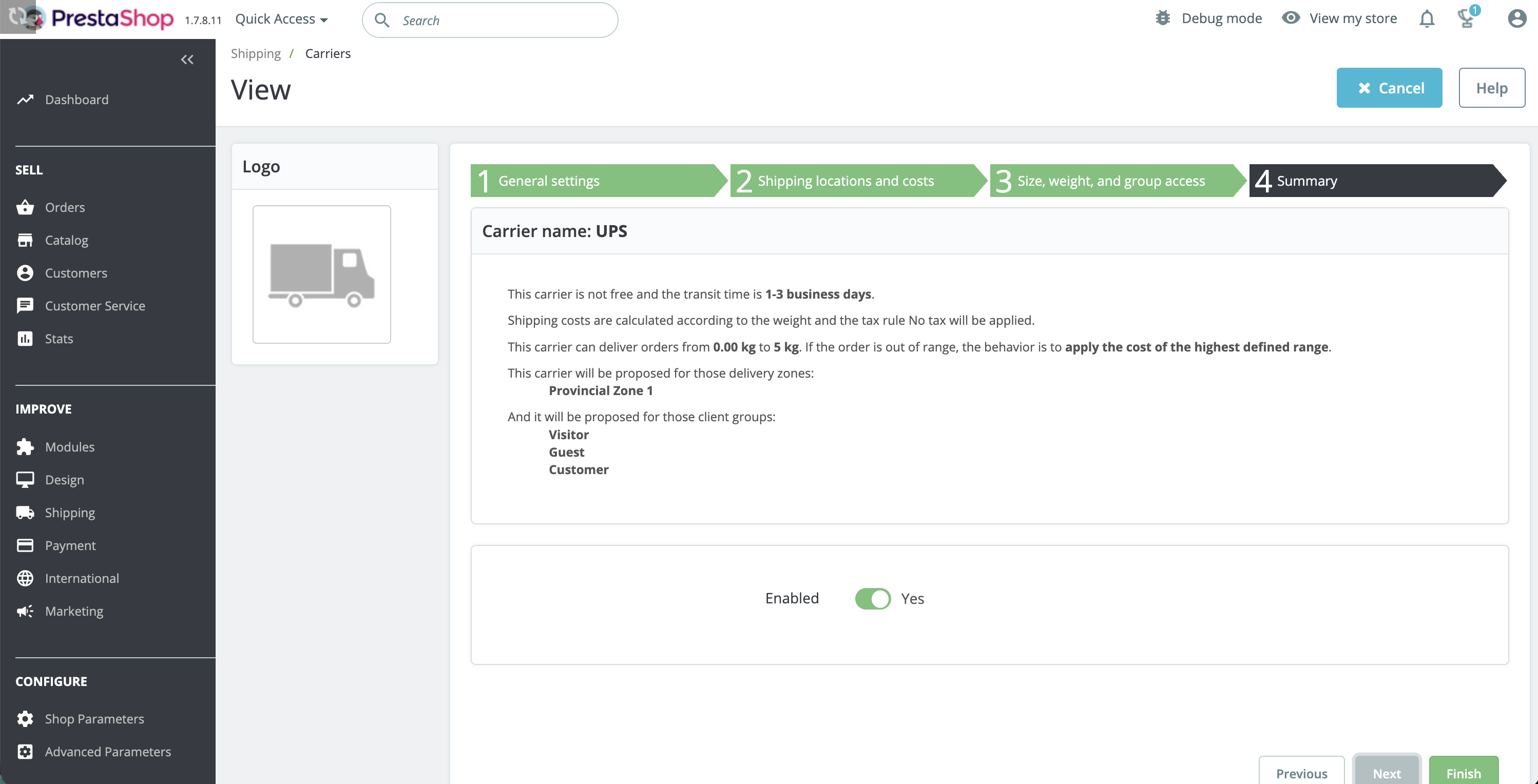
Complete the steps and make sure the carrier is active, click "Enable" and voila! Your shipping methods are already active in your PrestaShop checkout
Step 3: How to use the shipping rules to automatically detect your checkout methods in PrestaShop?
If you have a Lite subscription onwards, you can use our Shipping Rules feature to streamline your checkout process. With the shipping rules, Sendcloud will automatically select the shipping method based on the name of your checkout method.
This means if a customer chooses "Delivery in 24-48 hrs" at check-out, the pre-selected shipping method will be automatically assigned, without having to modify it manually.
- In your Sendcloud account, go to Shipping > Shipping Rules.
- Click Create new rule, then choose Open template in “Select shipping method based on customer choice at checkout” (or Start creating in “Build a custom rule from scratch”).
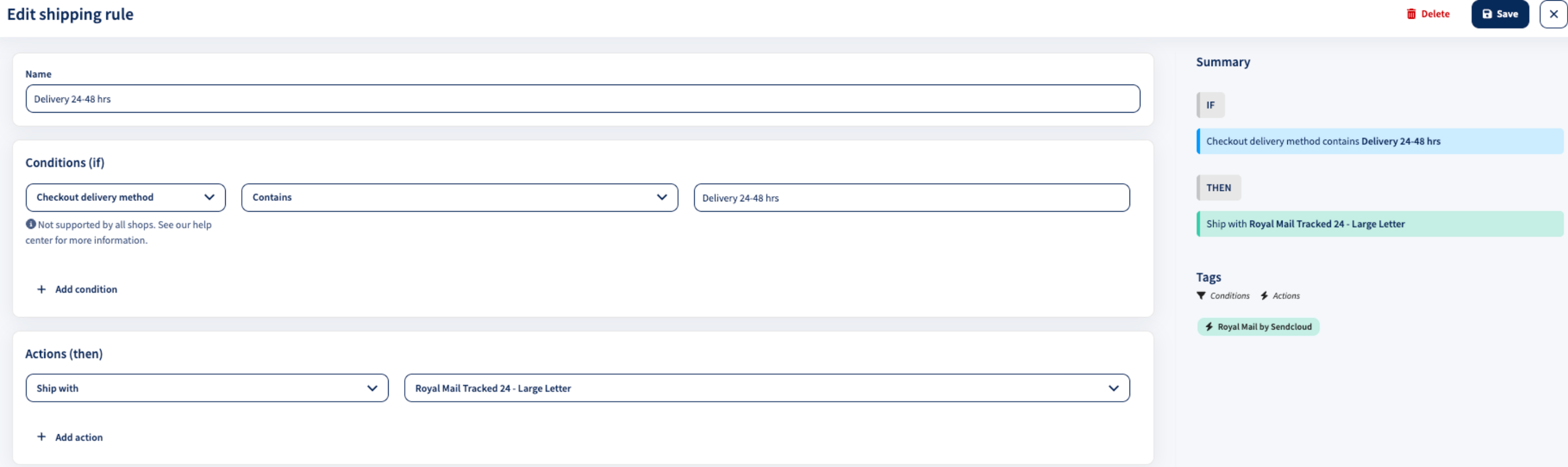
- Name your shipping rule, for example, “Delivery 24-48 hrs Peninsular”.
- Use the condition “Checkout delivery method”.
- Select the operator “Contains” (if the name could be longer) or “Is” (for an exact match).
- In the next field, enter part of the name from your PrestaShop shipping method (if you selected “Contains”) or the exact name (if you selected “Is”). In this example: “Delivery 24–48 hrs”.
- Under “Actions”, use the option “Ship with”.
- From the “Select a value” drop-down, select the applicable shipping method.
Select any method within that option; the system will automatically choose the correct one based on the parcel’s weight (for example, Correos Premium Home Delivery 0–1 kg, 1–2 kg, and so on).
In some cases, certain carriers may require a separate rule for each weight range.
Repeat this process for all the shipping methods available at checkout. Keep in mind that each subscription plan includes a limited number of shipping rules (unlimited for the Premium and Pro plans).
Congratulations! you have configured your shipping methods in PrestaShop and optimized your entire shipping process in Sendcloud! For more information on shipping rules and how they can help you with your logistics read our article here.