

Purpose: Learn how to connect your Österreichische Post carrier contract with your Sendcloud account in three easy steps.
The Sendcloud subscription plans have been updated. If the subscriptions shown in the banner above don’t match your current subscription plan and you’d like to know more, please click here.
Step 1: Activate your Sendcloud subscription
Sendcloud offers three subscriptions with which you can use your own transport contract: Lite, Growth, and the Premium plan.
For more information regarding which plan is best for you and the needs of your business, you can always contact us via the support section of your Sendcloud account or click here.
Step 2: Gather your credentials and information
Required information for integrating a PostAT contract:
- Specify the desired data format (XML or CSV): CSV file
- Specify the desired data transfer protocol ((S)FTP and/or Email): SFTP
- Specify the time window(s) during which tracking data should be sent: from 9:00 AM
Username and password format:
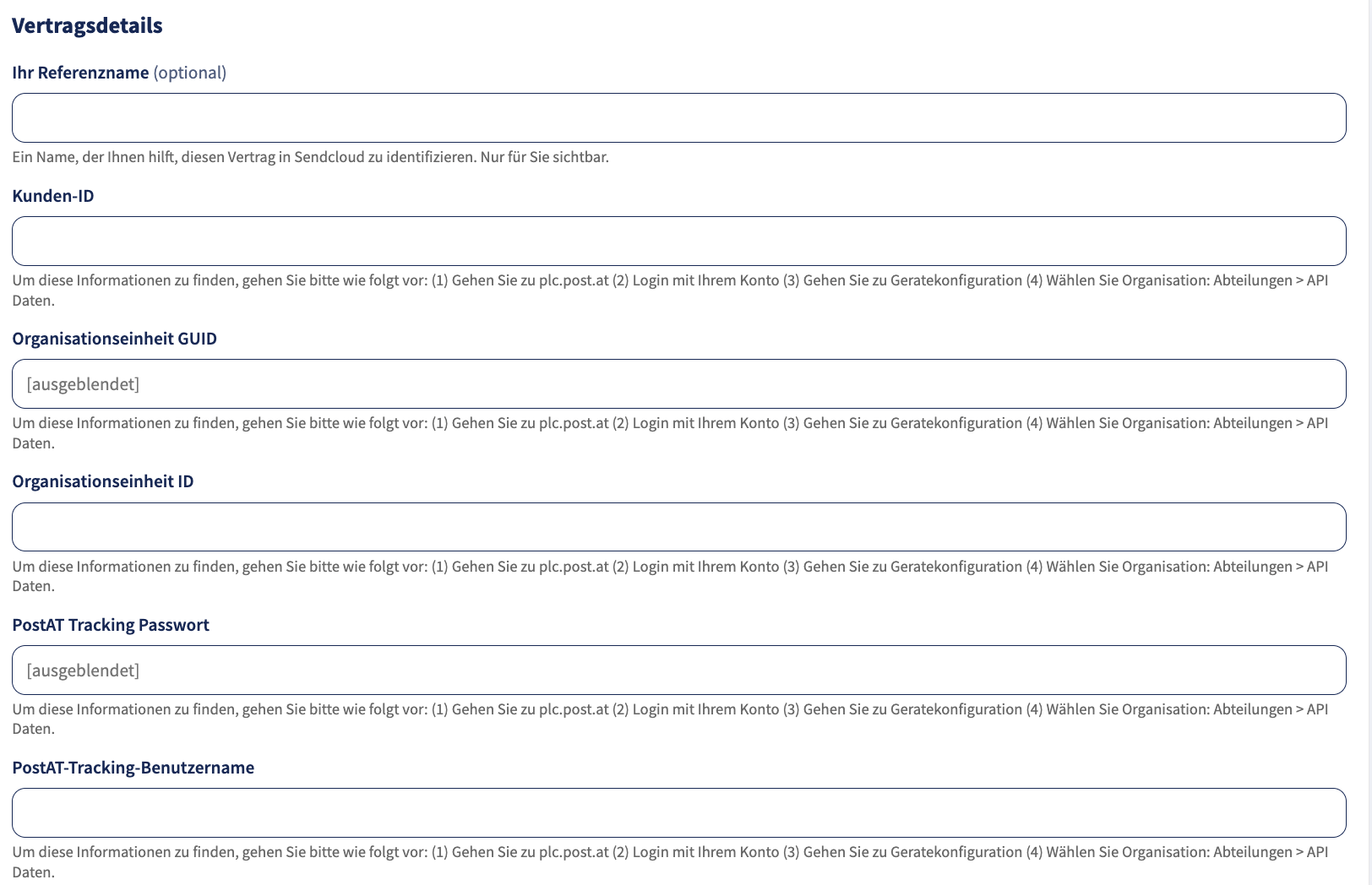
- Client ID
- Organisation Unit GUID
- Organisation Unit ID
To find this information, go to plc.post.at and log in with your PostAT account.
Navigate to Device Configuration and select:
Organisation > Departments > API Data
You will also need the following credentials:
- PostAT tracking username (Format: avisotracking_0000)
- PostAT tracking password
Please contact your account manager or your contact person at PostAT to obtain this information.
Step 3: Enable your carrier contract
In your Sendcloud panel, navigate to Shipping > Carriers. Go to the My Contracts tab and find PostAT from the list. Click on Add Contract and enter the details found in Step 2 into the relevant fields.
Important: Since your contract and the relevant shipping methods are individual, please make sure that the shipping methods you have agreed upon are activated with us. Please note that this does not happen automatically. If you do not see the shipping methods, please contact our support / Live Chat.