
Purpose: Learn how to connect your own GOFO carrier contract with your Sendcloud account in three easy steps.
The Sendcloud subscription plans have been updated. If the subscriptions shown in the banner above don’t match your current subscription plan and you’d like to know more, please click here.
Step 1: Activate your Sendcloud subscription
Sendcloud offers three subscriptions with which you are able to use your own transport contract: Lite, Growth and Premium.
For more information regarding which plan is best for you and the needs of your business, you can always contact us via the support section of your Sendcloud account or visit our website here.
Step 2: Enable your carrier contract
Once you have activated a Sendcloud subscription, you can connect your carrier contract.
In your Sendcloud panel navigate to Shipping > Carriers > My contracts and click Add your own contract. Find GOFO in the list and click Add Contract. Here you can add the credentials needed to validate the connection to the carrier.
Step 3: Enter your GOFO contract information
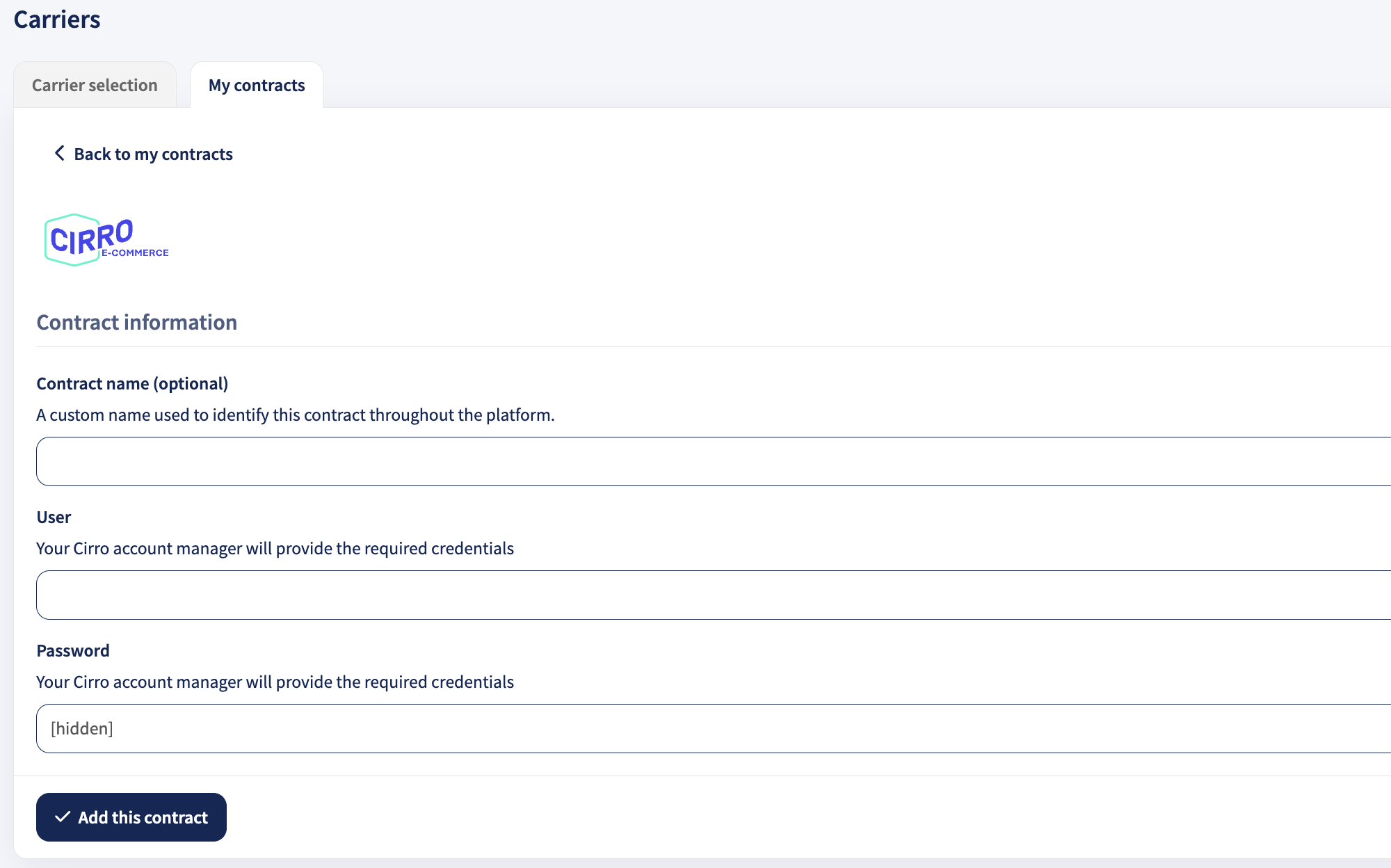
To activate your GOFO contract, fill in the following fields and do not forget to click Add this contract:
-
Contract name(optional): A custom name used to identify this contract throughout the platform.
- User: Your GOFO account manager will provide the required credentials
- Password: Your GOFO account manager will provide the required credentials
Done! If you have followed the steps described above, your GOFO contract should now be successfully linked to your Sendcloud platform and you can begin shipping on your GOFO rates. When you create a label with a GOFO shipping method, the label price will now show as 0.00 EUR in your account.