
Purpose: Learn how to connect your own SwissPost carrier contract with your Sendcloud account in three easy steps.
Step 1: Activate your Sendcloud subscription
Sendcloud offers three subscriptions that allow you to use your own transport contract: Lite, Growth, and Premium.
For more information about which plan best fits your business needs, visit our pricing page or contact us through the support section of your Sendcloud account.
Step 2: Enable your carrier contract
Once your subscription is active, you can connect your carrier contract.
In the Sendcloud panel, go to Shipping > Carriers > My contracts and click Add your own contract. From the list, select SwissPost and click Add Contract. You will then be prompted to enter your contract credentials.
Step 3: Activate your SwissPost contract
To activate your SwissPost contract, you need to contact your SwissPost account representative and request access to the required credentials and APIs.
Please ask your representative to provide the following information:
Production Client ID
Production Client Secret
Domestic Franking License
International Franking License: if shipping internationally
Debitor number
Additionally, request access to the following APIs:
API Barcode
API Waybill
API Adressen
API Versandoptionen
API Sendungen verfolgen
Step 4: Add your credentials to Sendcloud
Once you have received all required credentials from SwissPost, log in to your Sendcloud panel and navigate to the SwissPost contract setup.
Enter the following details:
Username
API Key
Domestic Franking License
International Franking License: if shipping internationally
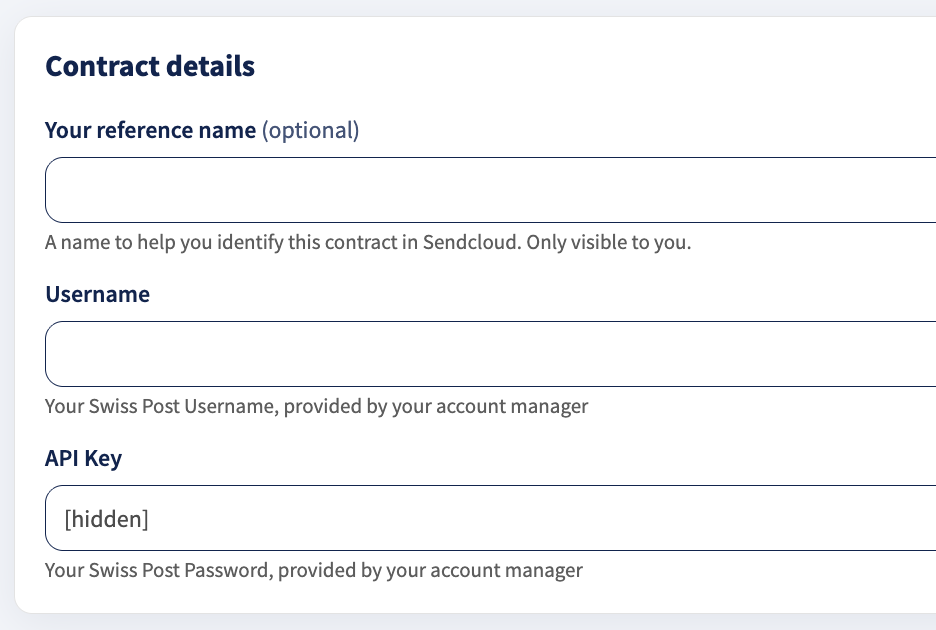
Make sure all information is entered exactly as provided by SwissPost. After saving, your contract will be ready to use in Sendcloud.
Direct contract shipping options
Direct contract shipping options
| shipping option | shipping option ID |
| PostPac Economy | 31723 |
| PostPac Economy - Signature | 31724 |
| PostPac Economy - Assurance | 31725 |
| PostPac Priority | 31729 |
| PostPac Priority - Signature | 31730 |
| PostPac Priority - Assurance | 31731 |
| PostPac Priority - Saturday delivery | 31732 |
| PostPac Priority - Signature - Saturday delivery | 31733 |
| PostPac Priority - Assurance - Saturday delivery | 31734 |
| Swiss Express «Mond» | 31735 |
| Swiss Express «Mond» - Signature | 31736 |
| Swiss Express «Mond» - Assurance | 31737 |
| SameDay Swiss Afternoon - before 17:00 | 31738 |
| SameDay Swiss Afternoon - before 17:00 - Signature | 31739 |
| SameDay Swiss Afternoon - before 17:00 - Assurance | 31740 |
| SameDay Swiss Evening - before 21:00 | 31741 |
| SameDay Swiss Evening - before 21:00 - Signature | 31742 |
| SameDay Swiss Evening - before 21:00 - Assurance | 31743 |
| SwissPost PostPac International - Incoterm DAP | |
| SwissPost PostPac International - URGENT - Incoterm DAP |
Done! If you’ve followed all steps, your SwissPost contract should now be successfully connected to Sendcloud. You can begin shipping using your SwissPost rates. When you create a label with a SwissPost shipping option, the label price will appear as 0.00 EUR in your account.