
Purpose: Learn how to connect your own InPost Global carrier contract to your Sendcloud account in three simple steps. This feature is available starting from the Light subscription.
Step 1: Activate your Sendcloud subscription
Sendcloud offers three subscriptions with which you are able to use your own transport contract: Lite, Growth and the Premium plan.
For more information regarding which plan is best for you and the needs of your business, you can always contact us via the support section of your Sendcloud account or click here.
Step 2: Connect your InPost Global contract
- In your Sendcloud account, go to Shipping > Carriers
- Click on the My contracts tab
- Click Add your own contract
- Find InPost Global in the list of carriers and click Add contract
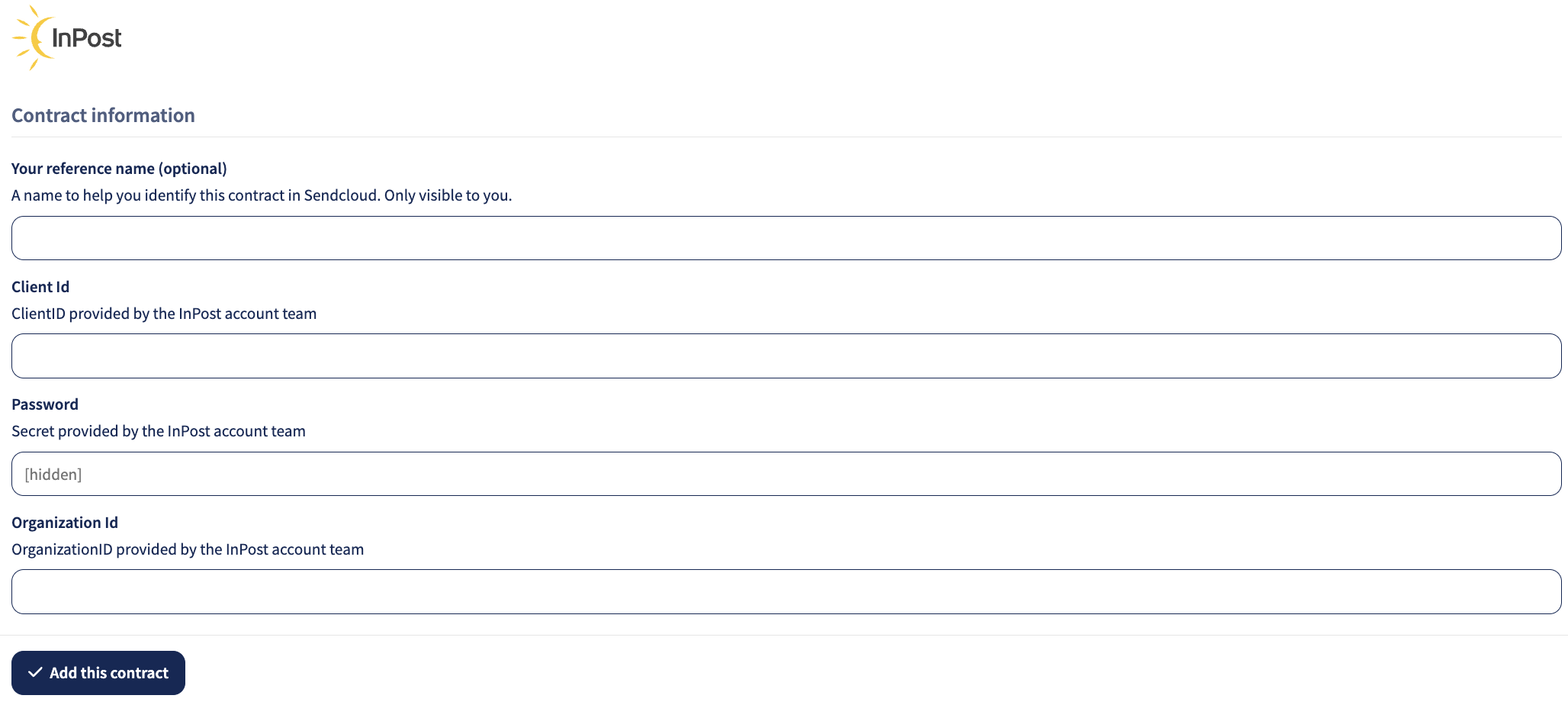
Step 3: Enter your InPost Global account details
Next you fill in your InPost Global contract details. If you haven't received those yet, you can request them via your InPost Global account manager:
Client ID - Your Inpost Account Code provided by your account manager
Password - Your Inpost Account Code provided by your account manager
Organisation ID - Your Inpost Account Code provided by your account manager
Parcel dimensions and predefined box sizes
When shipping with InPost Global, it is mandatory to provide parcel dimensions when creating a label.
To streamline your shipping process, we recommend setting up predefined parcel boxes in your Sendcloud account with the standard InPost sizes:
S (Small): 8 × 38 × 64 cm
M (Medium): 19 × 38 × 64 cm
L (Large): 41 × 38 × 64 cm
By configuring these box sizes in advance, you can quickly select the correct dimensions when creating shipments and avoid errors.
Direct contract shipping methods
The following direct shipping methods for InPost Global are supported in Sendcloud. If a shipping method is not visible in your Sendcloud panel, please contact your InPost Global account manager to have it activated in your contract.
Direct contract shipping methods
| Shipping method | Shipping method ID | Shipping options | Shipping option code |
| InPost Standard - Point to Point | 31197 | InPost Point to Point | inpost_global:p2p |
| InPost Express - Point to Point | 31198 | InPost Point to Point | inpost_global:p2p |
| InPost Standard - Point to Point Labelless | 31199 | InPost Point to Point | inpost_global:p2p |
| InPost Express - Point to Point Labelless | 31200 | InPost Point to Point | inpost_global:p2p |
| InPost Standard - Merchant to Point | 31201 | InPost Merchant to Point | inpost_global:m2p |
| InPost Express - Merchant to Point | 31202 | InPost Merchant to Point | inpost_global:m2p |
| InPost Standard - Merchant to Door | 31203 | InPost Merchant to Door | inpost_global:m2d |
| InPost Express - Merchant to Door | 31204 | InPost Merchant to Door | inpost_global:m2d |
| InPost Standard - Point to Door | 31205 | InPost Point to Door | inpost_global:p2d |
| InPost Express - Point to Door | 31206 | InPost Point to Door | inpost_global:p2d |
| InPost Standard - Point to Door Labelless | 31207 | InPost Point to Door | inpost_global:p2d |
| InPost Express - Point to Door Labelless | 31208 | InPost Point to Door | inpost_global:p2d |
| InPost Returns | 31209 | InPost Returns | inpost_global:returns |
| InPost Returns - Labelless | 31210 | InPost Returns | inpost_global:returns |
Done! Once you've followed the steps above, your InPost Global contract should now be successfully linked to your Sendcloud platform and you can begin shipping on your InPost Global rates. When you create a label with a Inpost Express shipping method, the label price will now show as 0.00 EUR in your account.