
Purpose: Learn how to connect your own DX Express carrier contract to your Sendcloud account in three simple steps. This feature is available starting from the Light subscription.
Step 1: Activate your Sendcloud subscription
Sendcloud offers three subscriptions with which you are able to use your own transport contract: Lite, Growth and the Premium plan.
For more information regarding which plan is best for you and the needs of your business, you can always contact us via the support section of your Sendcloud account or click here.
Step 2: Connect your DX Express contract
- In your Sendcloud account, go to Shipping > Carriers
- Click on the My contracts tab
- Click Add your own contract
- Find DX Express in the list of carriers and click Add contract
Step 3: Enter your DX Express account details
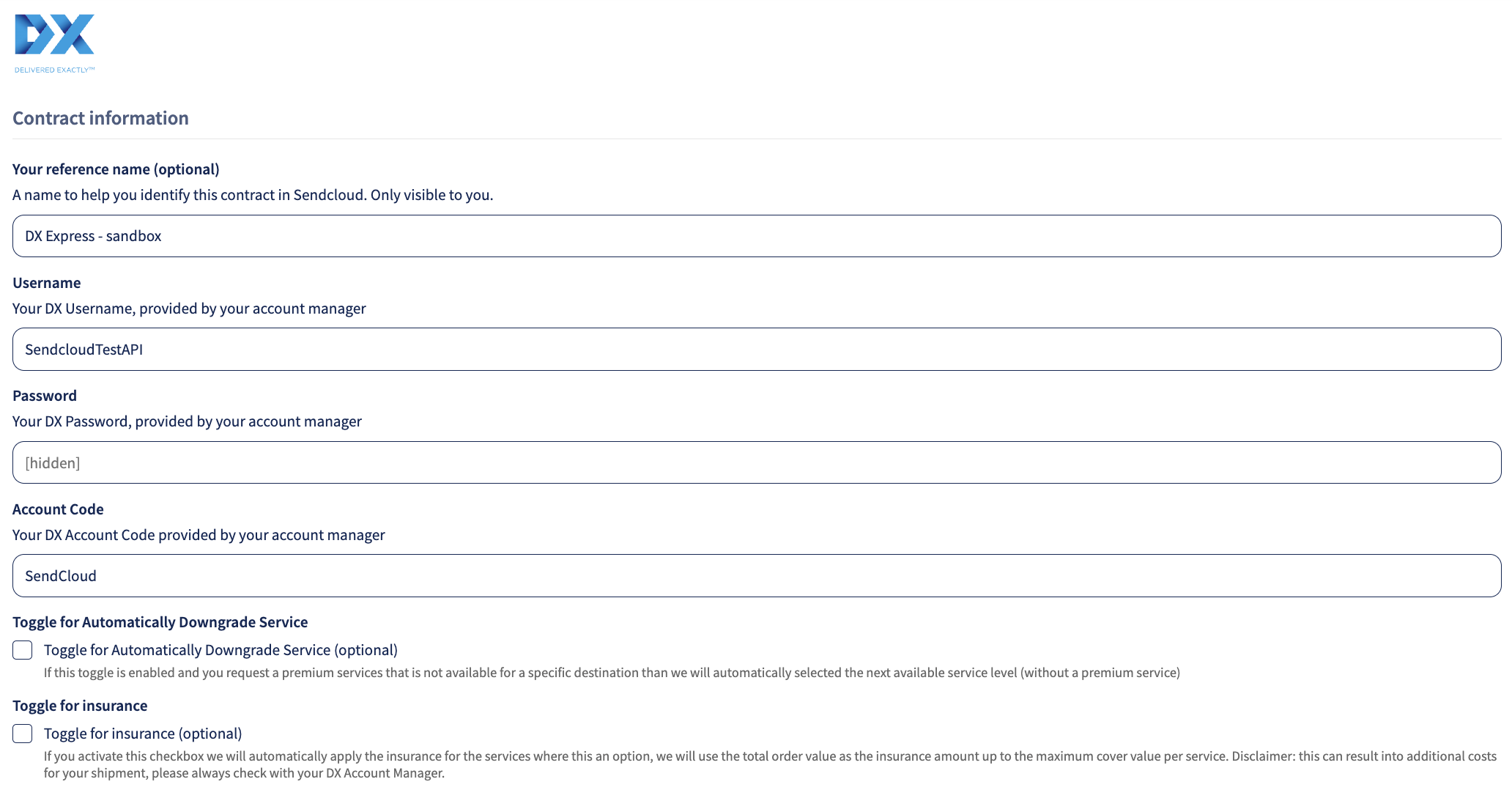
Next you fill in your DX Express contract details. If you haven't received those yet, you can request them via your DX Express account manager:
User name - Your DX Account Code provided by your account manager
Password - Your DX Account Code provided by your account manager
Account Code - Your DX Account Code provided by your account manager
Username - Your DX Username, provided by your account manager
Password - Your DX Password, provided by your account manager
Toggle for insurance (optional) - If you enable this option, insurance will automatically be applied to services where insurance is available. The total order value will be used as the insured amount, up to the maximum coverage allowed for that service.
Toggle for Automatically Downgrade Service (optional) - If you enable this option and the selected premium service is not available for the destination, Sendcloud will automatically choose the next available service level without the premium service.
Direct contract shipping methods
The following direct shipping methods for DX Express are supported in Sendcloud. If a shipping method is not visible in your Sendcloud panel, please contact your DX Express account manager to have it activated in your contract.
Direct contract shipping methods
| Shipping method | Shipping method ID |
| DX Express Secure Business - Next Day (SB) | 31598 |
| DX Express Secure Business - Next Day Pre 10:30 (SBPre1030) | 31601 |
| DX Express Secure Business - Next Day Pre 12:00 (SBPre12) | 31600 |
| DX Express Secure Business - Next Day Pre 13:00 (SBPre1) | 31599 |
| DX Express Secure Business - Saturday (SBSAT) | 31602 |
| DX Express Secure Business - Saturday Pre 10:30 (SBSATPre1030) | 31604 |
| DX Express Secure Business - Saturday Pre 13:00 (SBSATPre1) | 31603 |
| DX Express Secure Flex - Next Day (NS) | 31585 |
| DX Express Secure Flex - Next Day Pre 10:30 (NSPre1030) | 31590 |
| DX Express Secure Flex - Next Day Pre 13:00 (NSPre1) | 31588 |
| DX Express Secure Flex - Leave Safe (LS) | 31586 |
| DX Express Secure Flex - Leave Safe Saturday (LSSAT) | 31591 |
| DX Express Secure Flex - Saturday (NSSAT) | 31592 |
| DX Express Secure Flex - Saturday Pre 10:30 (NSSATPre1030) | 31596 |
| DX Express Secure Flex - Saturday Pre 13:00 (NSSATPre1) | 31594 |
| DX Express Secure Flex - Mandatory Signature (MS) | 31587 |
| DX Express Secure Flex - Mandatory Signature Pre 13:00 (MSPre1) | 31589 |
| DX Express Secure Flex - Mandatory Sinature Saturday (MSSAT) | 31593 |
| DX Express Secure Flex - Mandatory Signature Saturday Pre 10:30 (MSSATPre1030) | 31597 |
| DX Express Secure Flex - Mandatory Signature Saturday Pre 13:00 (MSSATPre1) | 31595 |
| DX Express Secure Return (SR) | 31605 |
Done! Once you've followed the steps above, your DX Express contract should now be successfully linked to your Sendcloud platform and you can begin shipping on your DX Express rates. When you create a label with a DX Express shipping method, the label price will now show as 0.00 EUR in your account.