
Purpose: If your online shop uses Cloudflare's security features, you may need to configure it to allow Sendcloud's integration to connect properly. This article explains how to recognize when Cloudflare is blocking Sendcloud and how to configure Cloudflare so that Sendcloud can connect.
Cloudflare Bot Fight Mode / WAF Configuration for Sendcloud
Symptoms of Cloudflare Blocking Sendcloud
You may be affected by Cloudflare blocking Sendcloud if you see, during Sendcloud installation or while using the integration, one of the following errors:
- 403 Forbidden errors during Sendcloud installation or connection
- 500 Connection errors during Sendcloud connection
How to Confirm Cloudflare is the Cause
- Log in to your Cloudflare dashboard.
- Access your Security / Firewall activity logs (the exact name may vary depending on your plan or interface).
- Filter traffic by Action (look for Block, Challenge, or JS Challenge).
- Open one of the blocked requests and check the Source IP.
- Compare it with Sendcloud’s IP list
If the Source IP matches one from Sendcloud’s list, Cloudflare is blocking Sendcloud.
Cloudflare Configuration by Plan
Free Plan (Bot Fight Mode)
See steps here: Whitelist Sendcloud IP Addresses (Recommended)
- Log in to your Cloudflare dashboard and select your domain.
- Navigate to the correct settings:
- Go to Security > Settings in the left sidebar.
- Look for the box labeled IP access rules.
-
IMPORTANT: Click "Go to IP Access rules".
(Do NOT click "Create IP access custom rule").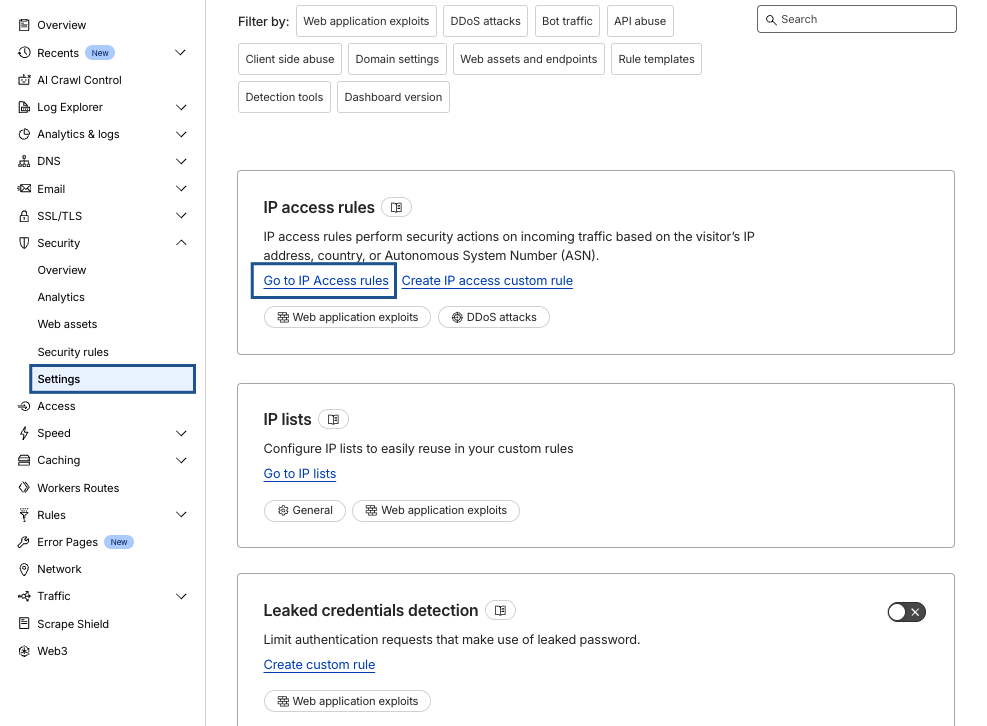
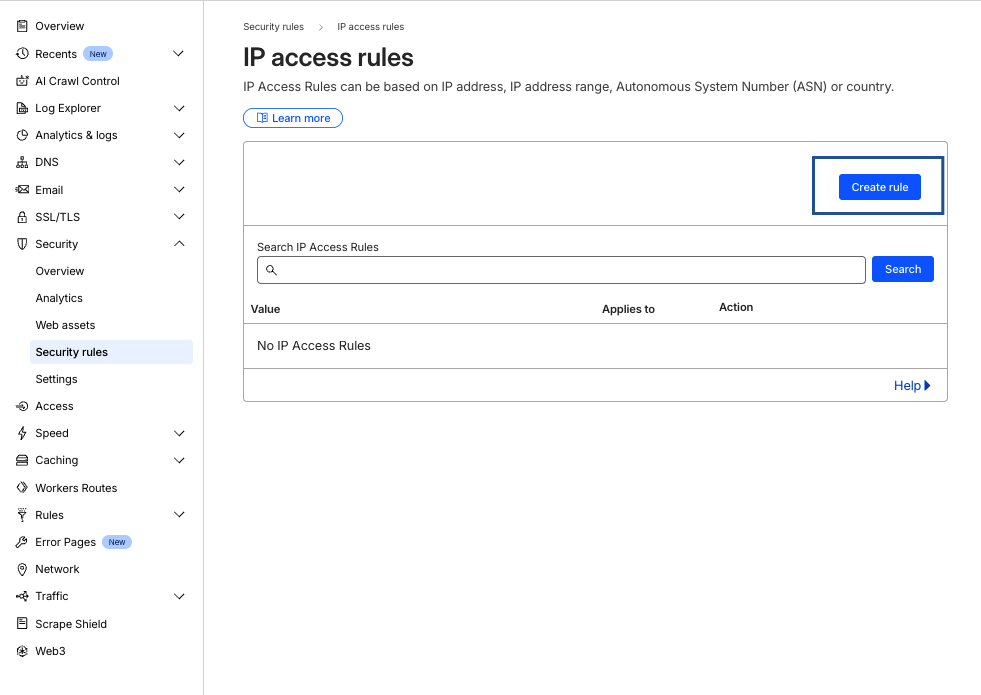
Alternative option: If you cannot find it, go to the Security > Security rules page and manually edit your browser URL. Append /ip-access-rules to the end of the URL (so it will look like: ".../security/security-rules/ip-access-rules").
- Create the Rule:
- Click the blue Create rule button.
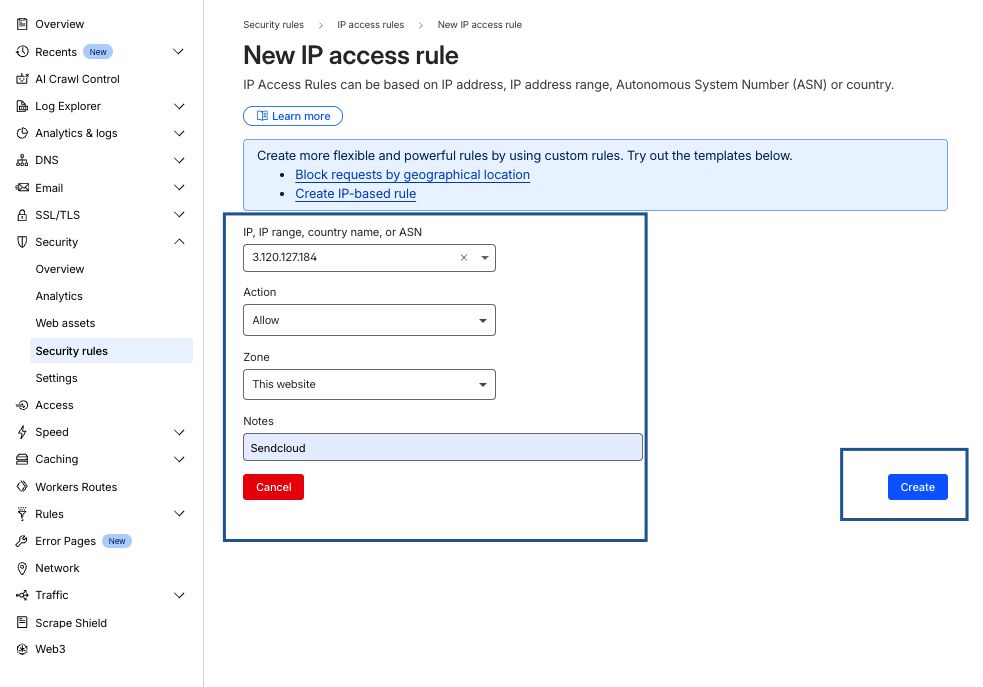
- IP / ASN: Enter one IP from the Sendcloud list.
- Action: Select Allow.
- Zone: Select "All zones" or "This website".
- Click Create.
- Repeat: You must add each IP address individually.
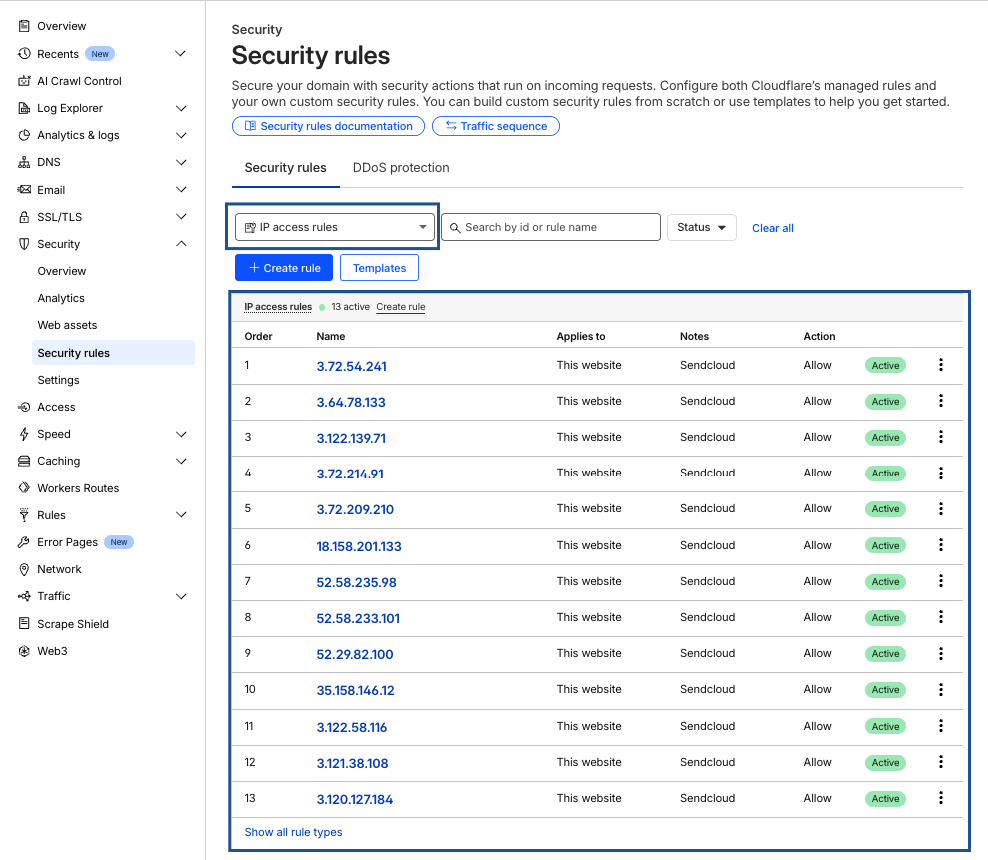
💡 Why this works: The "Allow" action in IP Access Rules overrides Bot Fight Mode on the Free plan, allowing Sendcloud to connect while keeping Bot Fight Mode ON.
Pro / Business / Enterprise Plans (Super Bot Fight Mode)
See steps here: WAF Custom Rule (Recommended)
This is the most flexible method. It allows you to bypass Cloudflare security checks only for Sendcloud IPs.
Step 1: Create an IP List (One-Time Setup)
- Go to Manage Account > Configurations > Lists.
- Click Create new list.
- Name the list
sendcloud_ips. - Select IP as the content type.
- Add all IPs from the official Sendcloud list:
Sendcloud IP list - Click Save.
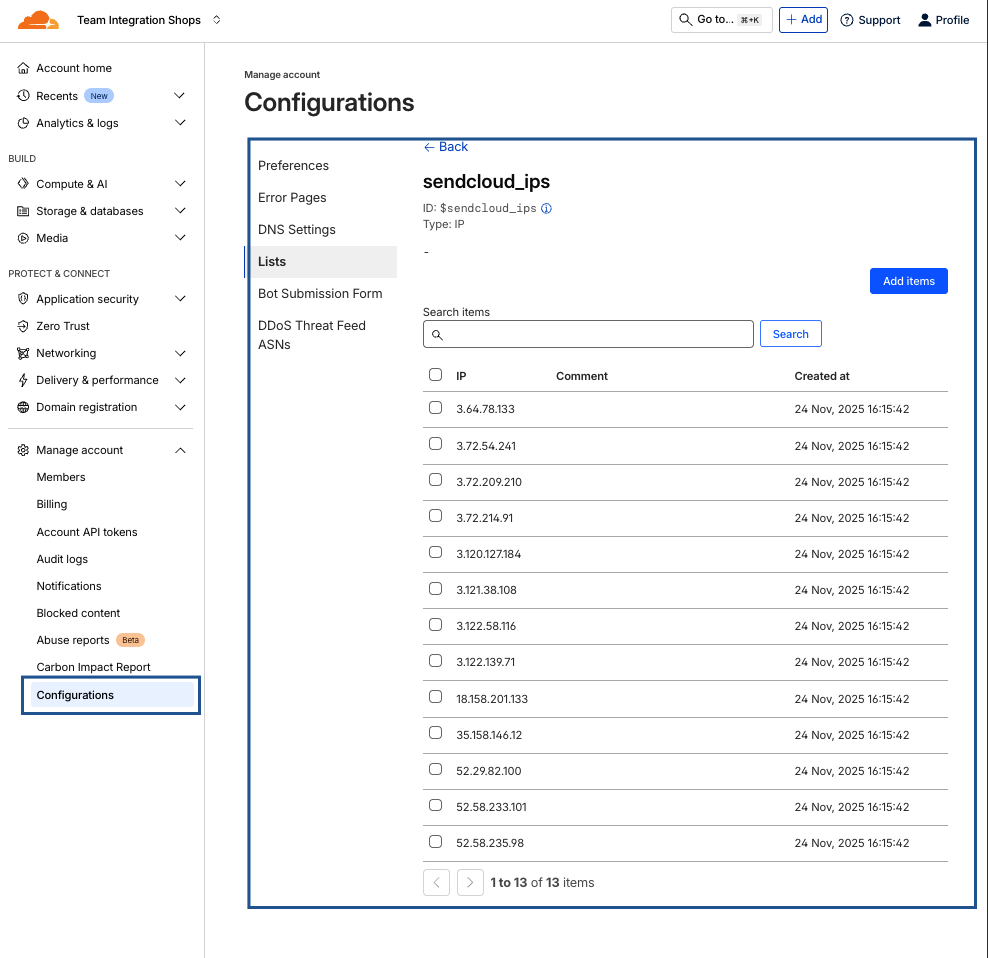
Step 2: Create the WAF Custom Rule
- Go to Security > WAF > Custom rules.
- Click Create rule
- Rule name:
Allow Sendcloud Integration - Condition:
Field: IP Source Address
Operator: is in list
Value:sendcloud_ips
Or use this expression:(ip.src in $sendcloud_ips) - Action: Skip
- Check:
- All remaining custom rules
- Super Bot Fight Mode
- Rate Limiting
- User agent blocking
- Browser integrity check
- Click Deploy.
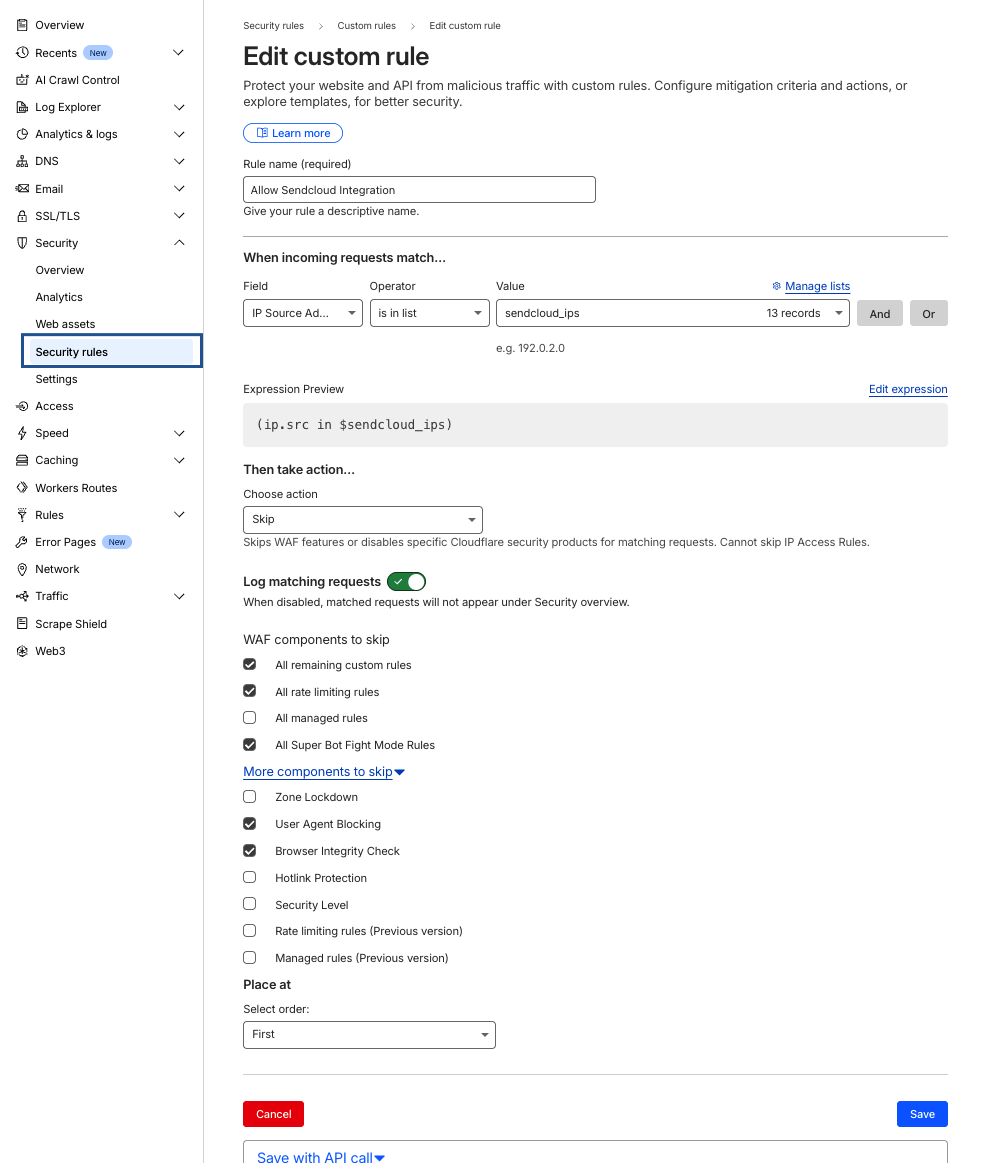
What This Rule Does:
- Allows only Sendcloud IPs to bypass Cloudflare challenges.
- Keeps all bot protection active for other traffic.
- Ensures Sendcloud can connect without being blocked.
Still Having Issues?
Clear Cloudflare Cache
- Go to Caching > Configuration.
- Click Purge Everything.
- Wait 30 seconds and try again.
Check for Conflicting Rules
- Review all WAF Custom Rules.
- Verify no Page Rules are blocking the endpoints.
Verify Your Cloudflare Plan
- Free plan: Only IP Access Rules available.
- Pro+ plans: WAF Custom Rules with Skip action available.
Use IP Access rule (see Free Plan (Bot Fight Mode)
- If you have followed the guide above and are still seeing 403 Forbidden errors or blocks, follow this "hard override" method.
- This works for ALL plans (Free, Pro, Business).
Temporarily Disable Bot Fight Mode
- Go to Security > Bots.
- Toggle Bot Fight Mode off.
- Complete the Sendcloud installation.
- Re-enable Bot Fight Mode afterward.
Contact Sendcloud Support
- Include the specific error message.
- Provide screenshots of Cloudflare Security Events showing blocks.
- Include screenshots of your allowlist or custom rule configuration.
- Mention your Cloudflare plan (Free / Pro / Business).