
Purpose: Learn how to connect your own Ontime carrier contract with your Sendcloud account in three easy steps.
Step 1: Activate your Sendcloud subscription
Sendcloud offers three subscriptions that allow you to use your own transport contract: Lite, Growth, and Premium.
For more information about which plan best fits your business needs, visit our pricing page or contact us through the support section of your Sendcloud account.
Step 2: Enable your carrier contract
Once your subscription is active, you can connect your carrier contract.
In the Sendcloud panel, go to Shipping > Carriers > My contracts and click Add your own contract. From the list, select Ontime and click Add Contract. You will then be prompted to enter your contract credentials.
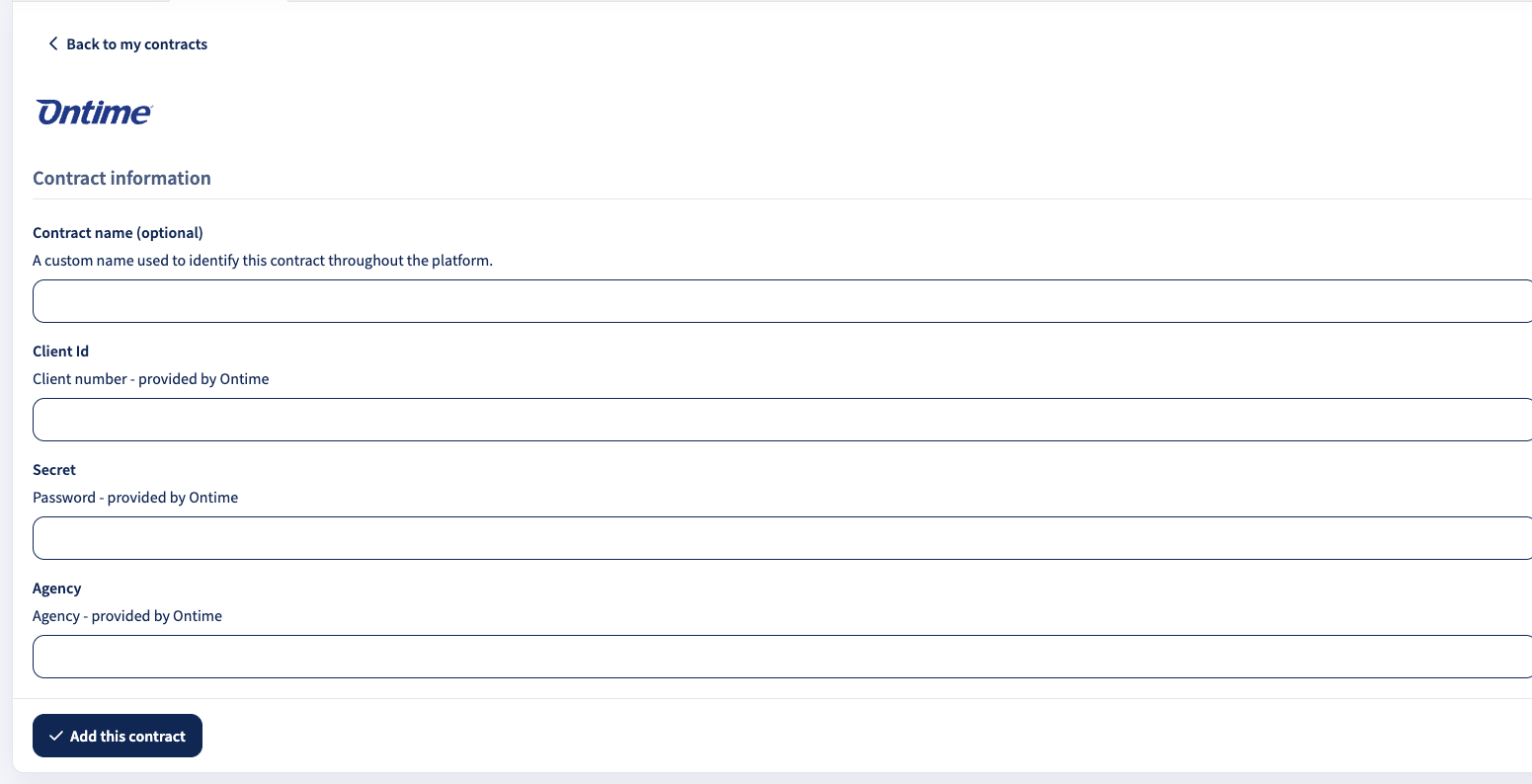
Step 3: Enter your Ontime contract information
To activate your Ontime contract, complete the following fields and click Add this contract:
- Client ID: Provided by your Ontime account manager
- Secret: Provided by your Ontime account manager
- Agency: Provided by your Ontime account manager
Done! If you’ve followed all steps, your Ontime contract should now be successfully connected to Sendcloud. You can begin shipping using your Ontime rates. When you create a label with an Ontime shipping method, the label price will appear as 0.00 EUR in your account.