
Purpose: In this article, we explain what address validation is, why it matters, and the different ways you can check your customers' addresses in Sendcloud, directly in the panel, via the Shipments APIs, or through third-party plugins.
What is address validation?
Address validation checks whether a shipping address exists in official address databases. This helps ensure parcels are delivered correctly and reduces failed deliveries, returns, and carrier surcharges.
When is an address checked?
In Sendcloud, address validation runs automatically whenever an address is loaded or created. This can happen in three places in the panel:
- Incoming orders: see the validation status of every order at a glance in the new Address check column.
- Pack & Go (coming soon): validation feedback in Pack & Go will be available soon.
- New shipment form: see validation feedback while creating a shipment manually.
The validation runs in the background and does not block your workflow. You can still create a label even if an address is marked as invalid, so use the validation result as guidance, not a hard restriction.
What happens when an address is validated?
Each address gets one of several statuses depending on the result. You'll see these statuses in the Incoming orders view and inside the order editor. The sections below explain what each status means and what to do about it.
The Address check column in Incoming orders
In the Incoming orders view, you'll find a new Address check column that shows the validation status of each order at a glance.
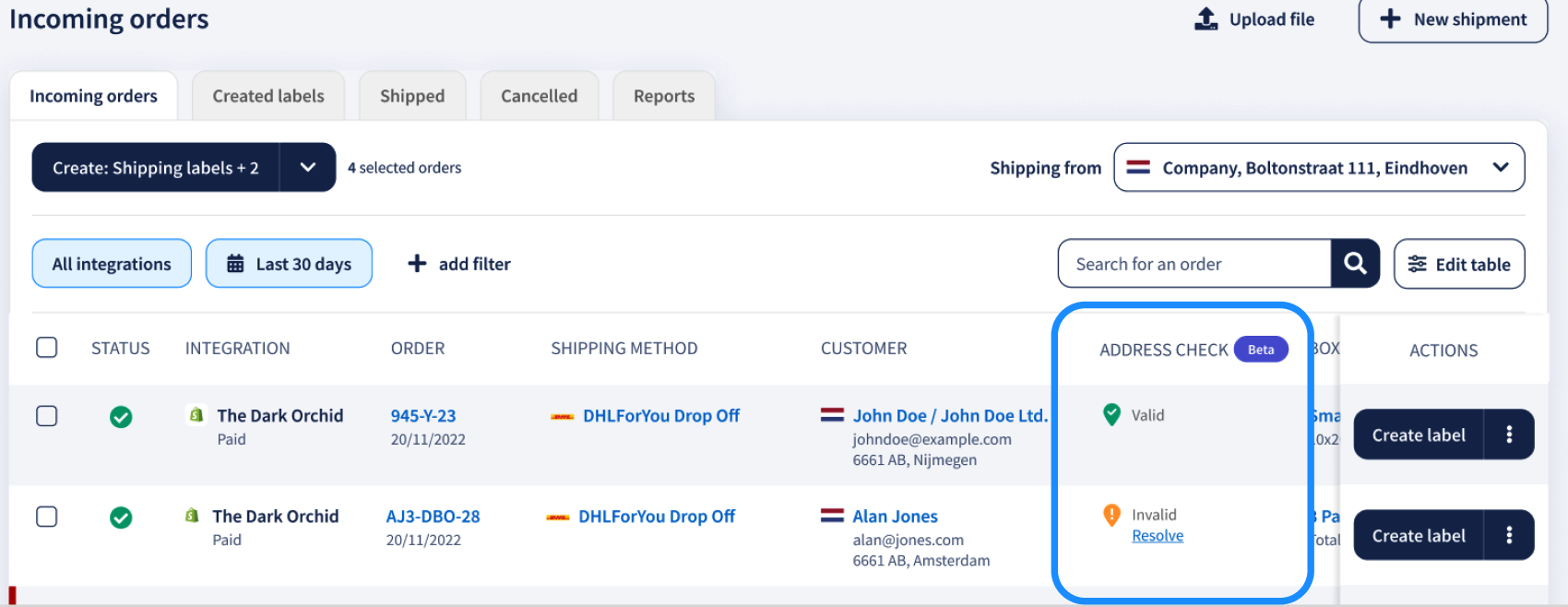
Below are all the statuses an address can have. Click one to see its meaning.
The address is being validated. This usually only takes a moment.
Resolving an invalid address
When an order is marked as Invalid, click Resolve in the Address check column to open the Address check modal. Inside, you'll see two cards side by side:
- Original: the address you entered, with the fields that look incorrect highlighted with a warning icon.
- Recommended: the corrected address, based on official postal data, with the corrected fields highlighted in green.
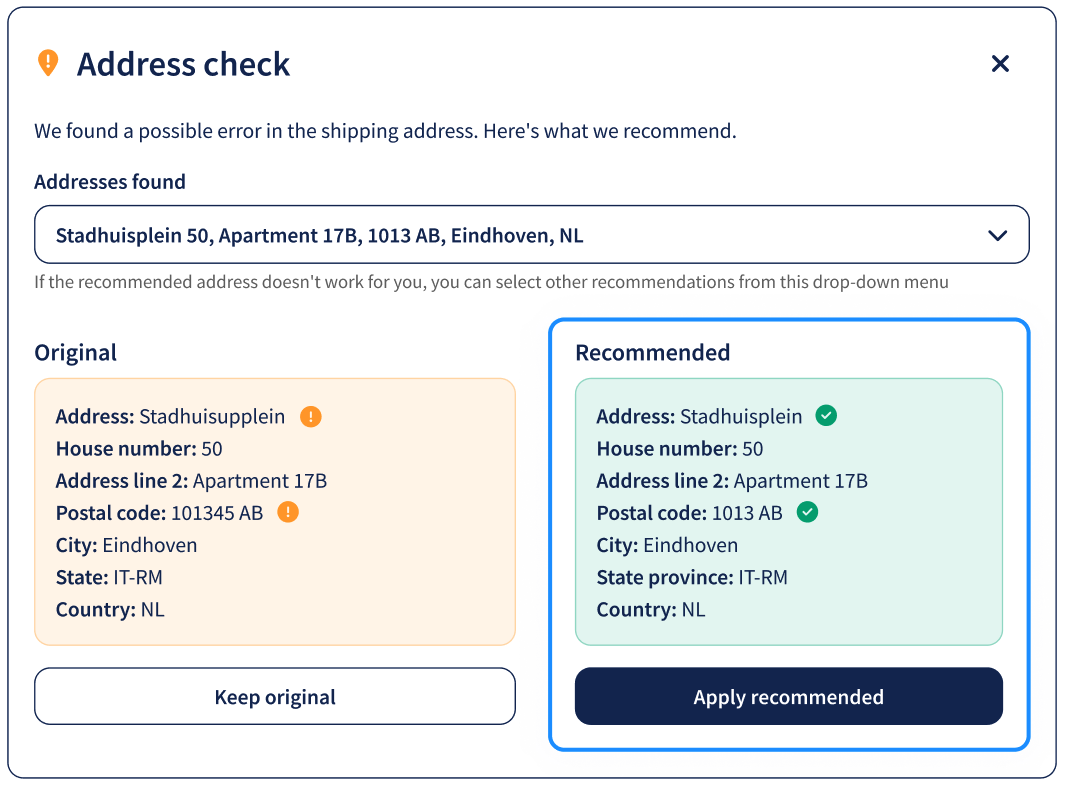
If the first recommendation isn't right, you can pick a different one from the Addresses found drop-down at the top of the modal.
To finish:
- Click "Apply recommended" to update the order with the suggested address.
- Click "Keep original" if you'd rather leave the address as it was entered.
Address check in the order editor
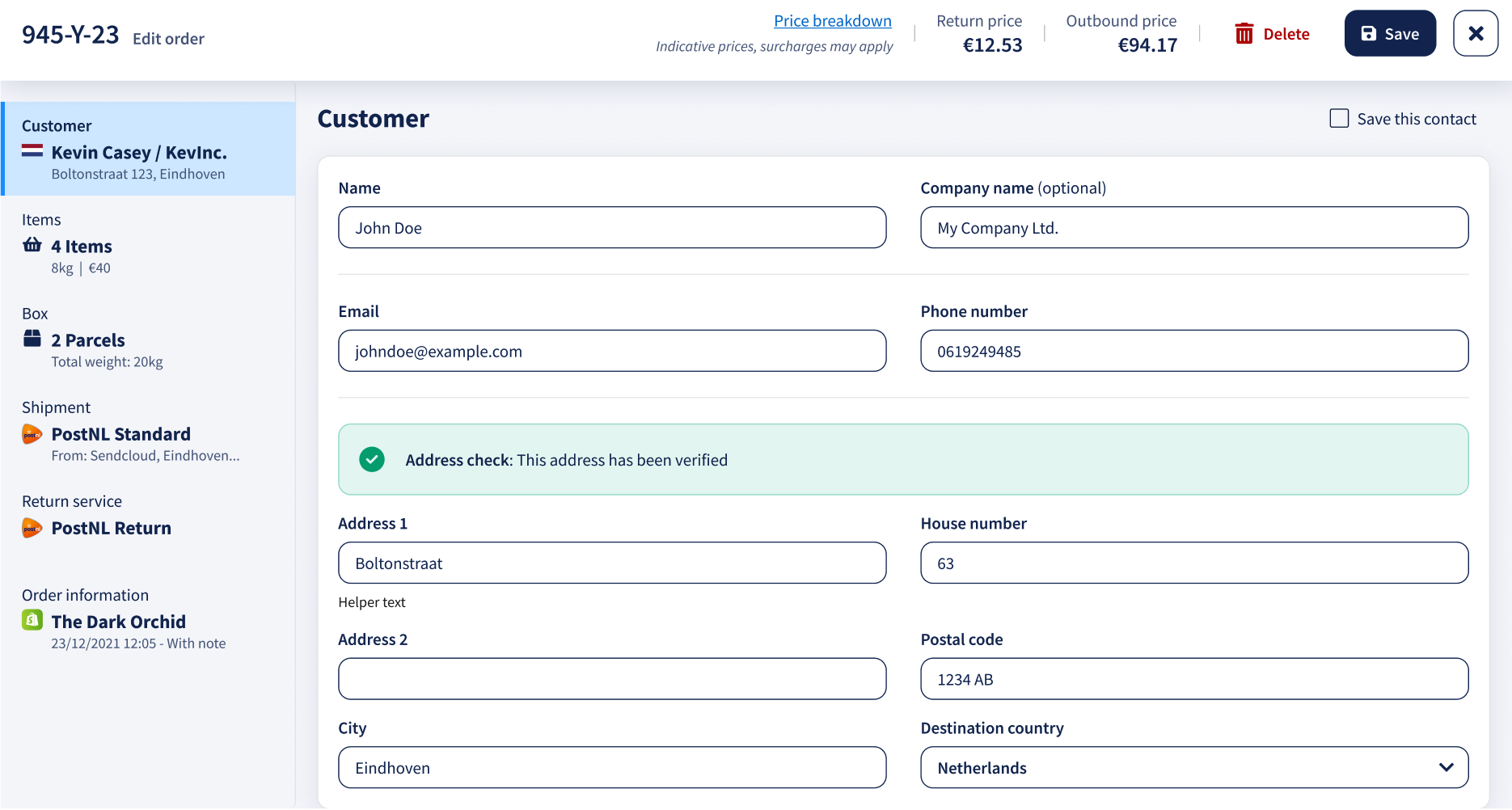
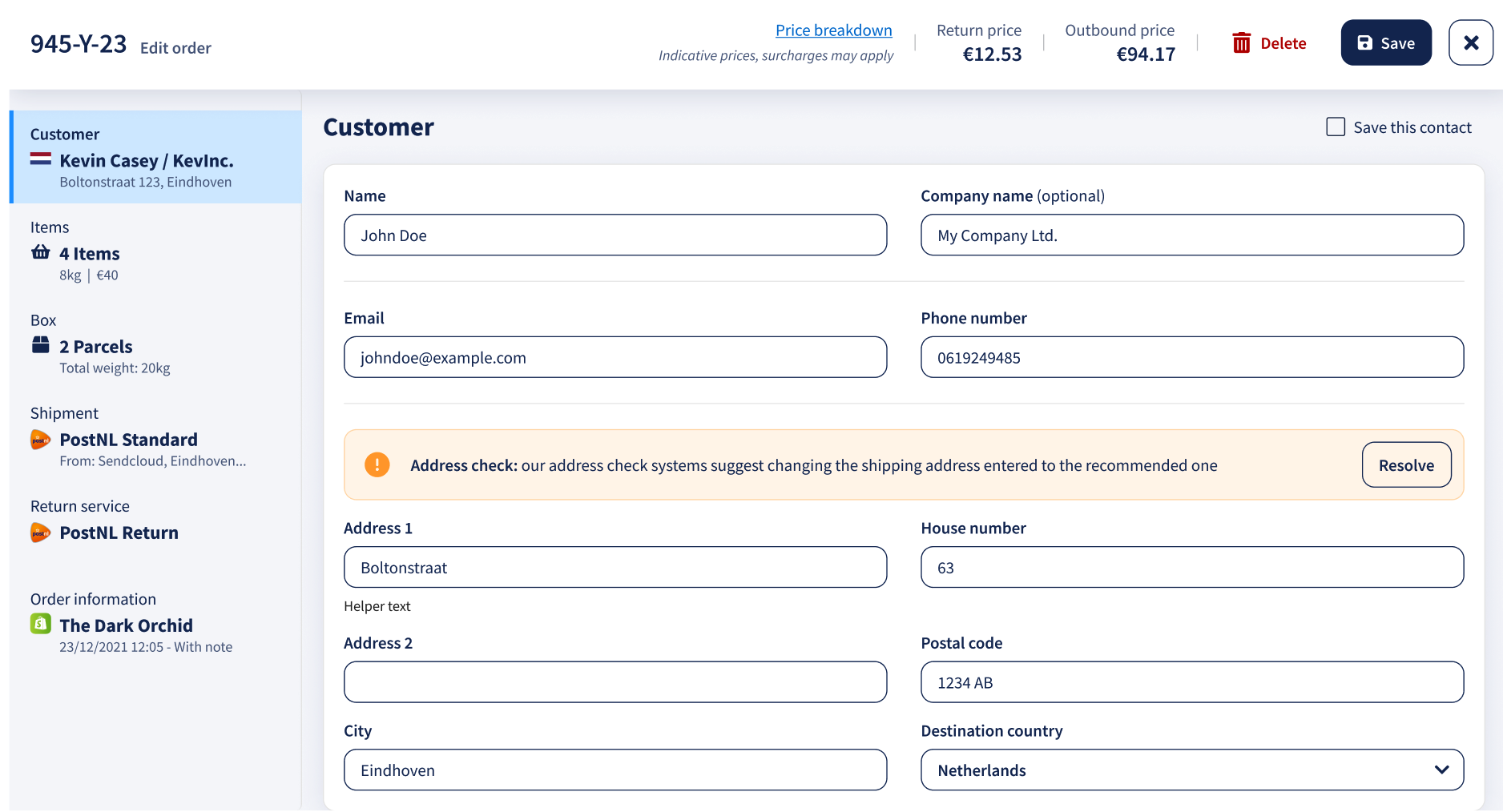
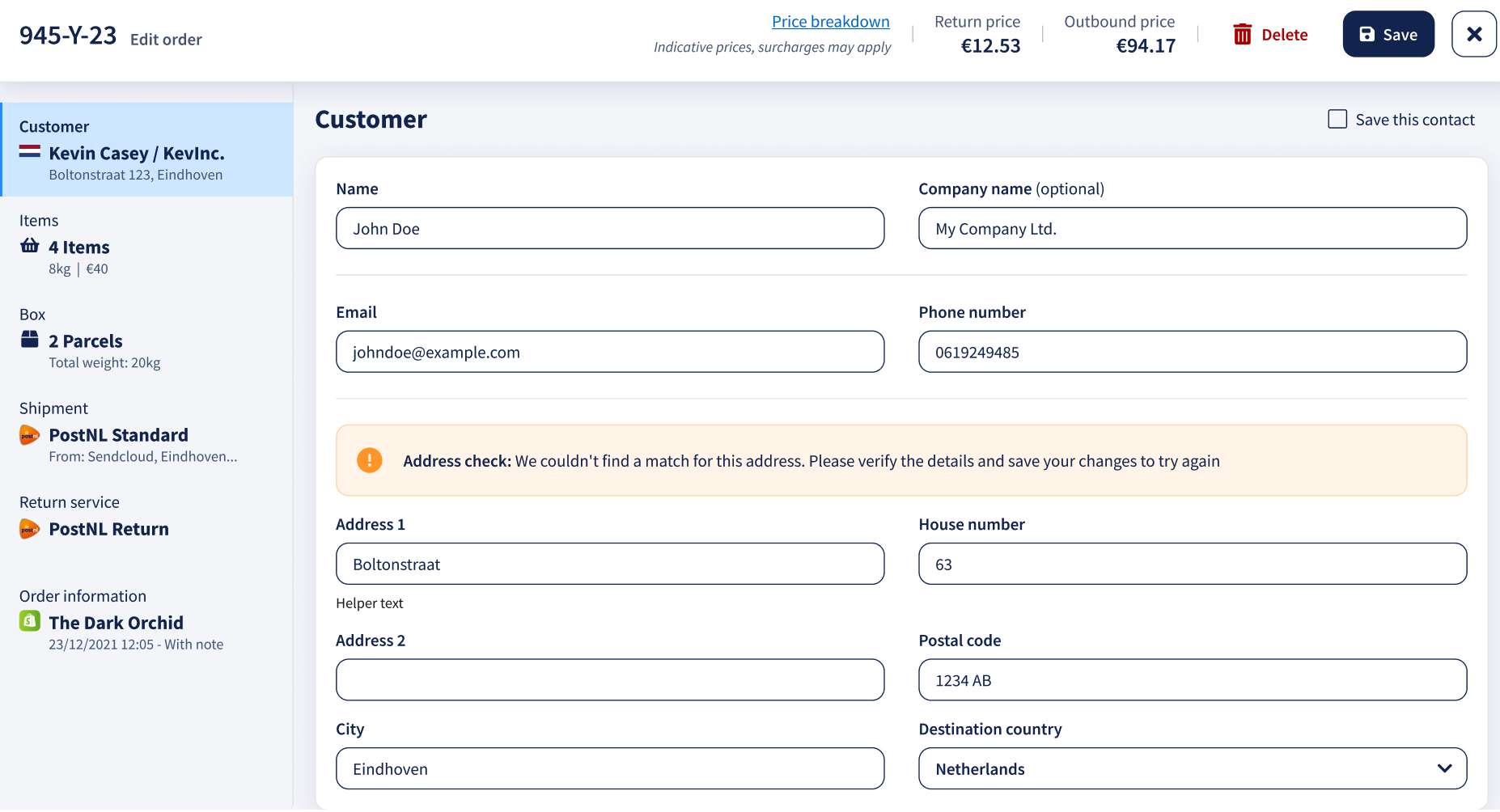
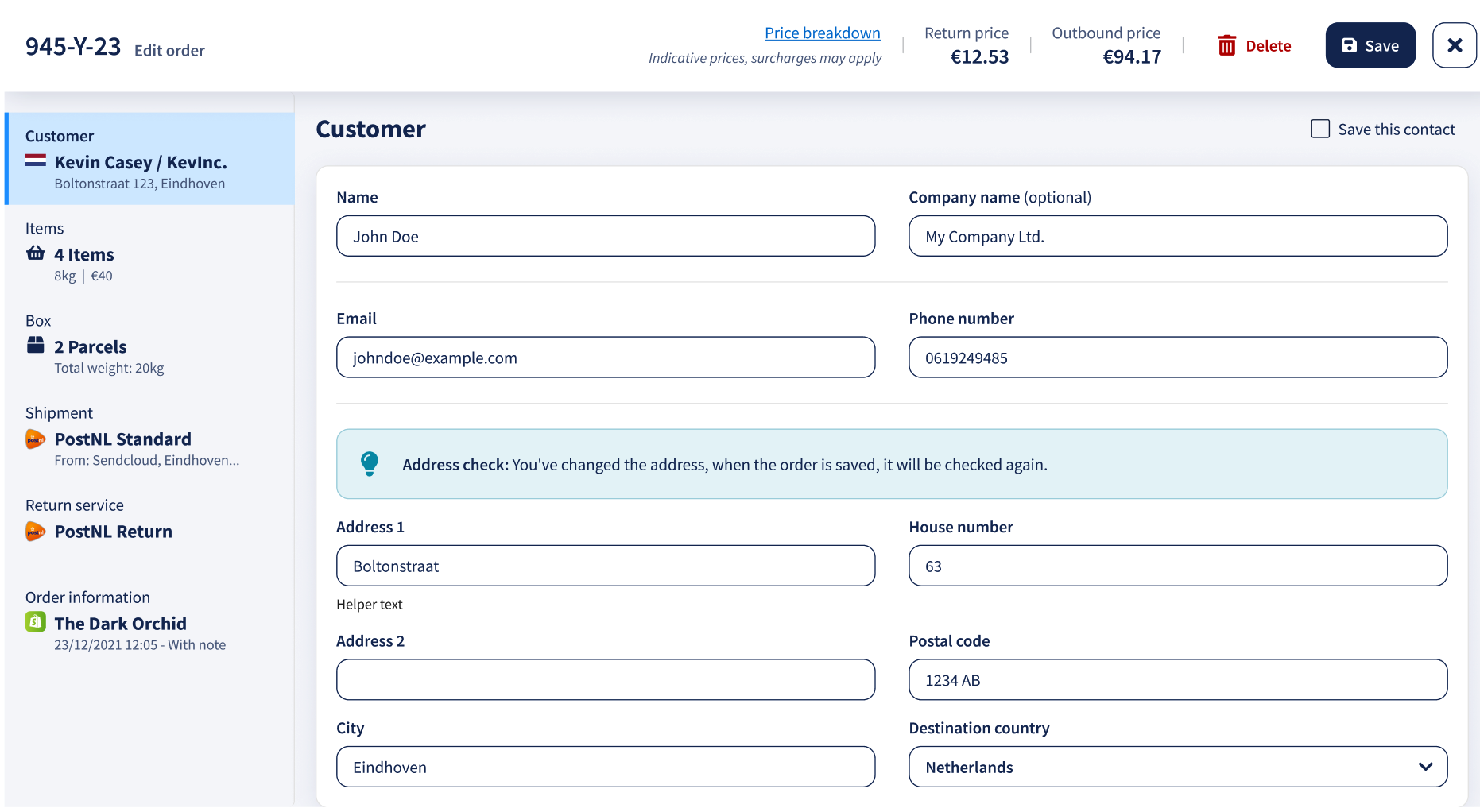
When you open an order to edit it, the validation status is also shown right above the address fields in the Customer section. The message you see depends on the validation result, and on whether you've changed the address since the order was loaded. Browse through the examples below to see each case.
Other ways to validate addresses
Besides the in-panel feature, you can also validate addresses earlier in your workflow, at the moment a customer types their address on your webshop. This is done by third-party tools that are independent of Sendcloud and run on your shop platform.
Using one of these tools in addition to Sendcloud's in-panel validation gives you a "double check": one at checkout (preventing typos at the source) and one before the label is created (catching anything that slipped through).
| Where it runs | When it validates | Who provides it |
|---|---|---|
| Sendcloud panel (in-panel validation) | Before a label is created | Sendcloud |
| Sendcloud Shipments API | When you call the API to create a shipment | Sendcloud |
| Sendcloud Address Validation API | Whenever your code calls it (same behaviour as third-party APIs) | Sendcloud |
| Webshop plugin | At checkout, while the customer types | Third party (e.g., Postcode.nl, ELEX) |
| Third-party API | Whenever your code calls it | Third party (e.g., SmartyStreets, Postcode.nl) |
Why validate addresses?
- Fewer failed deliveries. Catching a typo before the label is created means the parcel actually reaches your customer, with no return, re-send, or carrier surcharge.
- Lower shipping costs. Many carriers charge surcharges for incorrect addresses. Validating up front reduces these costs.
- Higher customer satisfaction. Customers receive their parcels on time, at the right address, without follow-up emails or delays.
- Faster checkout (with checkout plugins). Many plugins offer postcode + house number autofill, so customers don't have to type the full street and city. (Note: autofill is not part of Sendcloud's in-panel validation or Shipments API.)
Pricing
Address validation pricing depends on your subscription.
- Non-Enterprise plans: Address validation is free, both when using the Address Validation API (standalone validation endpoint) and when announcing shipments or importing orders through the Sendcloud platform.
- Enterprise plans: Address validation is available as a paid add-on. When creating shipments with a transactional contract, address validation is still provided free of charge during order import and shipment announcement (via both the Sendcloud panel and API).
Third-party options
If you'd like to validate addresses at checkout, or use a different validation database alongside Sendcloud's, there are two types of third-party tools to consider: plugins (installed on your webshop) and APIs (called from your own code).
We can't recommend a specific tool because the best option depends on your shop system, the countries you ship to, and your budget. Please do your own research before choosing.
Plugins for your webshop: validate at checkout, by country
Plugins install directly into your webshop platform (Shopify, WooCommerce, PrestaShop, Magento, etc.) and validate the address as your customer types it at checkout. Address validation software is often country-specific, so pick one that covers the countries you ship from and to.
| Country | Available plugins/applications |
|---|---|
| Austria | Postcode Check Implementation |
| Belgium | Postcode Check Implementation |
| France | Egon |
| Germany | Postcode Check Implementation |
| Luxembourg | Postcode Check Implementation |
| Netherlands | |
| Spain | ELEX Address Validation & Google Address Autocomplete Plugin for WooCommerce |
| Switzerland | Postcode Check Implementation |
Third-party APIs: validate from your own code
These APIs work the same way as Sendcloud's validation does: your code sends an address, the API checks it against an official address database, and responds with a validation status. The difference lies in the database each API uses; different providers cover different countries with varying levels of accuracy.
- SmartyStreets API: international address validation covering 40+ countries and territories.
- Postcode.nl API: validate and correct addresses on entry or afterwards. Covers the Netherlands, Belgium, Germany, Luxembourg, Austria, and Switzerland.
Validating addresses via the Sendcloud API
If you create shipments through the Sendcloud Shipments API instead of the panel, you can enable the same validation engine used by the in-panel feature. The validation logic, country coverage, and limitations are identical; only the way you interact with it differs.
To enable validation, include the following parameter in your shipment request:
"validation_methods": ["here"]
If the address can't be found in our database, the API returns an error message: "Address doesn't exist". If a recommended address is found, it is used instead of the original address shared in the request. For full details, see the Shipments API documentation.
Using the Address Validation API
When using the Address Validation API with "validation_methods": ["here"], the behavior matches what you see in the panel. The API response returns a list of matching addresses, with one marked as "recommended": true. This indicates the address we are most confident can be delivered to.
If all returned addresses have "recommended": false, it means no address could be identified with sufficient confidence for successful delivery.
The Address Validation API can also be used to validate addresses against carrier limits only. To do this, simply omit the "validation_methods": ["here"] parameter from your request.
In this case, an address may still be marked as "recommended": true if it meets carrier constraints, even if it is not confirmed as a real-world deliverable address.
When "validation_methods": ["here"] is included, both real-world address validation and carrier limit checks are applied.
Example: a request that fails validation
The example below will fail with the message "Address doesn't exist" because the postal code 5611CR belongs to Eindhoven, not Amsterdam.
{
    "label_details": {
        "mime_type": "application/pdf",
        "dpi": 72
    },
    "validation_methods": ["here"],
    "to_address": {
        "name": "John Doe",
        "company_name": "Sendcloud",
        "address_line_1": "Whitehall",
        "house_number": "54",
        "postal_code": "5611CR",
        "city": "Amsterdam",
        "country_code": "NL",
        "phone_number": "+393895422999",
        "email": "john.doe@sendcloud.com"
    },
    "from_address": {
        "name": "Marie Doe",
        "company_name": "Sendcloud",
        "address_line_1": "Stadhuisplein 10",
        "address_line_2": "2e verdieping",
        "house_number": "10",
        "postal_code": "5611 EM",
        "city": "Eindhoven",
        "country_code": "NL",
        "phone_number": "+31612345678",
        "email": "marie.doe@sendcloud.com",
        "po_box": "PO Box 478"
    },
    "ship_with": {
        "type": "shipping_option_code",
        "properties": {
            "shipping_option_code": "postnl:standard",
            "contract_id": 517
        }
    },
    "order_number": "1234567890",
    "total_order_price": {
        "currency": "EUR",
        "value": "11.11"
    },
    "parcels": [
        {
            "dimensions": {
                "length": "5.00",
                "width": "15.00",
                "height": "20.00",
                "unit": "cm"
            },
            "additional_insured_price": {
                "value": "50",
                "currency": "EUR"
            },
            "weight": {
                "value": "1.320",
                "unit": "kg"
            },
            "parcel_items": [
                {
                    "item_id": "5552",
                    "description": "T-Shirt XL",
                    "quantity": 1,
                    "weight": {
                        "value": 0.3,
                        "unit": "kg"
                    },
                    "price": {
                        "value": 12.65,
                        "currency": "EUR"
                    },
                    "hs_code": "620520",
                    "origin_country": "NL",
                    "sku": "TS1234",
                    "product_id": "19284",
                    "mid_code": "NLOZR92MEL",
                    "material_content": "100% Cotton",
                    "intended_use": "Personal use",
                    "properties": {
                        "size": "XL",
                        "color": "green"
                    }
                },
                {
                    "item_id": "98712",
                    "description": "Sneakers 42",
                    "quantity": 1,
                    "weight": {
                        "value": 1.02,
                        "unit": "kg"
                    },
                    "price": {
                        "value": 12.65,
                        "currency": "EUR"
                    },
                    "hs_code": "620520",
                    "origin_country": "US",
                    "sku": "TS1234",
                    "product_id": "19284",
                    "mid_code": "US1234567",
                    "material_content": "100% Cotton",
                    "intended_use": "Personal use",
                    "properties": {
                        "size": 42,
                        "color": "black"
                    }
                }
            ]
        }
    ]
}