
Purpose: Learn how to connect your Shopify shop with Sendcloud in under 5 minutes, no coding required.
Watch the video
We’ve created an updated walkthrough that combines all the steps in one go.
You’ll learn how to quickly install the Sendcloud app and complete the Shopify integration from start to finish.
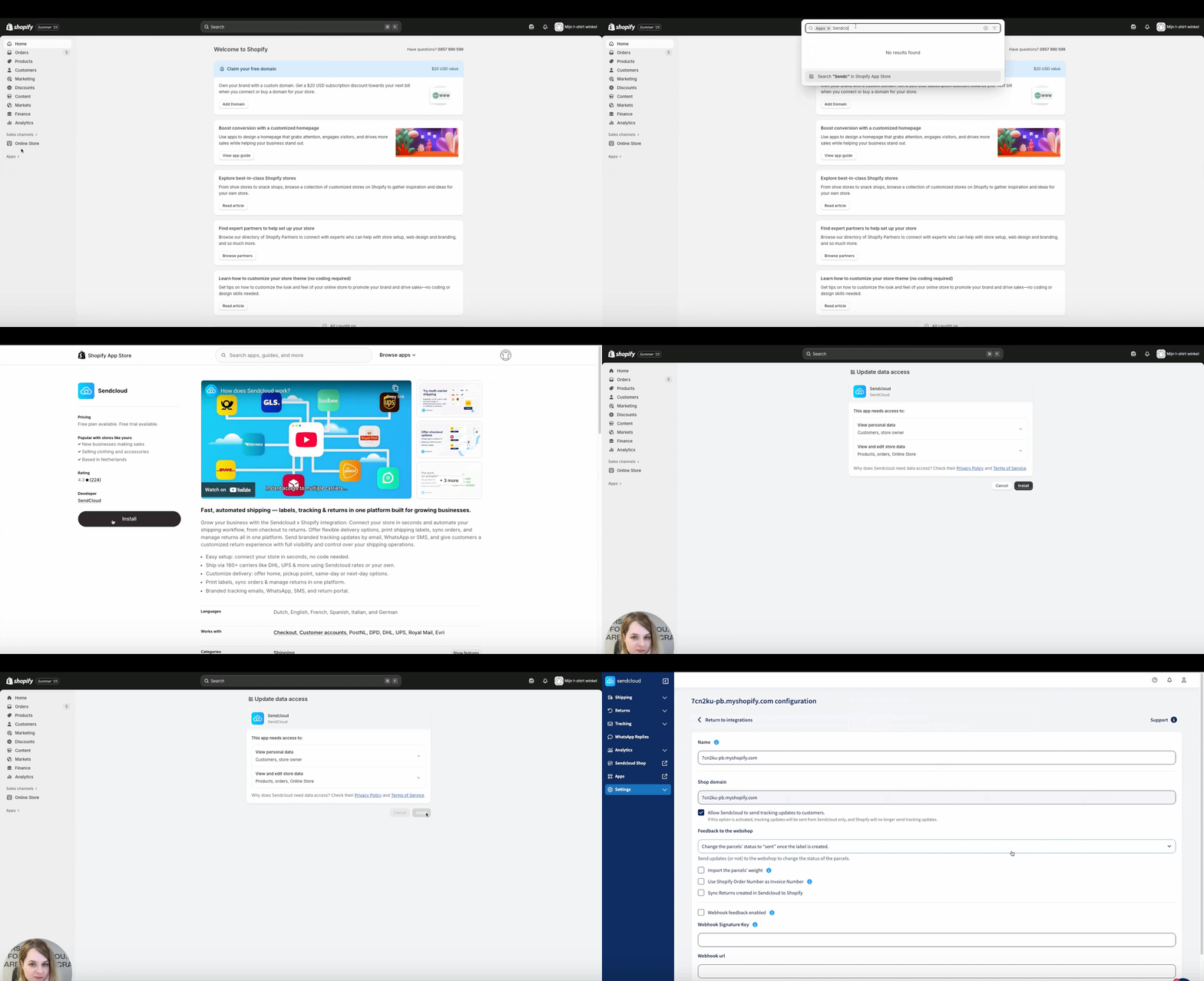
Install and connect the Sendcloud app
You can follow the steps below, or simply watch the video above to complete the installation and connection in one go.
-
Open the Shopify App Store
In your Shopify backend, go to Apps > Visit the Shopify App Store. -
Find the Sendcloud App
Search for Sendcloud and open the app page. -
Install the App
Click Add app to open Shopify’s authentication page.
Then click Install app to open the Sendcloud panel. -
Verify the Connection
In Sendcloud > Settings > Integrations, confirm that Shopify appears under Connected integrations.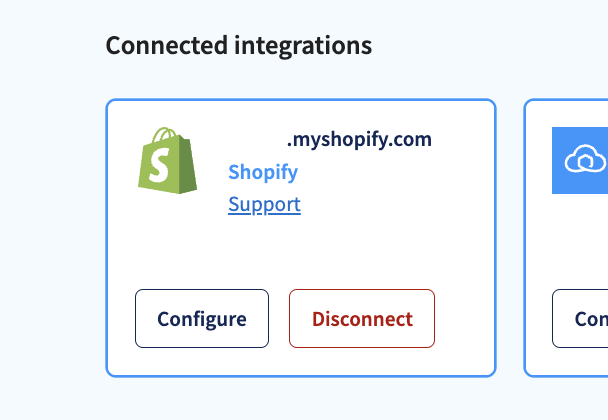
Order import window
Next Steps
Enhance your checkout experience with Service Point Delivery, allowing customers to pick up parcels at a nearby location.
- Follow our guide to set up Service Points for Shopify and offer this flexible delivery option.
Configure Your Integration
Once the connection is established, you can personalise how Shopify and Sendcloud work together.
- Go to Sendcloud > Settings > Integrations > Shopify > Configure.
- Here you’ll find settings to adjust order import preferences, shipping rules, and notification options.
- These controls let you tailor the integration to your workflow.
Choose which currency your orders import in
Shopify provides two currency values for each order: your store currency and the customer checkout currency (also known as presentment currency). You can choose which currency Sendcloud uses when importing your Shopify orders.
This can be useful if customers frequently check out in currencies that aren't supported by your carriers, or if you currently need to manually adjust order values before creating labels.
To change the order currency:
- Go to Settings > Integrations > Shopify > Configure.
- Under Synchronization settings, find Import orders in the store's currency.
- Choose how you want your orders to be imported:
- Check the box to import orders in your Shopify store currency.
- Leave the box unchecked to import orders in the customer checkout currency.
- Save your changes.
Default behaviour: New Shopify integrations use store currency by default. Existing Shopify integrations continue using customer checkout currency unless you change this setting.
Finish
Congratulations! Your Shopify shop is now connected to Sendcloud, and orders can be processed via Incoming orders.