
Purpose: Learn how to connect your GLS Europe (Germany) carrier contract to your Sendcloud account in three easy steps.
Step 1: Activate your Sendcloud subscription
Sendcloud offers three plans that allow you to use your own carrier contract: Lite, Growth, and Premium.
Step 2: Enter your GLS Europe Germany contract details
You will need the following information provided by GLS:
- Username (API Key)
- Password (API Secret)
- Contact-ID
- Country = Germany
How to obtain your credentials:
Important: Check for extra spaces
When copying your API Key or API Secret from the GLS Developer Portal, make sure there are no spaces before or after the value. Even a single invisible space can cause a validation error in Sendcloud.
Tip: Paste the credentials into a text editor first to verify and remove any extra spaces, then copy them into Sendcloud.
When copying your API Key or API Secret from the GLS Developer Portal, make sure there are no spaces before or after the value. Even a single invisible space can cause a validation error in Sendcloud.
Tip: Paste the credentials into a text editor first to verify and remove any extra spaces, then copy them into Sendcloud.
- Go to the GLS Developer Portal
- Click Sign In, then select Create your account
- Complete the form: We recommend using an email inbox that distributes emails rather than a personal email address.
- Log in to your account, click your email in the top-right corner, and select Apps
- Click +NEW APP and enter the following:
- App Name: Sendcloud Integration for [Your Company Name]
- App Description: Integration on the Sendcloud platform
- Request access to the following APIs:
- Authentication API v2
- Customs API v3 and Customs Document Management API (only if you ship international parcels)
- ShipIT-Farm API v1
- Shop Returns Customer Plus API v3
- Click Save, and your App ID, App Key, API Key, and Secret will be generated
- Contact your GLS account representative and IT Support team:
When contacting your GLS account manager, mention that you enabled the Customs API in your app setup. The account manager needs this information to activate the Customs API on your customer account, which is required for it to work properly. - Inform them that you require API access for integration with Sendcloud and provide your App ID and email address
Do not share your API Key or Secret publicly.
Step 3: Enable your carrier contract
- Log in to your Sendcloud account
- Go to Shipping > Carriers > My Contracts
- Click Add contract and select GLS Europe
- Click Enable own contract
- Select Germany as your country
You will now be prompted to enter your GLS credentials.
Finalize the activation in Sendcloud
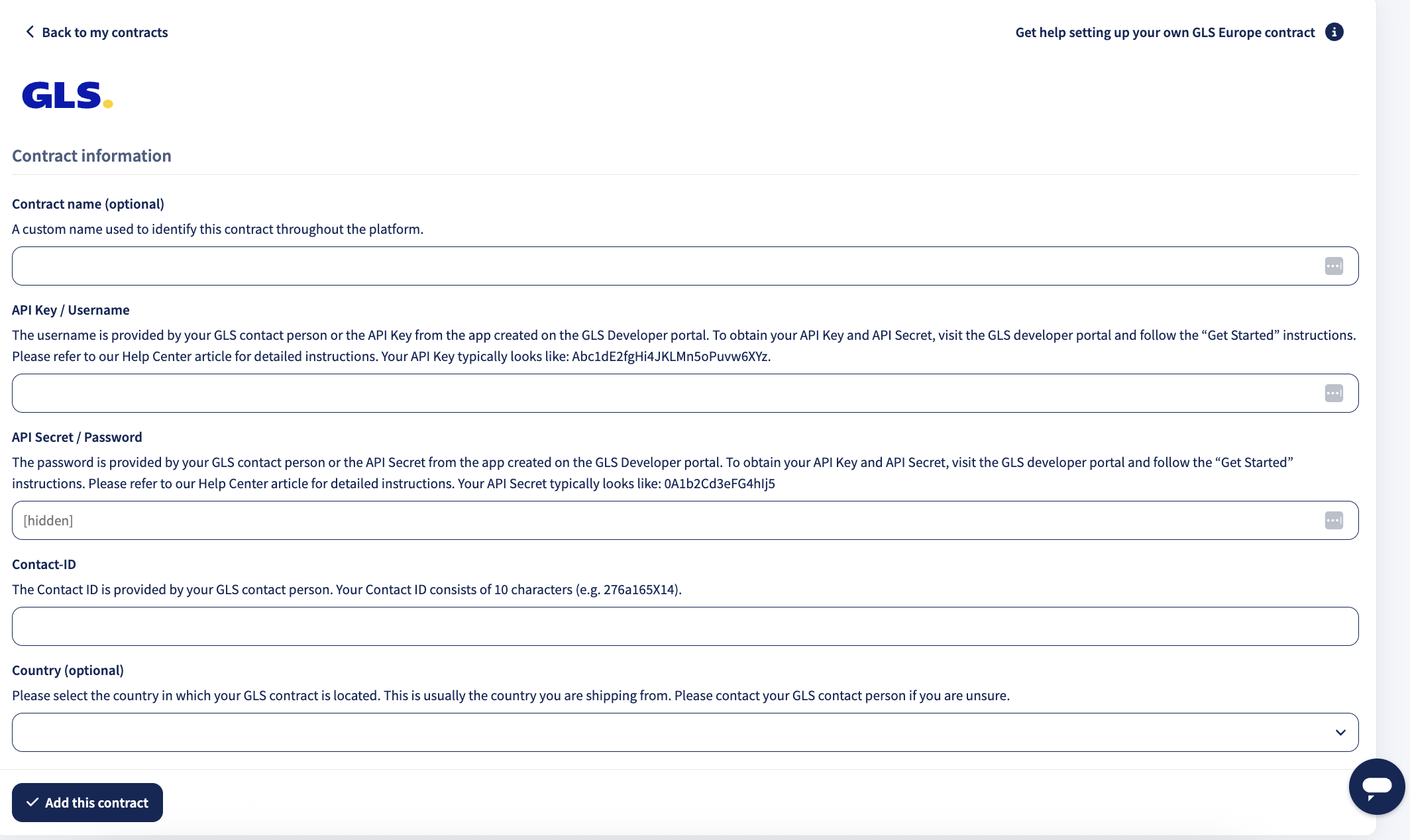
Return to My Contracts in your Sendcloud account and fill in the form with:
- API Key / Username = API Key
- API Secret / Password = API Secret
- Contact-ID = Contact-ID
- Country = Germany (Optional)
Click Save.
Done!
Your GLS Europe Germany contract is now successfully connected to Sendcloud. You can start shipping using your negotiated GLS rates. When you create a label, the price will show as €0.00, indicating your own contract is being used.