
Purpose: Avoid returns and customs issues by understanding which information to include when creating an international shipment, including customs information, item details, and product identifiers.
This article is intended as a general guide. Sendcloud cannot be held responsible for issues with export documents or customs clearance. Always check the carrier's shipping conditions and the customs regulations that apply to the shipment's origin, destination, and contents.
For additional guidance, see our blog: International Shipping: A Checklist for Problem-Free Global Shipping.
Create an international shipment in the Sendcloud panel
Follow the steps below to create an international shipment in the Sendcloud panel and complete all required customs information before generating the shipping label.
Step 1: Fill in customer information
Make sure that all customer details are complete and correct to help prevent delivery and customs issues.
Once you select a destination country that requires customs documents, the relevant international shipping fields will automatically appear.
Include the sender's tax numbers if they are not already included in the sender address. You can also add the tax numbers of the receiver or importer of record when applicable.
Possible tax number types include:
| Abbreviation | Explanation |
| VAT | Value-added tax. The VOEC number for Norway should be entered here, as advised by the Norwegian Tax Authorities. |
| EIN | Employer Identification Number |
| GST | Goods and Services Tax |
| SSN | Social Security Number |
| EOR | European Union Registration and Identification |
| DUN | Data Universal Numbering System |
| FED | Federal Tax ID |
| STA | State Tax ID |
| CNP | Brazil CNPJ/CPF Federal Tax |
| IE | Brazil Type IE/RG Federal Tax |
| INN | Russia bank details section INN |
| KPP | Russia bank details section KPP |
| OGR | Russia bank details section OGRN |
| OKP | Russia bank details section OKPO |
| SDT | Overseas Registered Supplier, Import One-Stop Shop, GB VAT foreign registration, Australian GST registration or VAT on e-commerce |
| FTZ | Free Trade Zone ID |
| DAN | Deferment Account Duties only |
| TAN | Deferment Account Tax only |
| DTF | Deferment Account Duties, Taxes and Fees only |
| RGP | EU Registered Exporter registration ID |
| DLI | Driver's licence |
| NID | National identity card |
| PAS | Passport |
| MID | Manufacturer ID |
An importer of record is the party responsible for importing the goods and managing the associated customs obligations and documentation. If no importer of record is provided, the receiver's address may be used instead.
Step 2: Add international information
Export type
The export type indicates the nature of the transaction and the parties involved. For example, the shipment may be business-to-business, business-to-consumer, or between private individuals.
When no export type is selected, Sendcloud automatically applies Commercial B2C as the default so that the shipment can be processed by customs.
If the export type is Private, tax numbers are not normally required because private individuals are not generally expected to have business tax identifiers such as an EORI number.
Export reason
The export reason describes why the goods are being exported. This information is used for customs clearance and customs documentation.
You can choose from the following options:
- Gift: Select this when sending goods as a gift. Always declare the true value of the items. Customs authorities may reject goods declared with a value of 0. When you select Gift, a pro forma invoice is generated instead of a commercial invoice or CN22/CN23 form.
- Documents
- Commercial goods
- Commercial sample
- Returned goods
- Personal use
Declared value
The declared value consists of:
- Total declared value without discount
- Discount, when applicable
- Total declared value with discount
For example, an order has an original value of €225, but the customer pays €200 after receiving a €25 discount:
- Total declared value without discount: €225
- Discount: €25
- Total declared value with discount: €200
Freight costs
Enter the shipping costs paid by the customer.
Insurance costs
Complete this field only if the customer paid for insurance. If you pay for insurance without charging the customer, for example by adding Sendcloud Shipment Protection at your own expense, you do not need to include that amount here.
Other costs
Enter any additional costs charged to the customer, such as wrapping fees or other service fees.
Total invoice amount
The total invoice amount is calculated as follows:
Total declared value with discount + freight costs + insurance costs + other costs = total invoice amount
Invoice number
A customs invoice number is the unique reference assigned to the commercial or pro forma invoice. Customs authorities and carriers may use it to identify the shipment during customs clearance.
Invoice date
The invoice date is the date on which the commercial or pro forma invoice was issued.
General notes
Use this field to provide additional context about the shipment. For example, you can specify why goods are being returned or explain the occasion for which a gift is being sent.
Declaration statement
A declaration statement can contain additional information about the goods, their origin or other details required by customs authorities.
The required wording depends on the origin and destination countries, the goods being shipped and the applicable regulations.
Examples include:
Preferential origin declaration:
“The exporter of the products covered by this document declares that, except where otherwise clearly indicated, these products are of preferential origin. I/We hereby certify that the information on this document is true and correct and that the contents of this shipment are as stated above.”
CITES declaration:
“With reference to the above shipment, I declare that the contents are not made of leather parts from animal species protected by the Washington Convention.”
Step 3: Fill in the shipment details
Complete the following shipment information:
- Number of parcels: Enter the number of parcels included in the shipment. Not all carriers support multicollo shipments.
- Parcel weight: Enter the total physical weight of the parcel.
- Order number: Add an internal order reference when needed.
- Box: Select one of your saved boxes or enter the parcel dimensions manually.
- Dimensions: Enter the parcel's length, width, and height when required.
Make sure the parcel weight matches the total weight displayed under Items.
To help prevent unnecessary import costs and customs clearance issues, we recommend creating a separate label for each parcel.
Each label should only include the items packed in that specific parcel. This allows customs authorities to correctly assess the value, duties, taxes, and import requirements for each parcel.
Step 4: Add items
Add the products included in your shipment under Items.
Depending on your shipment, you can choose between two item entry modes:
- Simplified entry: Shows only the information required for shipments that do not require customs information.
- Advanced entry: Displays all available item fields, including customs information required for international shipments.
You can switch between Simplified entry and Advanced entry at any time before creating the shipping label.
Sendcloud automatically calculates the total weight and total value for each item based on the quantity, unit weight and unit value you enter.
💡 Tip: If you cannot find a product or customs information, select Advanced entry at the top of the Items section.
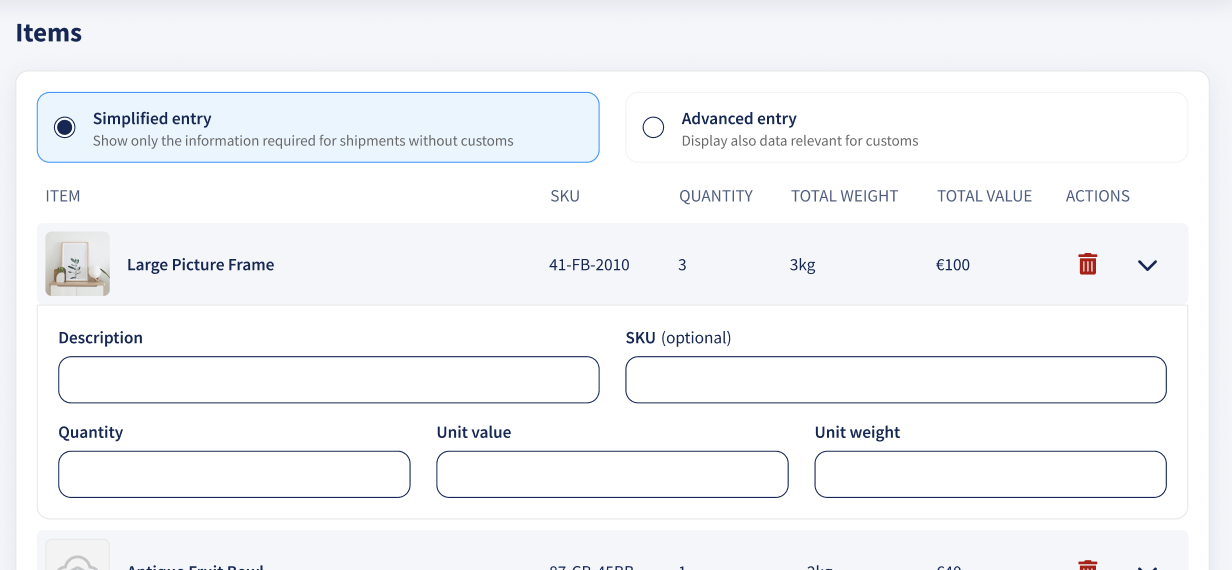
Simplified and Advanced entry
Simplified entry
Simplified entry is designed for shipments that do not require customs information. It only displays the fields needed to create shipments without customs declarations.
The simplified view includes:
- Description
- SKU (optional)
- Quantity
- Unit value
- Unit weight
Advanced entry
Advanced entry displays all available item and customs information required for international shipments.
In addition to the fields available in Simplified entry, Advanced entry has fields including:
- Origin country
- HS code
- Intended use
- Material content
- MID code
- Manufacturer product identifier
- DDS reference number
- TARIC code
Description
Enter a clear and specific description of the item. Customs authorities use this description to understand the contents of the shipment and assess the applicable customs requirements.
Avoid vague or generic descriptions such as:
- Clothes
- Parts
- Accessories
- Samples
- Gift
Instead, describe the actual item, for example:
- Men's cotton T-shirt
- Stainless-steel bicycle part
- Leather phone case
- Printed paper brochures
💡 Tip: Keep the description clear and concise. The item description must not exceed 50 characters.
SKU
Enter the Stock Keeping Unit (SKU) used by your business to identify the item.
The SKU is your internal product reference and also serves as the merchant product identifier for customs purposes.
Intended use
Enter how the item is intended to be used, when applicable. For example:
- Work uniform
- Personal use
- Industrial component
Some carriers or customs processes may require an intended-use code rather than a free-text description.
Material content
Enter the material composition of the item.
For example:
- 100% cotton
- 80% cotton and 20% polyester
- Stainless steel
- Leather
Be as specific as possible, especially when the material affects customs classification or regulatory requirements.
HS code
The Harmonized System code, or HS code, is used to classify goods for customs purposes.
In Advanced entry, you can use the Sendcloud HS Code Recommender to identify the code that best matches your item. Enter the item description in the HS code field and select the most appropriate code from the recommendations.
Although the HS code field may appear as optional, many international shipments require a valid HS code for customs clearance. Always check the customs requirements for your destination.
You can also search for an HS code on the European Commission customs tariff website.
Origin country
Select the country in which the item was manufactured or produced.
The country of origin is not necessarily the country from which the parcel is shipped.
For example, if an item was manufactured in Italy and is shipped from a warehouse in the Netherlands, the origin country is Italy.
MID code
The Manufacturer Identification Code, or MID code, identifies the manufacturer of the product.
This field is only necessary for specific customs destinations, such as shipments to the United States.
Unit weight
Enter the weight of one individual unit in kilograms.
For example, if the shipment contains three identical items and each item weighs 0.5 kg, enter 0.5 kg as the unit weight and 3 as the quantity.
Unit value
Enter the value of one individual unit.
Always enter the true value of the goods. Customs authorities may reject or investigate shipments containing items with an incorrect or zero declared value.
Quantity
Enter the number of units of the item included in the shipment.
Product identifiers
Manufacturer product identifier
For shipments entering the European Union with a value of €150 or less, provide the available manufacturer product identifier for each item. These identifiers help customs authorities and carriers identify the exact goods being imported.
Under Manufacturer product identifier, first select the Identifier type, then enter the corresponding Identifier value.
You can provide either:
Standardized identifier
Choose this identifier type if the product has a globally recognized identifier, such as:
- GTIN
- EAN
- UPC
- ISBN
Only enter an identifier that genuinely belongs to the item being shipped.
Non-standardized identifier
Choose this identifier type if the product does not have a standardized identifier.
Enter the manufacturer-specific product or model reference that identifies the item in the manufacturer's catalogue.
Note: The item's SKU in Sendcloud is your merchant product identifier.
You can still create a shipment without a manufacturer product identifier. However, missing identifiers may result in customs delays, additional checks, or blocked shipments.
From 1 July 2026: A €3 customs declaration fee applies to each customs declaration line for shipments entering the EU valued at no more than €150. For B2B shipments sent to customers with a valid VAT registration number, the standard duty rates apply instead of the €3 flat fee.
EUDR, DDS reference number, and TARIC code
The EU Deforestation Regulation (EUDR) applies to certain commodities and products derived from them.
Potentially affected goods include products containing or derived from:
- Cattle or beef
- Leather
- Cocoa or chocolate
- Wood, paper or furniture
- Rubber, including certain tyres
- Other commodities covered by the regulation
If your shipment contains products subject to the EUDR, enable the This order contains products subject to the EU Deforestation Regulation (EUDR) checkbox.
DDS reference number
The DDS reference number is the reference assigned to a Due Diligence Statement submitted through the EUDR Information System.
Enter the DDS reference number for each applicable item if a Due Diligence Statement has been submitted.
TARIC code
If your goods qualify for an EUDR exemption, enter the applicable TARIC code instead.
The DDS reference number and TARIC code only apply to goods covered by the EUDR. Check whether your products fall within the scope of the regulation before completing these fields.
Note: Sendcloud cannot determine whether your goods are subject to the EUDR or which DDS reference number or TARIC code applies. Check the applicable legislation or consult a customs or legal adviser.
Using item information from Products
You can save product and customs information in the Sendcloud Products catalogue and reuse it when creating shipments
Products also support the new compliance-related fields, including:
- Manufacturer product identifier
- DDS reference number
- TARIC code
When this information is available in Products, Sendcloud automatically populates the corresponding item fields when you add the product to a shipment.
💡 Tip: Keep the information in Products up to date so the correct customs information are automatically applied to future shipments.
Item limit
The maximum number of item lines depends on the type of customs document used by the carrier:
- CN22 or CN23: Postal carriers, such as PostNL, Correos, Royal Mail, bpost and Deutsche Post, allow a maximum of 5 item lines per customs document.
- Commercial invoice: Carriers such as DPD, DHL and UPS allow a maximum of 99 item lines per commercial invoice. To ship more than 99 item lines, create an additional shipment.
For more information, see How to generate your customs documents in Sendcloud.
Step 5: Select a shipping method
Select the shipping method that you want to use for the shipment, including the applicable Incoterm.
Before creating the label, check:
- The supported origin and destination countries
- The maximum parcel weight and dimensions
- The carrier's customs requirements
- The applicable Incoterms
For more guidance, see Things to take into account when shipping internationally.
Step 6: Add Sendcloud Shipment Protection (optional)
You can add Sendcloud Shipment Protection to protect eligible shipments against loss or damage during transport.
To add protection:
- Go to Incoming orders in your Sendcloud account.
- Open the order that you want to ship.
- Scroll to the shipment protection section.
- Enter the amount that you want to protect.
- Check the indicative protection price before creating the label.
You can also check whether the selected shipping method already includes carrier compensation or insurance.
For more information, see the Sendcloud Shipment Protection article.
How to create an international shipment through the API
You can also provide international shipment and customs information through the Sendcloud API.
Include the shipment's customs information and item-level data in the relevant shipment request.
The manufacturer product identifier, DDS reference number, and TARIC code are supported through API v3. API v2 is in maintenance mode and does not support these fields.
When using API v3, include all applicable item-level information, such as:
- Description
- SKU or merchant product identifier
- HS code
- Origin country
- Quantity
- Unit weight
- Unit value
- Manufacturer product identifier, when available
- DDS reference number, when applicable
- TARIC code, when applicable
Before announcing the shipment, check that the API request contains all information required for the destination, carrier, and goods.
Once all required information is complete, you can create the label. Sendcloud will generate the applicable customs documents based on the shipment information provided.
Depending on the carrier, you can either:
- Print the customs documents and attach the required number of copies to the parcel; or
- Send them digitally using Paperless Trade.
Always review the label and customs documents before handing the parcel to the carrier. Incorrect, incomplete, or inconsistent shipment information may result in customs delays, additional charges, returns, or blocked shipments.