
Purpose: This article explains how to give Sendcloud temporary access to your integration so we can help troubleshoot and resolve technical issues.
To investigate certain issues such as errors in configuration, checkout behavior, or plugin communication, our support team may request temporary access to your integration. This enables us to reproduce problems, verify settings, and resolve your ticket more effectively.
There are two ways you can provide access, depending on the integration you use:
- Add a collaborator account
- Create a temporary admin account
Follow the appropriate method for your platform below.
Add a collaborator account
Some integrations let you invite external collaborators. If this option is available, we recommend using it.
debug@sendcloud.com when adding a collaborator account.| Integration | Guide |
| BigCommerce | View guide |
| Ecwid | View guide |
| Wix | View guide |
| Spacesquare | View guide |
| Lightspeed | View guide |
| Shopify | View guide |
Note for Shopify: You don’t need to enter an email address to invite us. Simply share your collaborator code with us, and we’ll send you a collaboration request.
Create a temporary admin account
If your integration does not support collaborator access, you can create a temporary admin account instead.
debug@sendcloud.com (if required) when creating a temporary account.| Integration | Guide |
| WooCommerce | View guide |
| PrestaShop | View guide |
| Shopware | View guide |
| Magento 2* | See instructions below |
After creating the account, please include the following details in your support ticket:
- Login URL
- Username
- Password
*Magento 2: Create a temporary admin account
- Go to System > Permissions > All Users
- Click Add New User
- Fill in the required information and click Save User
- Go to User Role, assign a role, and click Save User
For advanced users, you can also create the account via the command line:
php bin/magento admin:user:create --admin-user='new-admin' --admin-password='Admin123!' --admin-email='admin@example.com' --admin-firstname='Admin' --admin-lastname='User'Access to self-hosted shop systems
If your integration is self-hosted, we may also request access to your server. Please provide the following details in your ticket:
SFTP or SSH access
- Host
- Username
- Password
Public SSH key
Mention in your ticket that a public key is needed. We will provide it so you can add it to your server.
IP restrictions
If your staging or production environment uses IP whitelisting, let us know. We will send the IP addresses that need to be whitelisted.
Sending credentials securely with SendSafely
To protect your privacy, Sendcloud uses SendSafely, a secure and encrypted platform that allows you to share sensitive information safely with our support team.
If we need your credentials for troubleshooting, you will receive a secure SendSafely link from us. After clicking the link, follow these steps:
- Check the box Include a Secure Message
- Enter your credentials in the text box provided
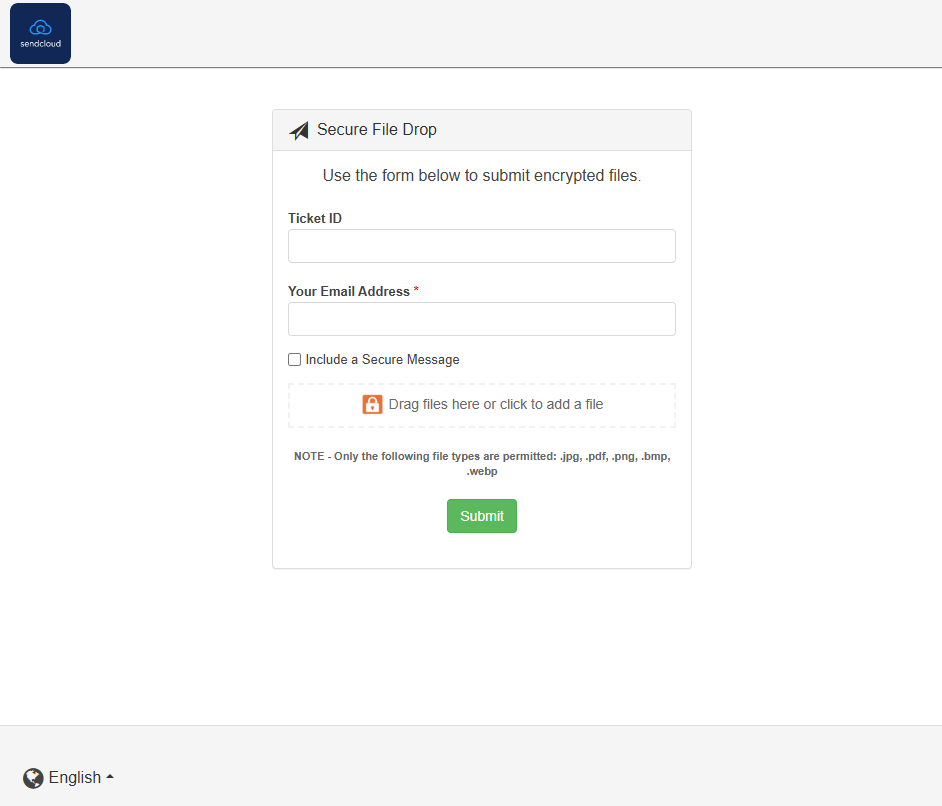
Your ticket ID and email address will already be filled in automatically. Your information will be securely transferred and can only be accessed by authorized Sendcloud team members.
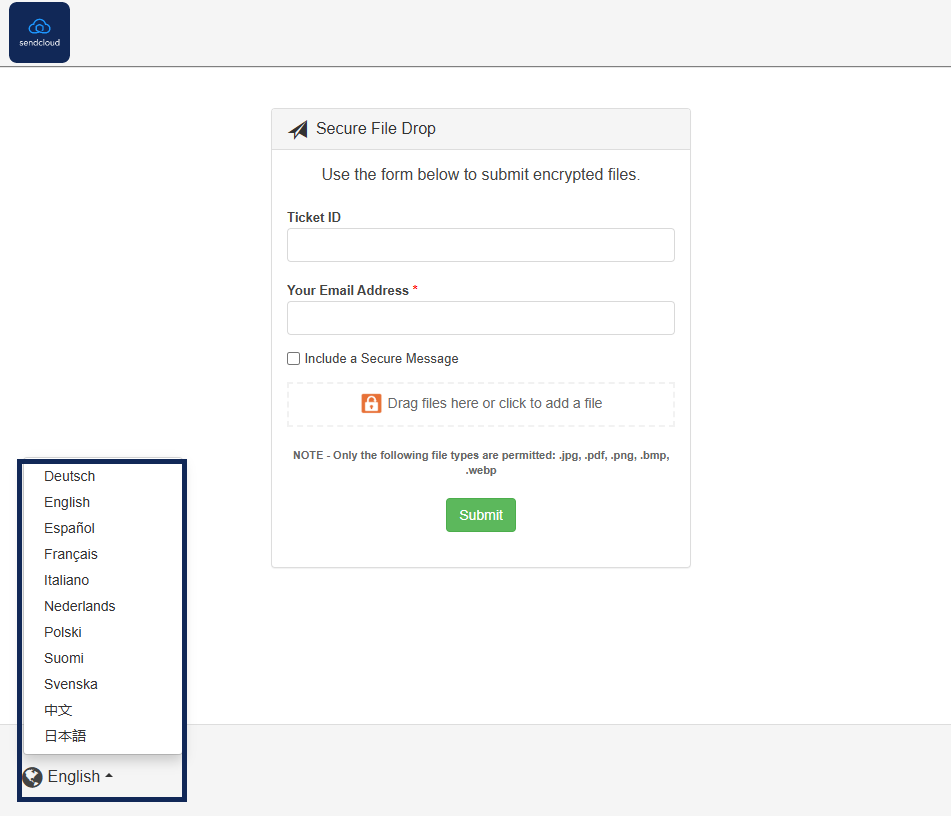
If the page is not displayed in your preferred language, you can change it using the language option in the bottom-left corner of the page.
Shop system not listed
If your integration is not mentioned in this article, our support team will let you know if access is needed after reviewing your ticket.