
Purpose: Learn how you can create shipping rules to make your label creation process more efficient.
Shipping rules are available for a paid subscription plan. The Sendcloud subscription plans have been updated. If the subscriptions shown in the banner above don’t match your current subscription plan and you’d like to know more, please click here.
How to create a new shipping rule
To create a shipping rule, go to Shipping > Shipping rules. From here:
- Click on Create new to make a new rule
- Give your shipping rule a name so you can identify it, and select your conditions and determination. Click the + plus button to add a new condition line. Then select an action to apply and click the + plus button to add multiple actions.
Why should I create shipping rules?
When an incoming order is pushed from your online store into Sendcloud, the order will be automatically run through all your active shipping rules.
If the order meets the condition(s) of a shipping rule, then the subsequent action(s) will be applied. This means that you can print all of your labels without making any adjustments to your orders. Instead of manually changing 100 orders, you can process them all instantly in one click.
You can choose from the following conditions:
| Conditions: | Determinations: | Explanation: |
| Integration | Is/Is not | The integration from which the order was imported |
| Dynamic Checkout Method | Is/Is not | If you want to override the Dynamic checkout orders, you can use this condition |
| Payment status | Is/Is not | If payment status of the order is 'paid' in the connected shop integration |
| Postal code | Contains/Does not contain/Ends with/Is/Is not/Starts with/In/Not in/Pattern match | Postal code of the destination of the parcel |
| Company name | Contains/Does not contain/Ends with/Is/Is not/Starts with/Pattern match | Related to the address line in the recipient information. SeeB2B shipping below. |
| Item name |
Contains/Ends with/Is/Starts with/In/Pattern match
Does not contain/Is not/ Not in |
Rule will apply if all items in the order meet the condition. |
| Item SKU |
Contains/Ends with/Is/Starts with/In/Pattern match/Exactly in/Any in
Does not contain/Is not/ Not in |
Rule will apply if all items in the order meet the condition. |
| Order number | Contains/Does not contain/Ends with/Is/Is not/Starts with/Pattern match | The order number of the incoming order |
| Order status | Is/Is not | The order status of the order |
| Item quantity | Greater or equal than/Greater/Is/Is not/Less or equal than/Less than | The total amount of items in the order |
| Total value of items | Greater or equal than/Greater/Is/Is not/Less or equal than/Less than | The sum of the value of each item multiplied by its quantity. This value excludes any discounts or shipping costs. |
| Total order value | Greater or equal than/Greater/Is/Is not/Less or equal than/Less than | The total value of the order as imported from your webshop, including any discounts and shipping costs. |
|
Note: The “Total order value” condition refers to the total value of the order as imported from your webshop, including discounts and shipping costs. The “Total value of items” condition refers to the sum of the value of each item multiplied by its quantity, excluding discounts and shipping costs. These two values may therefore differ. ExampleA customer buys 2 t-shirts for €20 each (€40 total), receives a €10 discount on the order, and pays €5 for shipping.
🚨 Important: Sendcloud doesn't convert currencies when applying shipping rules. The "Total order value" and "Total value of items" conditions use the numeric amount exactly as it appears in your order, regardless of the currency it's in. To learn more, read Important notes about currency conversion. | ||
| Sender address | Is/Is not | From which sender address is the parcel shipped |
| To country* | Is/Is not | What is the destination country of the parcel? |
| Checkout delivery method | Contains/Does not contain/Ends with/Is/Is not/Starts with/Pattern match | The checkout delivery name of the order (this is not conflicting with Dynamic Checkout orders) |
| Weight (kg) | Greater or equal than/Greater/Is/Is not/Less or equal than/Less than | The weight in kg of the total shipment |
| Phone number | Does not start with/Starts with/Pattern match/Is empty | Some carriers require a phone number. If you don't always have this information, you can use this condition to set a default phone number. |
| Carrier | Is/Is not | The carrier is selected (only for API users or with default shipping options for non-API users) |
| Customer email | Contains/Does not contain/Is empty/Pattern match | Some carriers require an email address. If you don't always have this information, you can use this condition to set a default email address. |
| Parcel height (cm) | Greater or equal than/Greater/Is/Is not/Less or equal than/Less than | The total height of the parcel in centimeters. |
| Parcel length (cm) | Greater or equal than/Greater/Is/Is not/Less or equal than/Less than | The total length of the parcel in centimeters. |
| Parcel width (cm) | Greater or equal than/Greater/Is/Is not/Less or equal than/Less than | The total width of the parcel in centimeters. |
| Order tag |
Contains/Ends with/Is/Starts with/In/Pattern match
Does not contain/Is not/ Not in |
Only available for Shopify |
| Order created: day of week | Is/Is not | This condition helps you create rules based on the day of the week the order was created. |
*When you choose the To Country condition, selecting European Union includes the following countries: Austria, Belgium, Bulgaria, Cyprus, Czechia, Germany, Denmark, Spain, Estonia, Finland, France, Greece, Croatia, Hungary, Ireland, Italy, Lithuania, Luxembourg, Latvia, Malta, Netherlands, Poland, Portugal, Romania, Sweden, Slovenia, Slovakia.
You can set the following actions:
| Action | Description |
|---|---|
| Customs | |
| Add customs declaration statement | Add text to an existing or empty customs declaration statement. If a statement already exists (for example, for an order created via API), the new text is appended. If multiple rules add statements, only the last rule's addition is applied. |
| Set customs export reason | Set the reason for exporting the goods. |
| Set customs export type | Set the export type for the shipment. |
| Set customs general notes | Set the general customs notes to a specified text. |
| Importer of record | |
| Set importer of record address 2 | Set additional address information for the importer of record. |
| Set importer of record city | Set the city of the importer of record. |
| Set importer of record company name | Set the company name of the importer of record. |
| Set importer of record country | Set the country of the importer of record. |
| Set importer of record email | Set the email address of the importer of record. |
| Set importer of record house number | Set the house number of the importer of record. |
| Set importer of record name | Set the name of the importer of record. |
| Set importer of record phone number | Set the phone number of the importer of record. |
| Set importer of record postal code | Set the postal code of the importer of record. |
| Set importer of record state | Set the state or region of the importer of record, when applicable. |
| Set importer of record street name | Set the street name of the importer of record. |
| Insurance | |
| Insure shipment value by | Insure the shipment for a fixed amount. |
| Insure shipment value by % | Insure the shipment based on a percentage of the order value. Enter a percentage between 0 and 100. |
| Items | |
| Decrease item value by % | Decrease the item value by a specified percentage. |
| Set Item HS Code | Automatically assign an HS code to specific items for customs documentation. |
| Set item name | Set the name of an item in the shipment. |
| Set Item Origin Country | Set the country of origin of an item. |
| Set item value | Set the value of an item, for example for customs purposes or free gifts. You can use the Item name condition to assign a specific value to matching items. The item value cannot be 0. |
| Set item weight | Set the weight of an individual item. |
| Parcel | |
| Use box | Assign a specific box to the shipment. |
| Set number of parcels | Set the number of parcels in the shipment. Not all carriers support multicollo shipments. Learn more about multicollo shipments . |
| Set weight | Set the total shipment weight. |
| Other actions | |
| Phone number | Set a default phone number for the shipment. |
| Return with | Select the shipping option for a return shipment. |
| Set cash on delivery | Set the cash-on-delivery amount for the shipment. |
| Set customer email | Set the customer's email address. |
| Ship with | Select the shipping method for the shipment. This action is not available for checkout orders. |
| Ship with address | Select the sender address for the shipment. This action is not available for checkout orders. |
| Use shipping contract | Select the shipping contract to use. The available options display the carrier, contract country, and whether Sendcloud or own rates apply. |
How to automatically fill in Importer of Record information
For international shipments, you may need to provide Importer of Record (IOR) information. The Importer of Record is the person or company responsible for importing goods into the destination country.
If you regularly use the same Importer of Record, you can create a shipping rule to automatically fill in their details for orders that meet specific conditions.
Required Importer of Record information
The following fields are mandatory: Name, Postal code, Country, Street name, and City.
State is also required for certain countries. Other Importer of Record fields are optional.
How to configure the rule
- Go to Shipping > Shipping rules in your Sendcloud panel.
- Create a new shipping rule.
- Set the conditions that should trigger the rule, such as a specific destination country.
- Under Actions, select Importer of record and choose the field you want to populate.
- Enter the corresponding information and add more actions for any additional fields.
- Save your rule.
Example: Importer of Record details for UK shipments
Imagine you regularly ship to the United Kingdom and use the same company as the Importer of Record.
Condition:
- To country > Is > United Kingdom
Actions:
- Set importer of record name > Example Importer
- Set importer of record company name > UK Imports Ltd
- Set importer of record street name > Example Street
- Set importer of record city > London
- Set importer of record postal code > SW1A 1AA
- Set importer of record country > United Kingdom
When an imported order meets this condition, Sendcloud automatically fills in the configured Importer of Record fields.
Important disclaimer about multicollo shipments
Please note that shipping rules have limited functionality when applied to multicollo parcels.
In these cases:
- Conditions based on weight, parcel dimensions (height, length, width), total order value, and total parcel item value will not be matched.
The following actions will also not be triggered:
- Use box
- Set weight
- Set number of parcels
- Insure shipment value by (fixed amount)
- Insure shipment value by % (percentage)
We recommend carefully considering these limitations when defining shipping rules involving multicollo shipments.
Examples of smart shipping rules:
In order to give you an idea of what smart shipping rules can do for you, here are some examples.
- Match a shipping option to a check-out shipping option name: When shop checkout shipping option is letter post And to country is Netherlands > Ship with PostNL Mailbox Parcel Extra 0-2kg
- When shipping an expensive product: If item name contains Fine Jewelry > insure shipment by 1000€
- When shipping an extra large product: If item name contains carpet And to country is Netherlands > Ship with DHL Europlus
- Shipping to foreign countries: If to country is United Kingdom And weight is less or equal than 5kg > Ship with UPS standard 3-6kg
- When you want to allow customers to collect orders from your physical store: If checkout method contains "Click and collect" (text must be as stated exactly on your checkout) > Ship with Unstamped letter.
- When you want to insure your parcel based on its value: You can download this CSV template and upload it to your Sendcloud account following this article. If the value of the order is between 100EUR and 200EUR > the insurance is set to 200EUR.
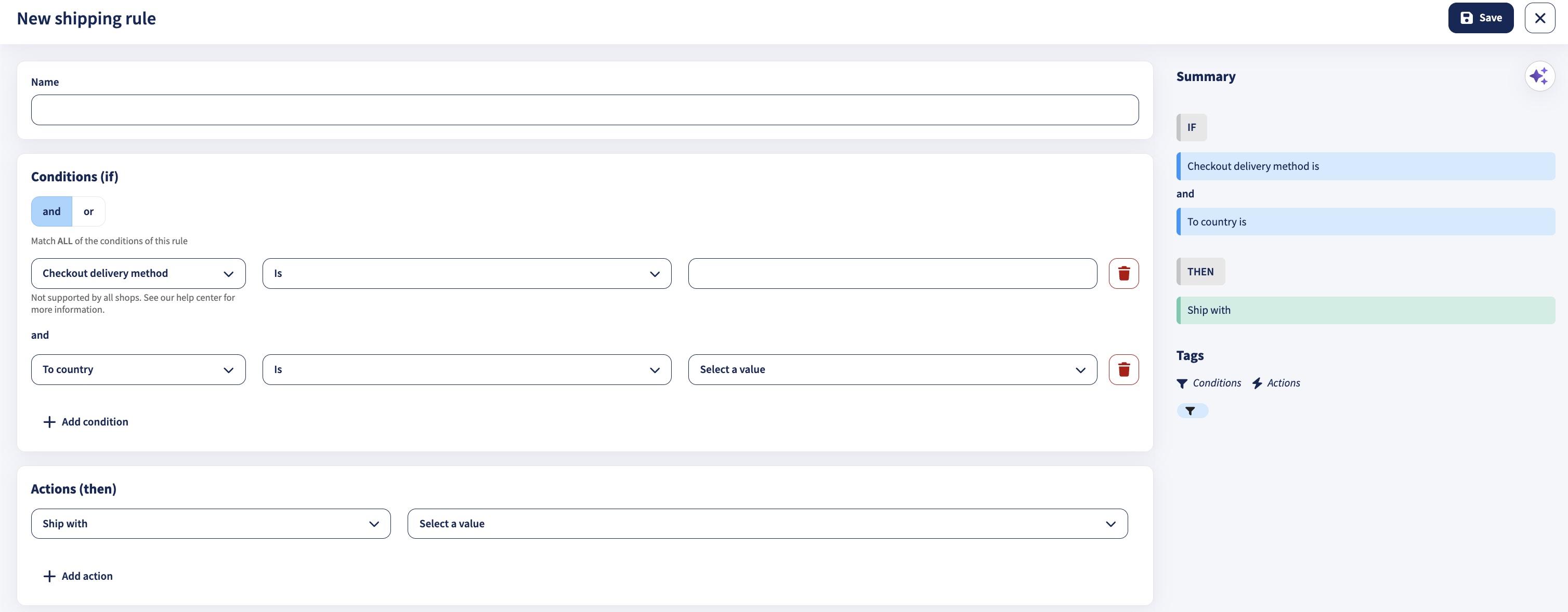
Match conditions using and/or
When adding multiple conditions to a shipping rule, you can choose whether the rule should match all conditions or any condition.
Select and if all conditions must be met before the shipping rule is applied. Select or if only one of the conditions needs to be met for the rule to be applied.
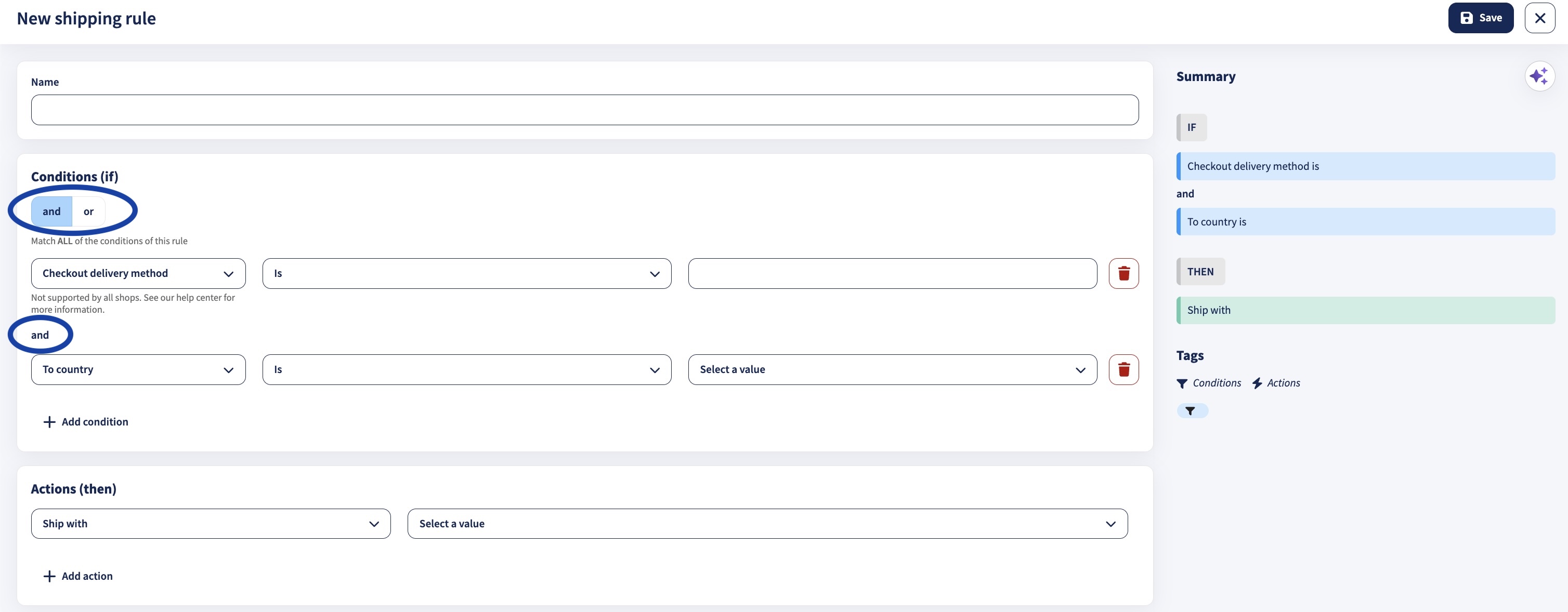
Important notes when using a shipping rule to exclude values
To exclude values (e.g. you want to exclude certain countries) in a shipping rule, you will use the "is not" operator in the conditions you add.
If you have added several conditions, it is important that you select and, so all conditions must be met before the rule is applied.
If you select or instead, the rule will be triggered as soon as at least one condition is met. This means the action may still be applied, and you would not have successfully excluded all the values you wanted to exclude.
Click here to see an example
You have decided to exclude France, Spain and the United Kingdom from your shipments with PostNL Abroad. You prefer to use a different shipping option for those destinations.
- Because you selected and, all conditions of this rule must match. Therefore, the action (ship with PostNL Abroad) does not apply and your package won't be shipped with PostNL Abroad.
- In case you wanted to ship the parcel to Poland, for instance, the action of this rule (ship with PostNL Abroad) would apply and the parcel would be shipped with PostNL Abroad.
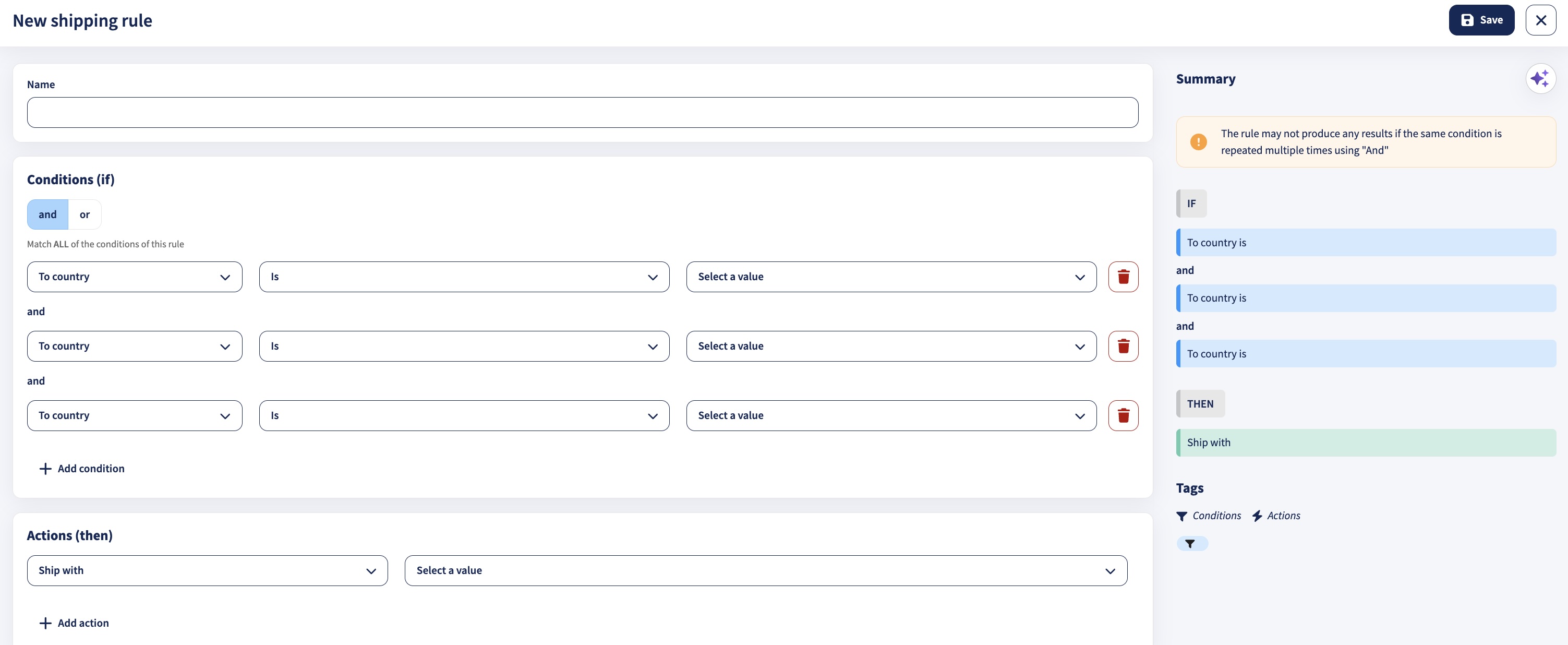
Multiline for Postal code and Item SKU
When it comes to Postal codes and SKUs, you can add multiple inputs to a field for the following operators: In/Not in and Pattern match. So, instead of only using pattern matches, you can also decide to add a list of Postal codes/SKUs. The shipping rule will then be applied to every Postal code or SKU in the list. Make sure to separate the input by 'Enter'.

How can I make a shipping rule for B2B shipments?
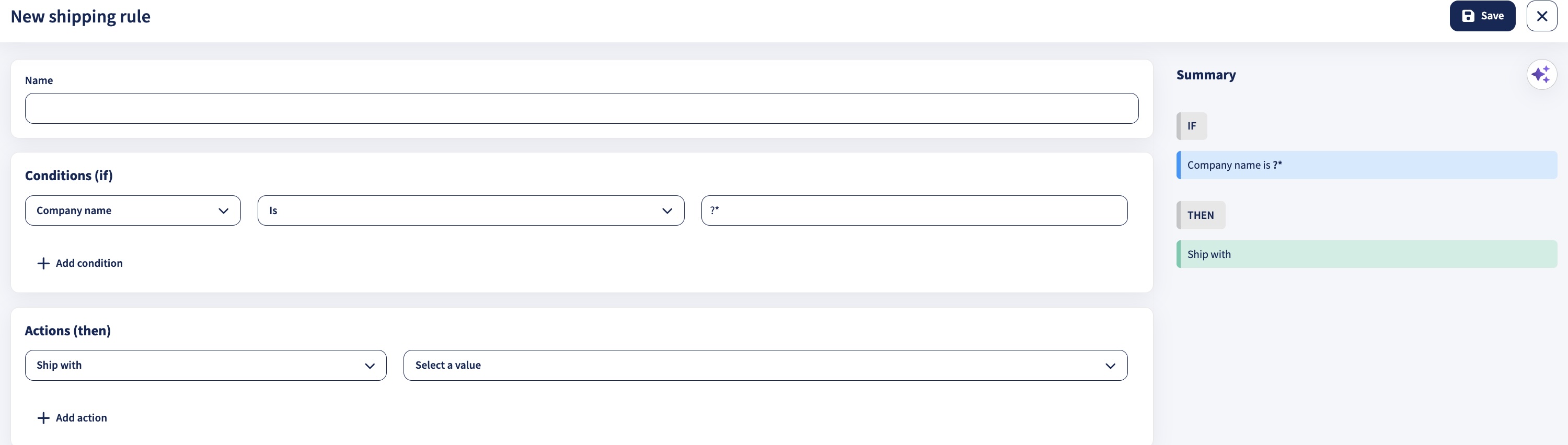
You can use the condition Company name to create a shipping rule to ship B2B shipments with a specific shipping option. To do so, use the following rule, in which entering "?*" into the text field means that any character value in the address line Company name will trigger this shipping rule to be applied.
You can then select a shipping carrier of your choice to deliver B2B shipments.
Shipping rules for shipment protection
It is possible to create unlimited insurance-only shipping rules, giving you the flexibility to manage insurance for your shipments, regardless of your plan.
For those on the Free Plan, you can create unlimited insurance-only rules. While other types of rules can be set up, they won’t be activated. This allows you to experiment with shipping rules and learn how they work.
On the Lite and Growth Plans, the ability to create unlimited insurance-only rules also applies, even if your plan has a limit on the number of rules. Since insurance-only rules don’t count toward the overall rule limit, you have more flexibility in ensuring your shipments are covered. If you downgrade to a lower plan, all non-insurance rules will be deactivated, but your insurance-only rules will remain active.
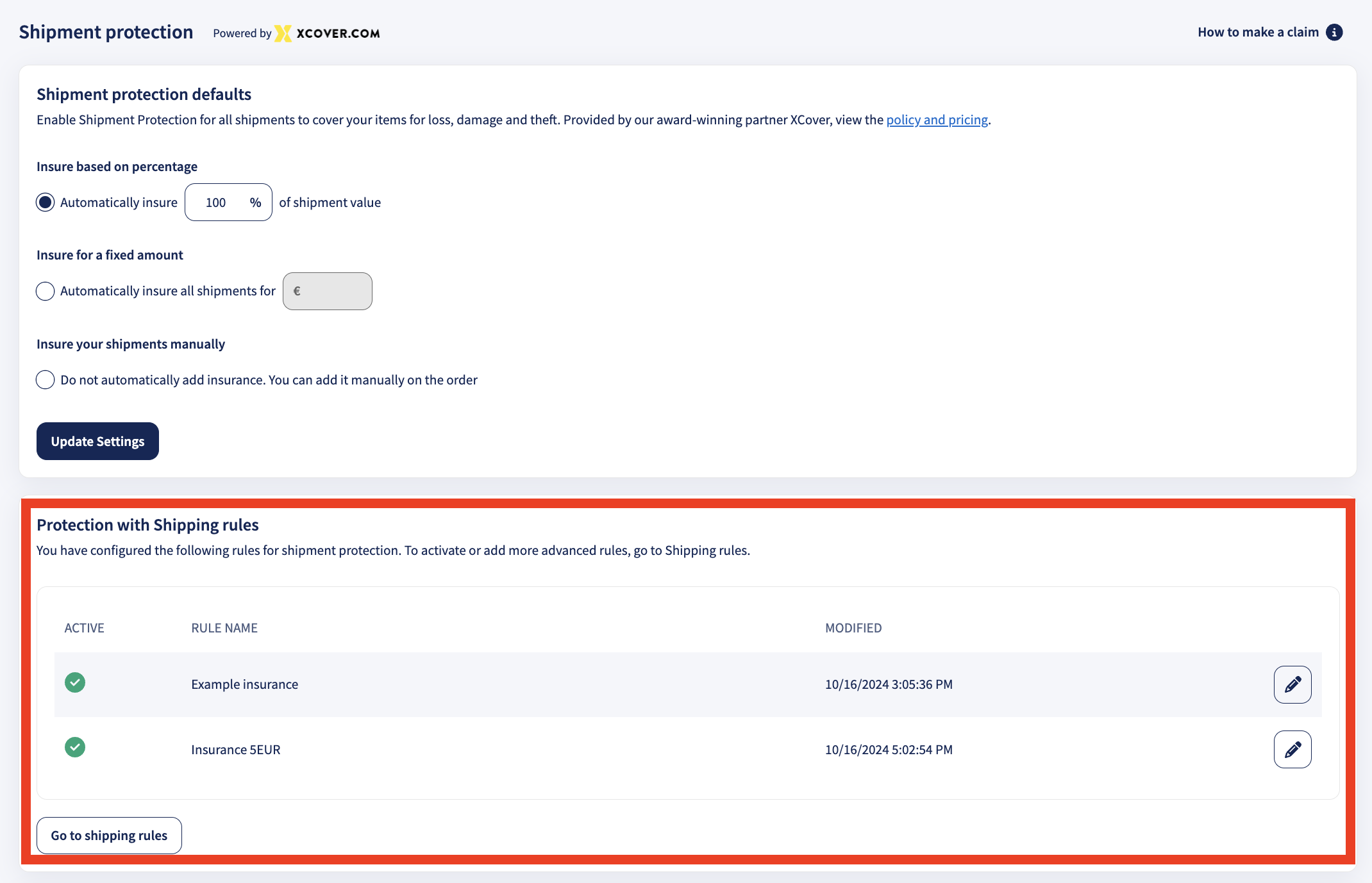
To set up insurance shipping rules, navigate to Shipping > Shipping Rules OR Shipping > Shipment Protection. Once your insurance shipping rules are configured, you can view an overview of all your insurance-only rules by going to Shipping > Shipment Protection.
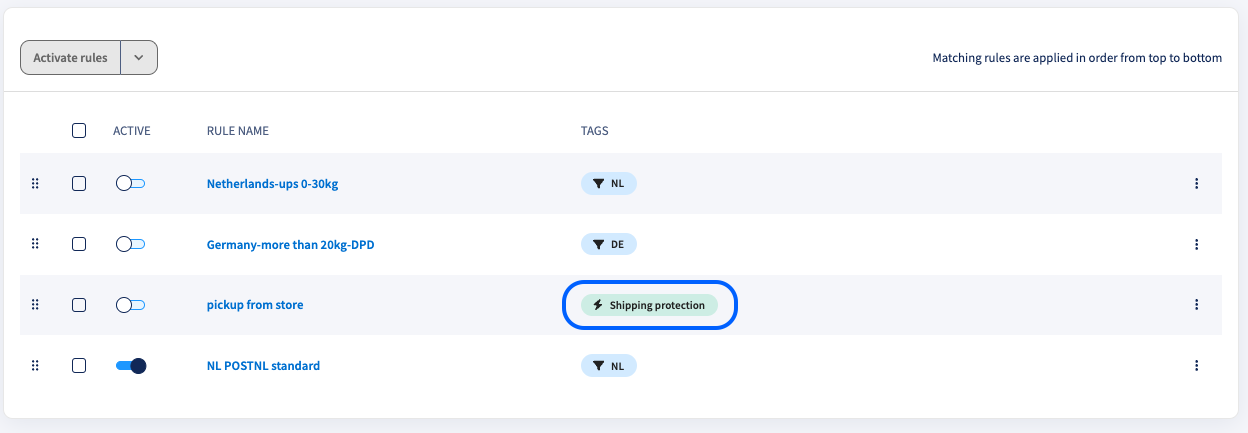
In the Shipping Rules overview, identifying which rules are specifically related to insurance is simple. Each insurance-related rule is clearly marked with a distinct blue tag that appears directly behind the shipping rule. This visual cue makes it easy to quickly distinguish insurance rules from other types of rules, helping you navigate and manage your shipping preferences more efficiently.
What types of shipping rules are available for my shop integration?
Not every type of webshop integration supports every shipping rule condition. If you're not sure, check the list below to see what conditions your integration supports:
| Total order price value | Shop checkout shipping option | SKU | Items |
| API | Amazon | API | Lightspeed |
| Bol.com | eBay | Bol.com (SKU or EAN) | Prestashop |
| CCVshop | ePages | Amazon | Shopify |
| eBay | Etsy | eBay | WooCommerce |
| ePages | Magento V1 + V2 | ePages | |
| Etsy | Mijnwebwinkel | Etsy | |
| Magento V1 + V2 | Prestashop | Magento V1 + V2 | |
| Mijnwebwinkel | Shopify | Mijnwebwinkel | |
| Prestashop | Shopware | Prestashop | |
| Shopify | WooCommerce | Shopify | |
| Shopware | Oxid | Shopware | |
| WooCommerce | CSV imports | WooCommerce | |
| Oxid | Lightspeed | Oxid | |
Related articles
→ Shipping rules overview and application
→ Shipping rules: guide to using pattern matching