
Purpose: Learn how to use the Products feature to add, import, and manage product information in Sendcloud, including warehouse locations, customs details, and product identifiers.
What is the Products feature?
The Products feature lets you manage product information directly in Sendcloud. You can add products individually or upload them in bulk using a CSV file. Each product is identified by its unique SKU.
With Products, you can:
- Manage warehouse locations: Assign an item location to each SKU so pickers can find products more easily when preparing orders.
- Add EAN codes: Store EAN codes for products to support item scanning, even if your webshop does not provide this information. Learn more about item scanning.
- Manage customs information: Save details such as HS codes, origin countries, manufacturer product identifiers, and other customs-related fields.
- Complete or override webshop data: Add missing information or update product details imported from your webshop.
💡 Tip: Adding item locations to Products can help your warehouse team organize picking routes and locate items more efficiently. You can display these locations directly on your picking lists.
How to add and set up your products
You can add products individually or import multiple products using a CSV file. Follow the steps below to get started with a CSV import.
Step 1: Open the Products feature
- Log in to your Sendcloud account.
- Go to Settings > Products.
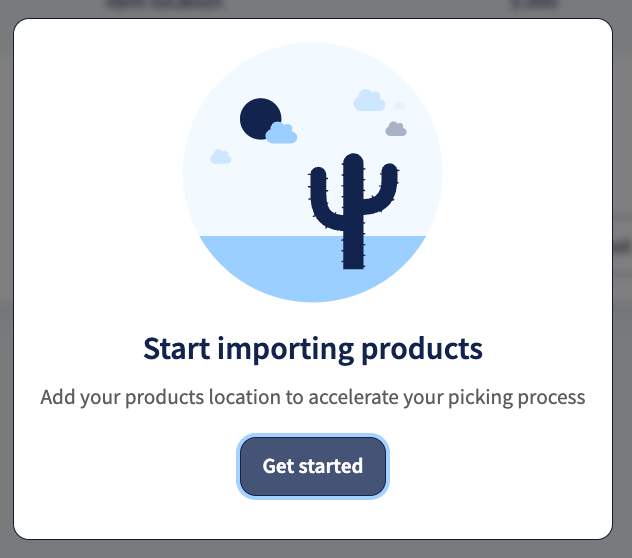
- If this is your first time using Products, click Get Started.
Step 2: Download the CSV template
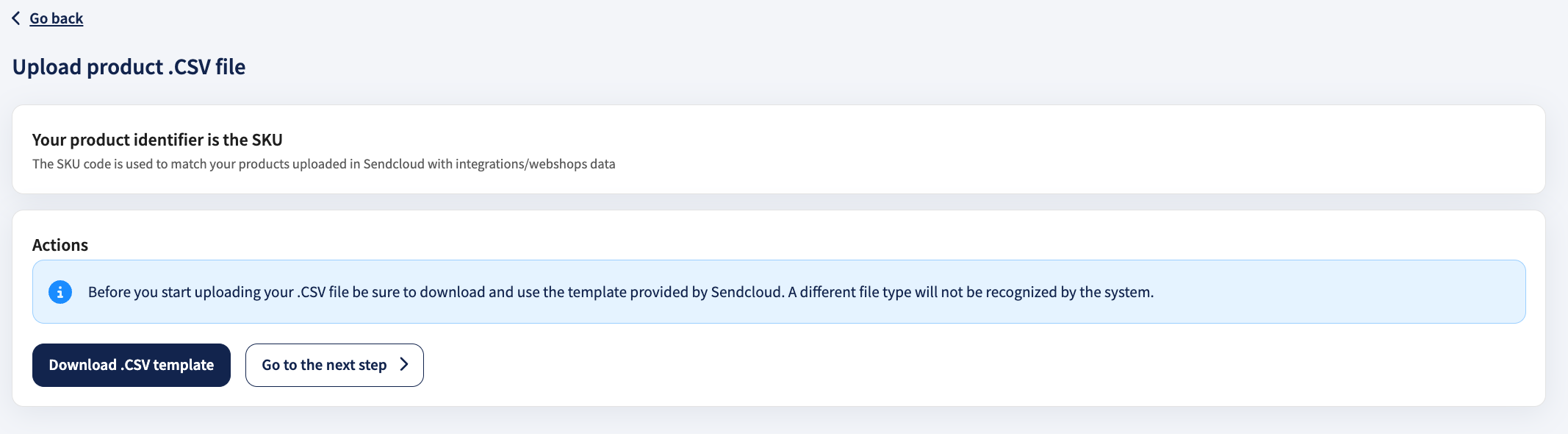
Download the CSV template from the Products page. The template contains columns for SKU, item location, and other product and customs information.
Important: Do not delete any columns from the CSV template, even if you do not need them. Leave unused columns empty. Removing columns may change the file format and cause errors when uploading.
Step 3: Fill in your product information
Open the CSV template and enter the information for the products you want to import.
Each product must have a unique SKU. This SKU is used to match the product with the corresponding item from your webshop.
Depending on the available columns in your CSV template, you can complete information such as:
- Product name
- Warehouse location
- Weight and value
- EAN code
- HS code and origin country
- Material content and intended use
For an explanation of the product fields and their formats, see the Fields overview section below.
💡 Tip: Make sure the SKU matches the SKU used in your webshop. This allows Sendcloud to associate the uploaded product information with the correct item.
Step 4: Upload your CSV file
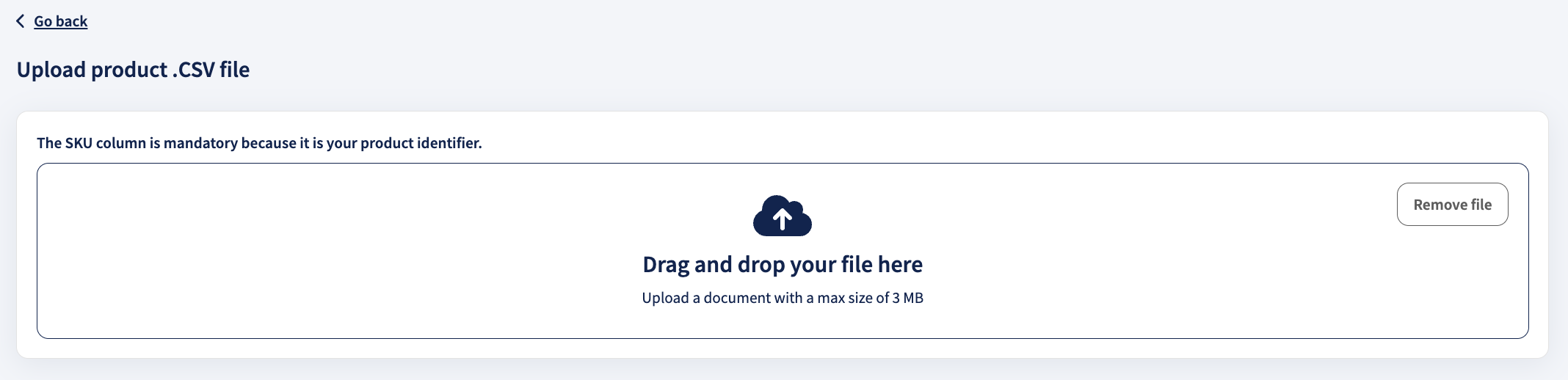
Once you have completed the template, upload the CSV file to Sendcloud to import your products.
You can also update existing products by uploading a new CSV file containing the same SKUs and the updated information.
Important: When updating existing products through a CSV upload:
- Use the same SKUs as the products already saved in Sendcloud.
- Enter the new or corrected information for those products.
Sendcloud matches the products by SKU and updates their information instead of creating duplicates.
Step 5: Customize your product table
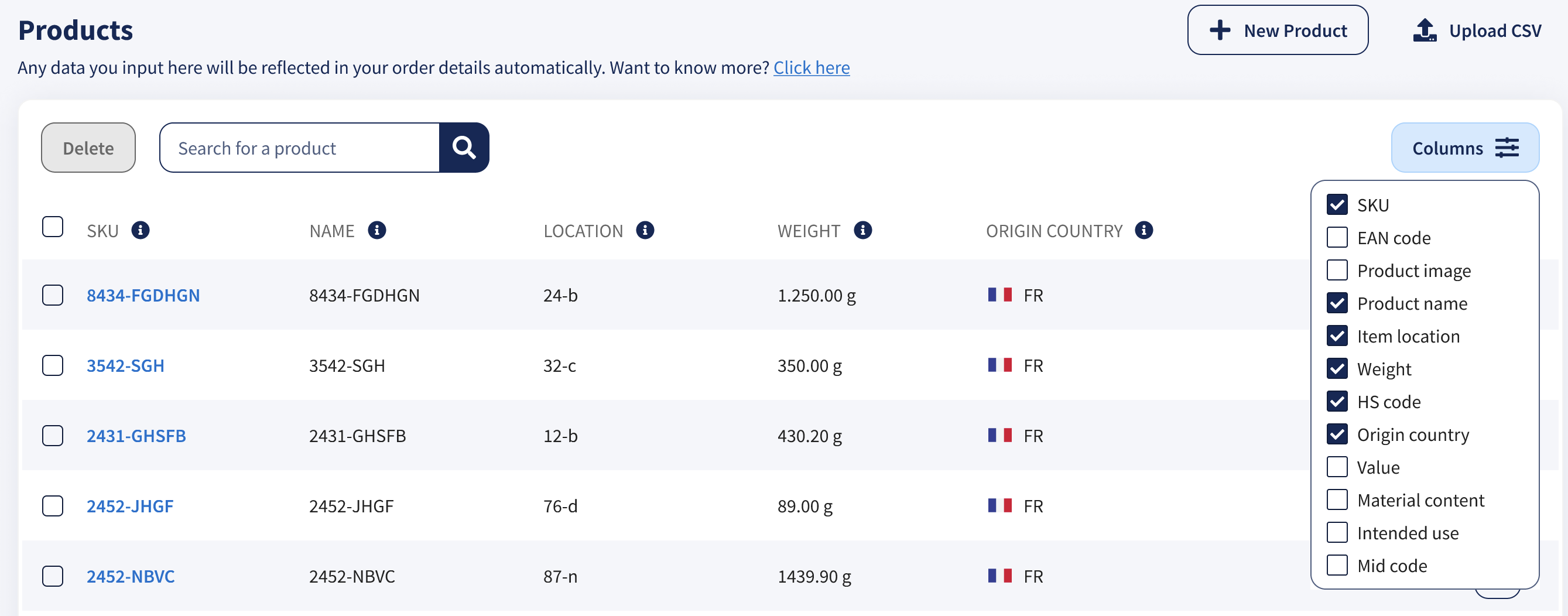
After importing your products, you can choose which information appears in the Products table.
- Go to Settings > Products.
- Click the column icon in the product table.
- Select the columns you want to display.
Managing your products
Once your products have been added to Sendcloud, you can create new products, edit existing information, or remove products you no longer need.
Add a new product
You can add products individually without uploading a CSV file.
-
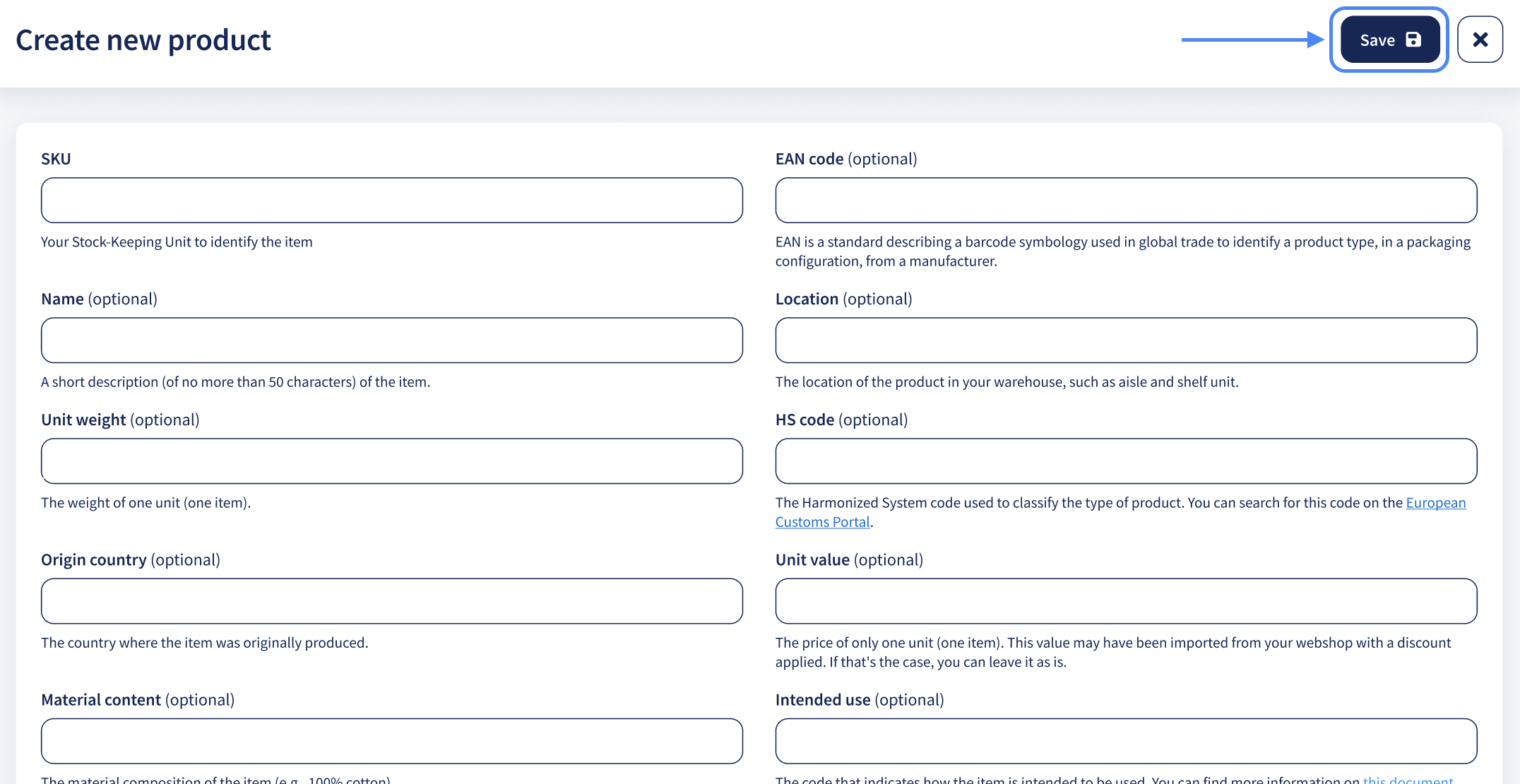
Go to Settings > Products and click New Product.

- Fill in the required fields, such as SKU, Name, and Location, along with any applicable optional fields, such as HS Code or EAN Code.
-
Click Save to add the product to your catalogue.
Product limit: You can save up to 100,000 SKUs in Products. Once this limit is reached, you will not be able to save additional products until you remove existing ones.
Edit an existing product
You can update product information directly in Sendcloud whenever needed.
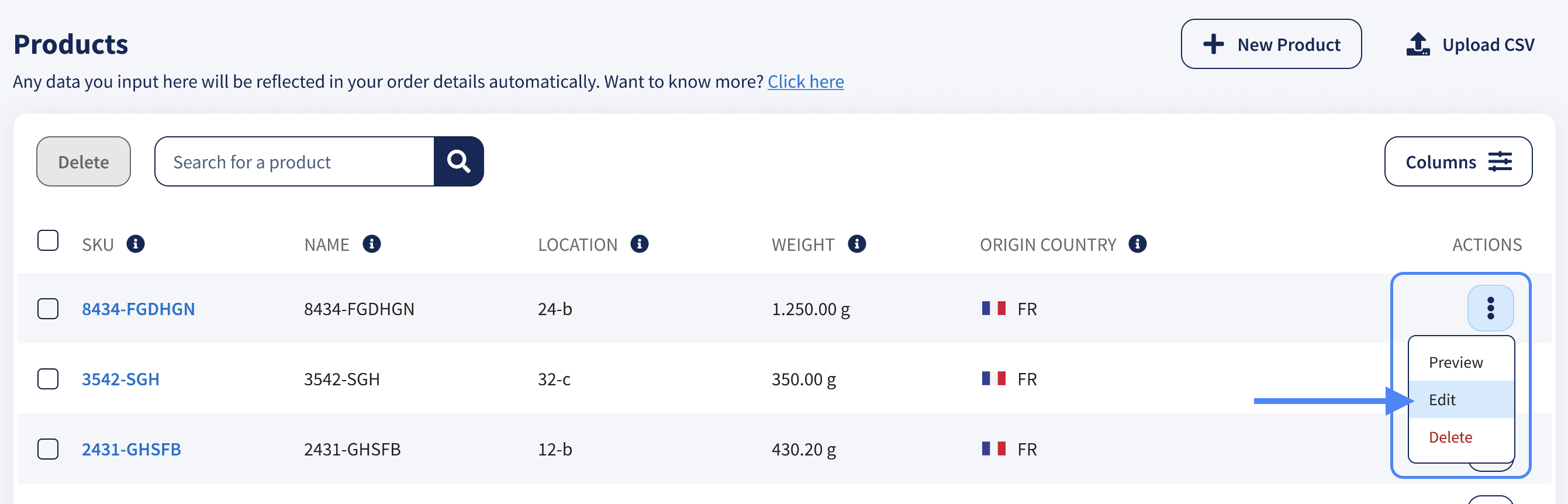
- Go to Settings > Products.
- Find the product you want to update.
- Click the three-dot menu next to the product and select Edit.
- Make your changes and click Save.
💡 Tip: You can also update multiple products by uploading a new CSV file containing the same SKUs and the updated information. Sendcloud will match the existing products by SKU and update their details without creating duplicates.
Delete products
You can delete individual products or multiple products at once.
- Go to Settings > Products.
- Select the checkbox next to each product you want to remove.
- To select all products currently visible on the page, use the checkbox at the top of the list.
- Click Delete and confirm your selection.
Fields overview
Products supports different types of product information, including warehouse locations, product details, and customs-related fields.
The table below explains the available fields, their expected formats, and example values.
View all product fields
| Field | Character Type | Additional Info | Example Value |
|---|---|---|---|
| SKU | String (75 characters) | Used to link products from your webshop to the products saved in Sendcloud. Make sure the SKU matches your webshop SKU. Sorting is alphabetical. The SKU also serves as your merchant product identifier for customs purposes. | T0023 |
| Name | String (255 characters) | Overrides the product name imported from your webshop. | Toothpaste Extra-white 75ML |
| Location | String (24 characters) | Identifies the product's warehouse location. Sorting is alphanumeric. For example, A35, A123, and A5 are sorted as A5, A35, A123. | B-29 |
| Weight | Digits | Overrides the weight imported from your webshop. Enter the weight in kilograms and use a period (.) as the decimal separator. | 0.09 |
| HS Code | String | The Harmonized System code used to classify goods for customs purposes. Overrides the information imported from your webshop. | 8517.13.0000 |
| Origin Country | String (2 characters) | The country where the product was manufactured or produced. Use the ISO 3166-1 alpha-2 two-letter country code. Overrides the information imported from your webshop. | NL |
| EAN | Digits | The product's European Article Number. Enter the digits without spaces. Overrides the information imported from your webshop. | 123456789123 |
| Value | Digits | The product's sales price, not its purchase cost. Enter the value in your account currency, using a period (.) as the decimal separator. Maximum 10 digits. Overrides the information imported from your webshop. | 20.99 |
| Material Content | String (255 characters) | Describes the material composition of the product. Overrides the information imported from your webshop. | 100% cotton |
| Intended Use | String (255 characters) | Describes how the product is intended to be used. Overrides the information imported from your webshop. | For use as a house or gardening plant |
| MID Code | String (15 characters) | The Manufacturer Identification Code, used to identify the manufacturer for certain customs destinations. Overrides the information imported from your webshop. | AUOZR92MEL |
| Manufacturer product identifier | String |
Identifies the specific product using a manufacturer-assigned reference. Select the identifier type and enter the corresponding identifier value. Standardized identifier: A globally recognized product identifier, such as GTIN, EAN, UPC, or ISBN. Non-standardized identifier: A manufacturer-specific product or model reference used when no standardized identifier is available. |
9783161484100 (ISBN) MODEL-ABC123 (manufacturer reference) |
💡 Tip: For shipments entering the European Union valued at €150 or less, provide the available manufacturer product identifier for each item. Missing identifiers may lead to customs delays, additional checks, or blocked shipments.
For more information about standardized and non-standardized identifiers, see How to create an international shipment in Sendcloud.
Using item locations in picking lists
You can display product locations on your picking lists to help warehouse staff find items while preparing orders.
- Go to Shipping > Printing Options in your Sendcloud account.
- Find the Picking Lists section.
- Select Item Location and Show location.
- Click Update settings to save your changes.
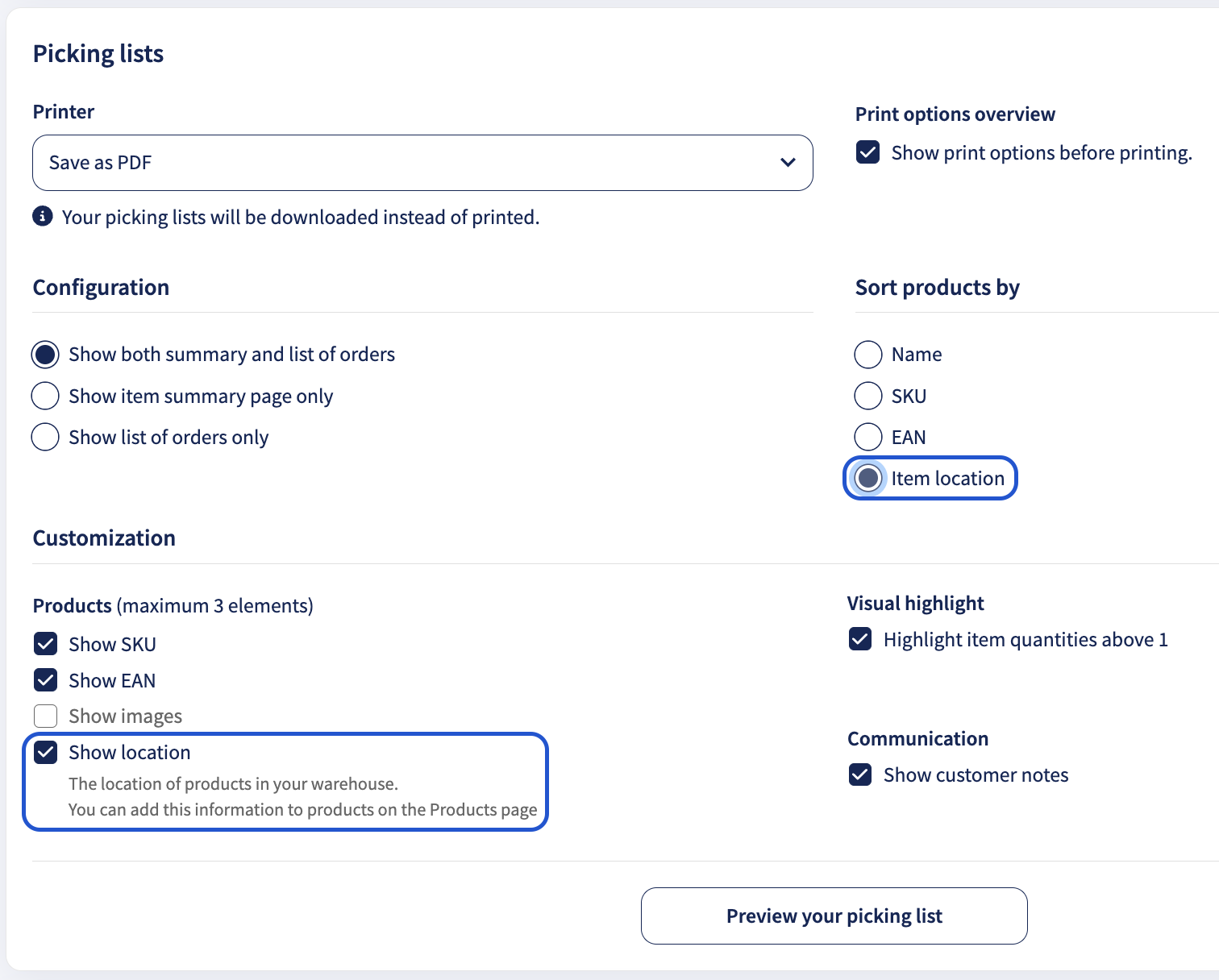
Once enabled, the saved item locations will appear on picking lists, helping pickers identify where products are stored.
Frequently asked questions
What is Integration Data?
Integration Data is the initial product information imported from your webshop integration. It serves as the base layer for product information in Sendcloud.
How do Products interact with my webshop integration?
Changes made through the Products feature override the corresponding Integration Data. This allows you to complete or update product information directly in Sendcloud.
How do Shipping Rules interact with Products?
Shipping Rules take priority over product information saved in Products or imported from your webshop. When a Shipping Rule applies, its settings are used before the corresponding product data.
What happens if I manually modify an order?
Manual modifications made directly to an order in Sendcloud have the highest priority. They override Integration Data, Products Data, and Shipping Rules.
What currency is used for customs values in Products?
Product values use your Sendcloud account's currency. This is also the currency displayed on customs documents. You cannot select a different currency for these values.
Why do I get a "Field format not valid" error when uploading products?
This error means that the uploaded CSV file does not meet the required format.
Check the following:
- SKU length: SKUs must not exceed 75 characters.
- SKU formatting: Avoid commas and periods in SKUs. Periods can cause errors such as "SKU column doesn't exist".
- EAN formatting: EAN codes must not contain spaces between digits.
- CSV structure: Make sure you have not removed any columns from the original template.
💡 Tip: If your SKUs contain periods, try replacing them with dashes before uploading the CSV file.