
Purpose: In this article, we will explain how you can easily create a ticket in order to receive support from our customer service team.
How to create a new ticket
A ticket is a written support request that will be sent directly to our customer service team. This article is a general guide on how to create a support ticket. If you have an incident with one of your shipments, we recommend that you read this article: How do I start an investigation or file a claim for my parcel?.
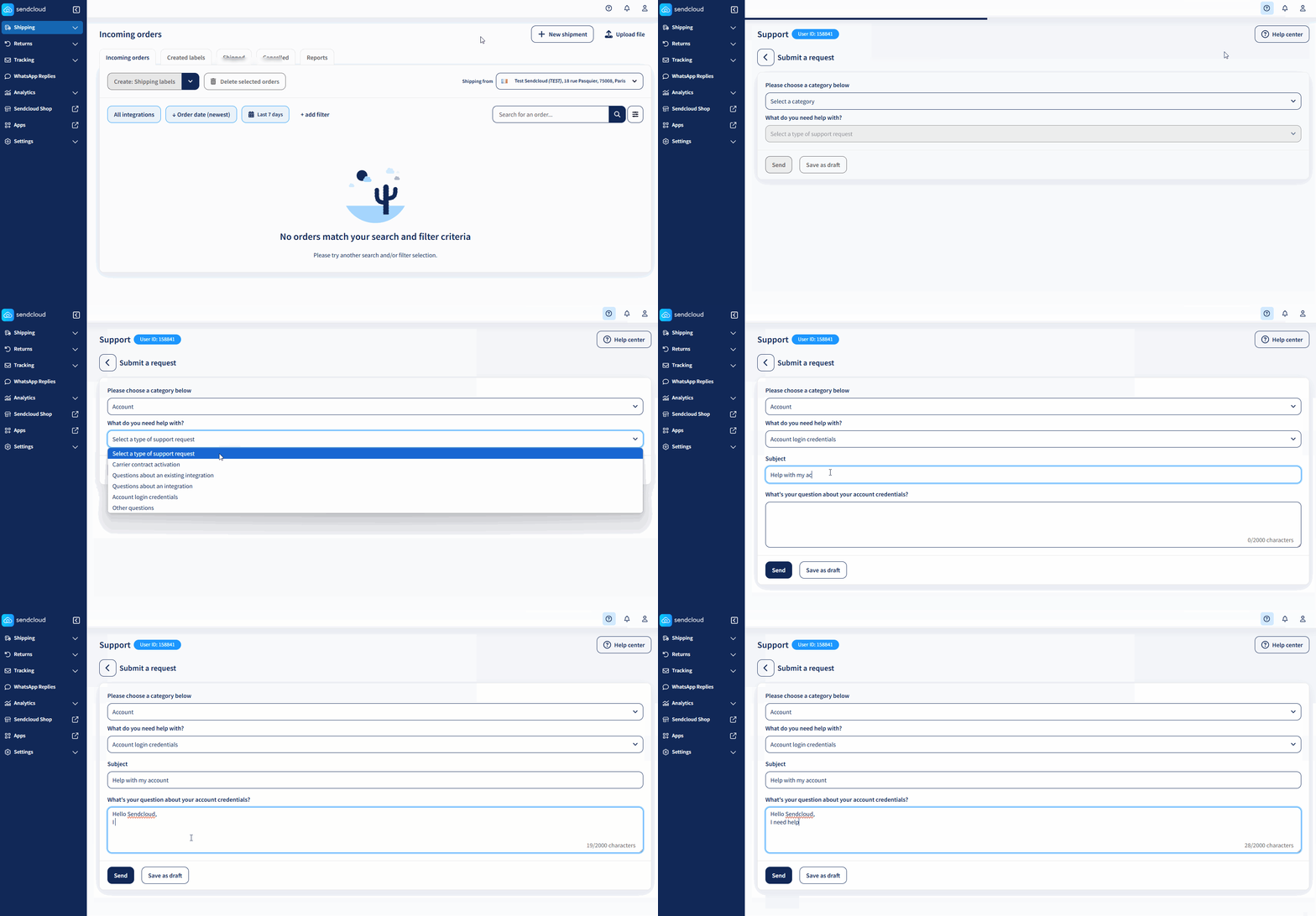
To create a new ticket, follow these steps:
- Log into Sendcloud and click the Support button on the top right corner.
- Click on +New ticket.
- Choose the type of query related to your question in the dropdown below
- Tell us what you need help with by selecting the exact reason of your request. If you cannot find it, select Other.
- Check if you can find the solution to your question in the Help Center articles that we share with you under the section "Your solution might be here".
- If you still want to contact our team, complete the form with as much detail as possible. This will help us to better understand the case and answer your questions. If necessary, you can also add additional files, like images.
- Click Send when done. You can also save the changes as a draft and continue later.
What happens after you submit an investigation?
Once you have submitted your investigation request, Sendcloud will forward it to the carrier on your behalf. Here is what you can expect:
The carrier will start their investigation. Depending on the claim type and the carrier, the investigation process can take anywhere from a few days to several weeks. Carriers set their own timelines, and Sendcloud has no direct control over how quickly they respond.
You may be asked for additional documents. The carrier may request extra evidence, such as photos, invoices, or a signed statement from the recipient. If this happens, you will receive a notification and the ticket status will change to Action required. Respond as quickly as possible, as delays in providing documents can slow down or negatively affect the outcome of your claim.
You can track the status of your ticket at any time. Go to the Support section in your Sendcloud panel to view all open and closed tickets. If you have a Lite subscription or higher, you can also find your tickets in Support Automation → Issue Management, where you can see the current stage, any outstanding actions, and carrier messages.