
Purpose: Learn how to upload your own shipping prices via CSV import to have them appear via your Sendcloud API integration.
How to upload your prices
-
Go to your Sendcloud account and navigate to:
Shipping → Carriers → My contracts - Find the contract you want to update and click the edit (pen) icon.
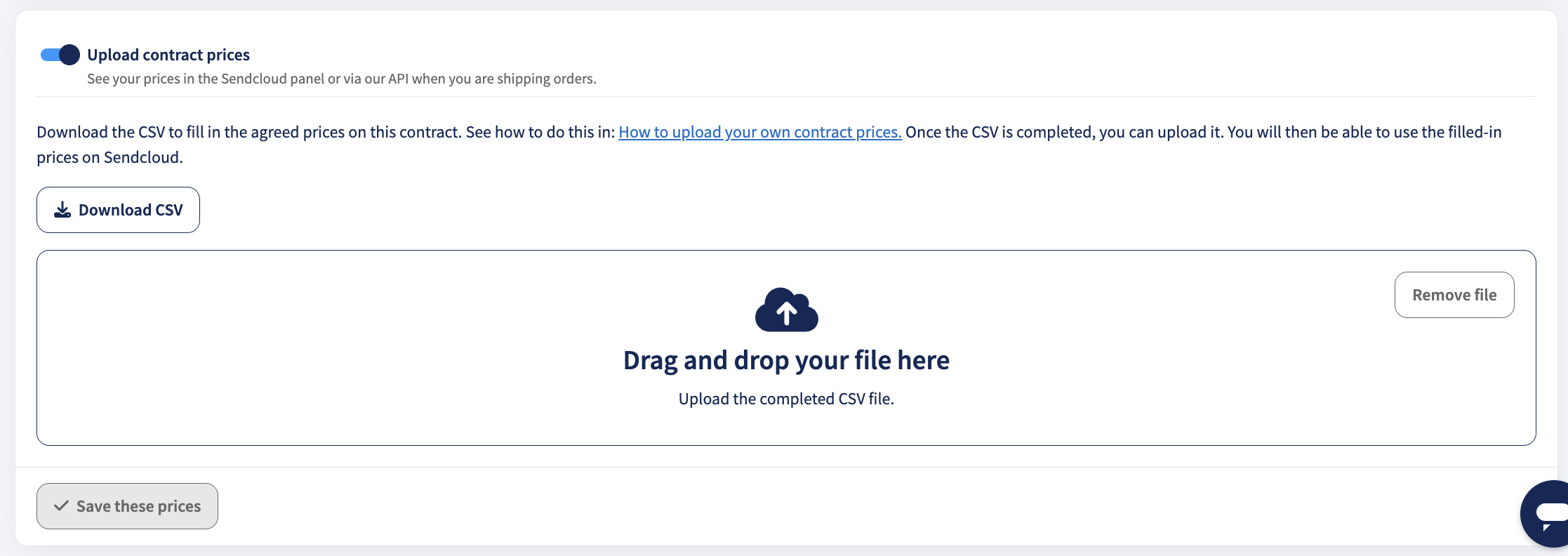
- Scroll down to the Upload contract prices section.
Turn on the toggle and click Download CSV to get the template. - Fill in the CSV file according to the guidelines provided below.
- Return to the same section and upload your completed CSV file.
- Click Save these prices to apply your updated contract rates.
To verify this, turn the toggle back on and click Download CSV. You will see that your previously uploaded prices are still present.
If your prices are uploaded but not appearing in the order view, please contact Sendcloud Support for assistance.
You can retrieve your uploaded contract prices through the Sendcloud API:
- API v2
- API v3
Prices will also be visible in the Sendcloud panel when you create or edit an order from the Incoming orders overview.
Note: These endpoints return the contract prices stored in Sendcloud. If your carrier supports Live Rates, prices are calculated in real time through API v3 instead. For more information, see Live rates.
How to edit prices
If you need to change any of the pricing information you previously provided, download the CSV file as described above (the CSV download will match your previous upload file) and make your changes. Then upload the CSV file again and click Save your prices.
How to delete prices
To delete your prices, download the CSV file as described above (the CSV download will match your previous upload file) and delete all the rows except for the headers. Then upload the CSV file again and click Save your prices. Your prices should now be removed.
What to do when an uploaded contract price is unavailable
If Sendcloud cannot find an uploaded contract price for a shipping method, the price may appear as Unknown.
In the New Shipment Form and Edit Order View, Sendcloud may display a message explaining why the price is unavailable and what you can do to resolve the issue.
Why is my uploaded contract price missing?
A contract price may be unavailable for several reasons:
- No prices uploaded: You haven't uploaded prices for the selected carrier contract.
- Missing price for a shipping method or destination: Your CSV file doesn't contain a price for the selected shipping method, destination, or route.
- Missing weight class: The parcel's weight may not be covered by the weight classes defined in your CSV file.
- Contract configuration: The selected carrier contract may not be configured correctly.
How can I resolve a missing contract price?
- Go to Shipping > Carriers > My contracts.
- Find the affected carrier contract and click the edit (pen) icon.
- Under Upload contract prices, download your existing CSV file.
- Check that the file contains the correct shipping method, destination, weight class, and price.
- Add or correct any missing prices, then upload the updated CSV file.
- Click Save these prices to apply your changes.
💡 Tip: If Sendcloud displays an Upload prices action in the pricing error message, use it to navigate to the relevant contract price settings.
Can I still create a shipping label? Some pricing errors only affect the displayed price, while others prevent label creation. Follow the instructions shown in Sendcloud.
Feature availability
Unfortunately, this feature is not supported by all carriers. The following carriers do not support uploading your own contract pricing:
Correos Express
CTT Express
Correos
Parcel Force
UPS ES
Evri
FedEx
How to fill in the CSV file
Enter your prices per shipping method under the column "price".
If you have more than one weight class defined for the same shipping method, then do as follows:
- Delete the data under the “min_weight” and the “max_weight” column:
- Enter the first weight class you need, and enter the price. E.g., 0-5 kg → €10:
- Copy the row, and do the same for the next weight class included in the shipping method:
You can also combine multiple countries in the same row if the prices are the same per weight class, as in the below example:
975,DHL Europlus,BE,DK,ES,0.500,5.001,5
975,DHL Europlus,BE,DK,ES,5.001,31.5,8
Make sure to delete the rows containing shipping methods you don't use and therefore did not fill in. When you don't delete them, an error message saying that information in the CSV is missing will appear.
Use only your own carrier rates
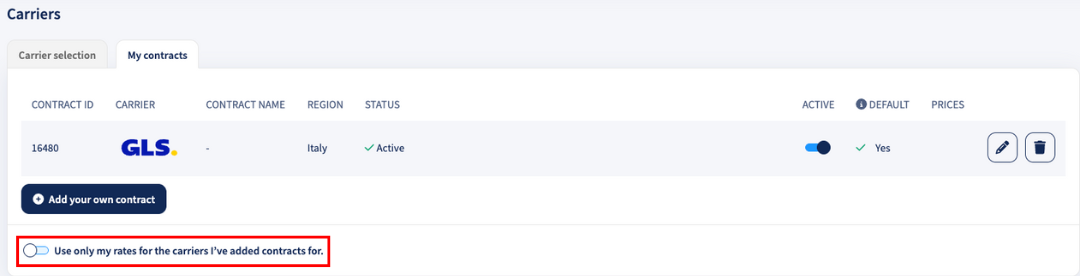
You can now ensure that only your negotiated carrier contracts are applied to shipments, even in the event of a carrier outage.
Enable the toggle at the bottom of your My contracts page Use only my rates for the carriers I've added contracts for to guarantee that your own rates are always used, even if a shipment fails or needs to be re-announced. This protects you from unexpected costs and ensures your negotiated rates always apply.
 Important information about weight classes
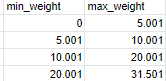
The Sendcloud system considers that the “min_weight” is inclusive and the “max_weight” is exclusive.
- Using the example above, this means that if the “min_weight” is 0.001 and the shipment weighs 0.001, then the price will be based on the weight class in which 0.001 is the minimum weight.
- The price will therefore be €10 as per the above example.
- The price will therefore be €10 as per the above example.
- If the shipment weighs 5.001, then the price applied will be based on the weight class with a minimum weight of 5.001, and not the class with a maximum of 5.001.
- The price will therefore be €20 as per the above example.
Please note: Sendcloud is not responsible for any deviations between the prices input into the CSV file and any actual prices charged by your shipping carrier. Any values input into this file are the entire responsibility of the individual.