
Purpose: This article explains how to create a test parcel in your Sendcloud account. Use it to verify your printer works, check what a shipping label looks like, and explore the full shipping flow. It is completely free and does not involve a real carrier.
Related articles
→ Getting started with Sendcloud
→ Print Client settings and troubleshooting
Before you start
The test parcel is available for new Sendcloud accounts. If you do not see it on your Dashboard, your account does not have access to this feature.
You do not need a payment method to create a test parcel.
Make sure your printer is set up before creating the test parcel, that way you can use the test parcel to verify it works straight away. For setup instructions, read Print labels in one click.
What is a test parcel?
A test parcel lets you go through the entire shipping flow, from entering an address to printing a label, without being charged and without involving a real carrier.
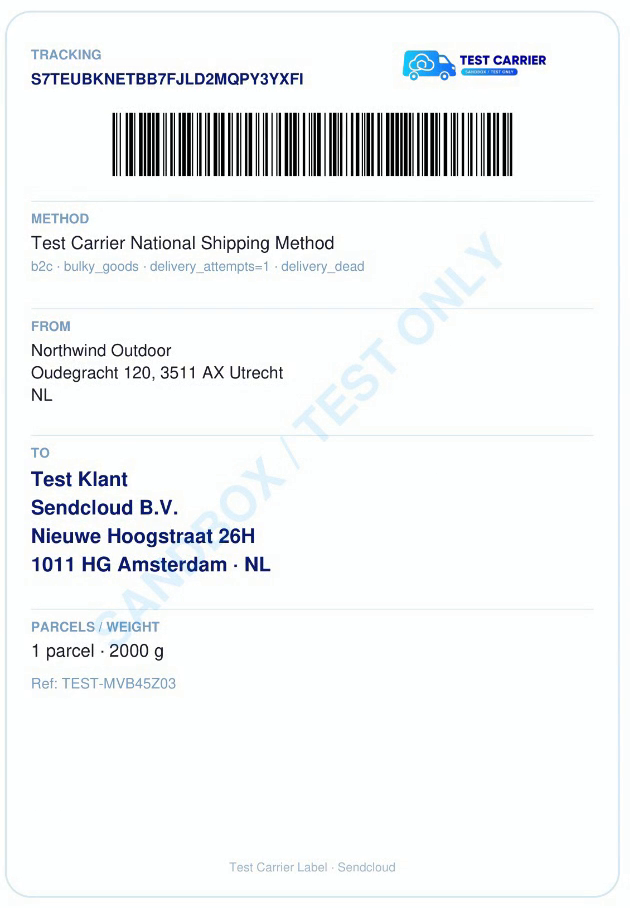
💡 Important: The test parcel label is marked SANDBOX / TEST ONLY. It cannot be used for a real shipment, will not be picked up by a carrier, and cannot be dropped off at a service point.
Here is what the test parcel flow gives you:
-
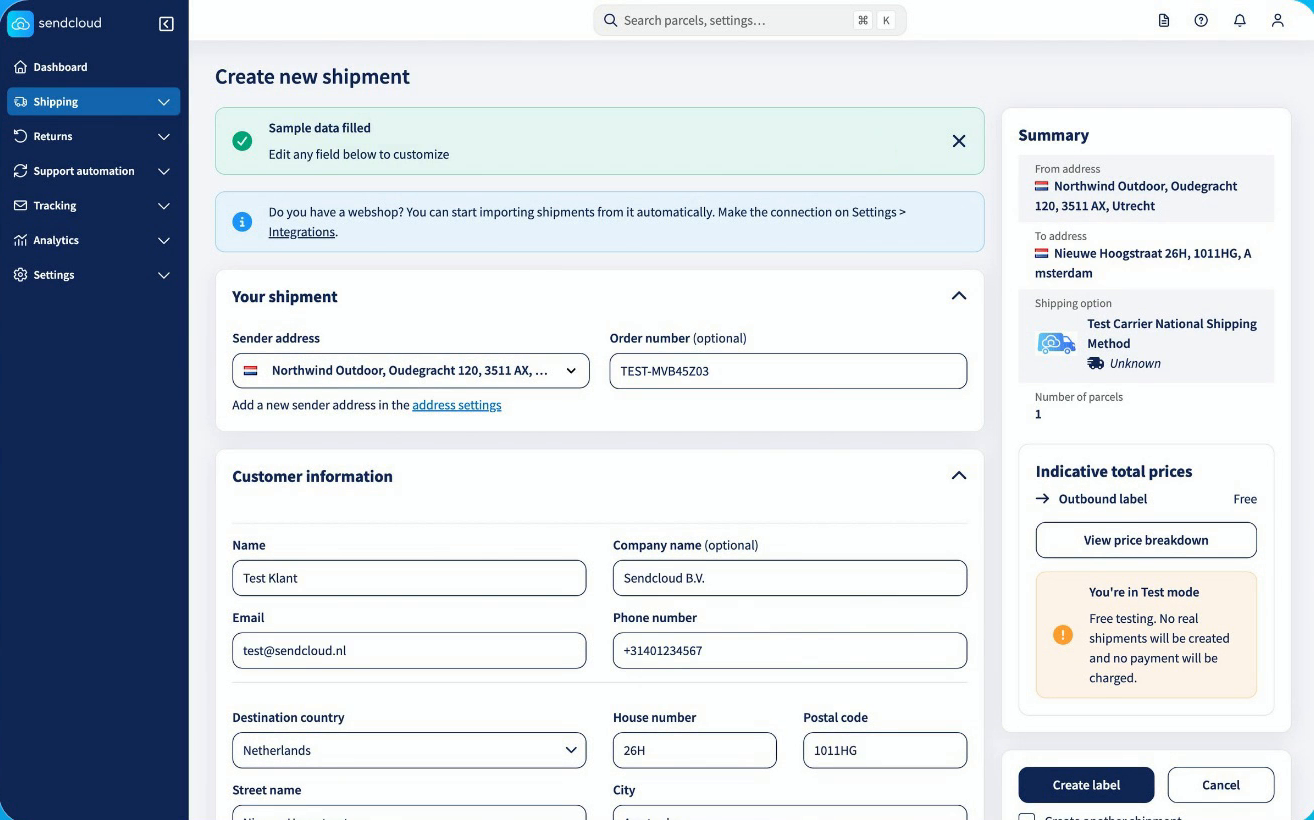
A shipment form where you can click Fill sample data to fill in a demo recipient automatically.

- The Test Carrier shipping option, already selected for you, with the price shown as Free
- A printable label so you can confirm your printer and label format work correctly
- A test label in the Created labels tab, just like a real label
Here is what the test parcel does not involve:
- Any charges or label fee
- A real carrier picking up or expecting the parcel
- A tracking page or return portal for the test label
Example of a test parcel label
How to create a test parcel
Follow these steps to create and print a test parcel from the Dashboard of your Sendcloud panel.
- Log in to your Sendcloud panel.
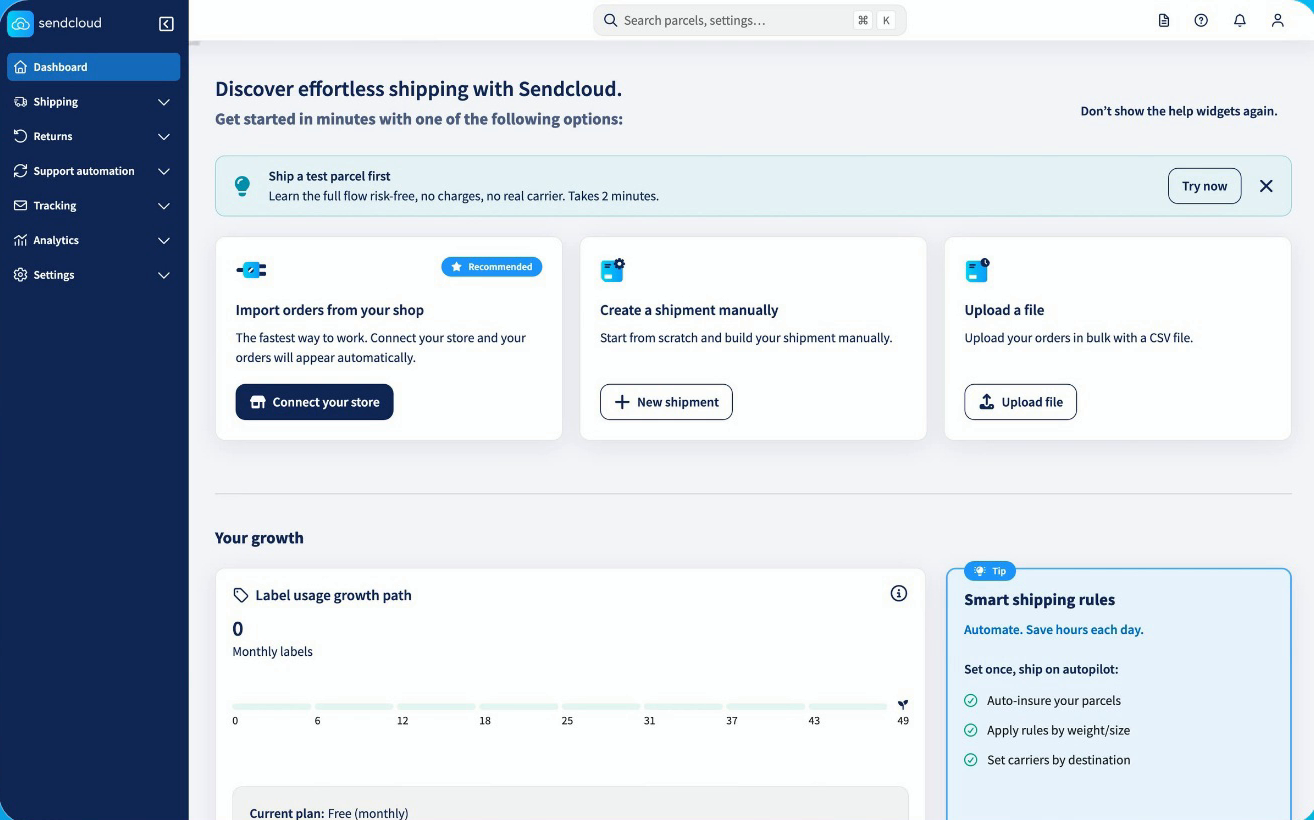
- On the Dashboard, in the Ship a test parcel first banner, click Try now.
- In the banner at the top of the form, click Fill sample data to automatically fill in a demo recipient, or enter the recipient details manually. The sender is your own saved sender address.
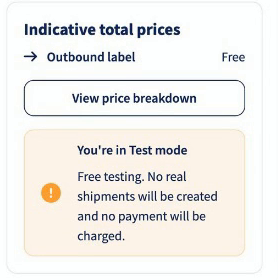
- The Test Carrier shipping option is already selected, so there is nothing to configure. The price shows as Free, and a You're in Test mode message confirms that no real shipment is created and no payment is charged.
- Click Create test label.
- Your test label appears in the Created labels tab. Click the eye icon next to it to open the label details.
- Click Print label, select your printer or Save as PDF, and click Print. Check that your printer and label format work correctly.
Note: If the label does not print as expected, read Print Client settings and troubleshooting to resolve common printer issues.
What happens after you create the test parcel?
Once you create the label, your test label appears in the Created labels tab, just like a real label. Open it to view the label details or to print it again.
Ready to ship for real?
Now that you have verified your printer works and seen how the flow looks, you are ready to start shipping. Before you create your first real shipment, make sure your account is fully set up:
- Payment method: you need a payment method set up before you can create a real label. Direct debit is used in Sendcloud.
- Sender address: make sure your sender address is correct so your labels show the right details.
- Carriers: Sendcloud activates several carriers by default. You can add your own carrier contract or switch to a different carrier to get the best rates for your shipments.
For a step-by-step walkthrough of all setup steps, read Getting started with Sendcloud.
To compare carriers and find the best fit for your shipments, read Choose your carriers.
When you are ready to process your first order, read Process your orders.
Frequently asked questions
Will I be charged for a test parcel?
No. The test parcel is completely free. No shipping costs and no label fee are charged. For more information on how Sendcloud invoicing works, read Subscription invoicing.
Do I need a payment method to create a test parcel?
No. You can create and print a test parcel without a payment method. You need a payment method before you can create real labels. For setup steps, read Getting started with Sendcloud.
Can I use the test parcel for a real shipment?
No. The label is marked SANDBOX / TEST ONLY. It cannot be used for a real shipment, will not be accepted by a carrier, and cannot be dropped off at a service point.
I don't see the option to create a test parcel. Why?
The test parcel is a beta feature and is only available for new Sendcloud accounts. To create a real shipment, read Process your orders.
My label did not print correctly. What do I do?
Check that your printer is correctly set up in Sendcloud. For troubleshooting steps, read Print Client settings and troubleshooting.