
Purpose: Learn which customs documents are required for international shipments, how to download or print them in Sendcloud, and how to upload additional customs documents via the API.
Customs documents in Sendcloud
When you create an international shipping label, Sendcloud automatically generates the required customs documents. The document type depends on the selected carrier and shipment details.
Depending on the carrier, customs documents are generated either by Sendcloud or directly by the carrier. These may include a commercial invoice, Proforma invoice, CN22 or CN23 form.
Some shipments outside the EU may also require additional documents, such as a Certificate of Origin (CO). This article mainly covers commercial invoices, Proforma invoices, and CN22/CN23 forms.
For more information about preparing international shipments, read our article How to create an international shipment in Sendcloud.
💡 Incoming orders overview update
We're currently rolling out a new version of the Incoming orders overview to a limited group of users. Because of this, your screen may look different from the screenshots or steps shown in this article. See what's changed.
Which customs documents do you need?
When shipping internationally (outside the European Union), a commercial invoice, Proforma invoice, CN22, or CN23 document is required for customs clearance, depending on the shipment.
- Commercial carriers: Parcels generally require a commercial invoice.
- Postal carriers: Parcels require a CN22 or CN23 form.
- Gift shipments: Gifts sent with commercial carriers require a Proforma invoice instead of a commercial invoice. Gifts sent with postal carriers still require a CN22 or CN23 form.
Always complete these documents in English.
CN22 and CN23 requirements
Whether you need a CN22 or CN23 document depends on the weight and value of your parcel:
- CN22: Packages weighing up to 2 kilograms with a value of up to €425.
- CN23: Packages weighing more than 2 kilograms and/or valued at more than €425.
💡 Shipping from the UK with Royal Mail: When shipping internationally with Royal Mail via Sendcloud, Intersoft Intelligent Shipper® only produces a CN23 customs form. Although CN22 is not supported, this does not cause delivery delays. The CN23 form includes all the necessary content required for CN22 and CN23 documents, simplifying the customs process and ensuring smooth delivery.
Who generates the customs documents?
Depending on the carrier, customs documents are generated either by Sendcloud or directly by the carrier.
Customs documents generated by Sendcloud
Asendia, Bpost, BRT, Chronopost, Correos*, Correos Express, CTT Express, Delivengo, DHL, DHL DE, DHL Parcel, DPD, DPD local, Evri international, FedEx, FedEx crossborder, GLS, Hermes, Letter suive, MHI, Poste Italiane, Poste delivery, Seur, Spring, TNT, InPost to home.
*For Correos, Sendcloud generates the CN23, while Correos generates the CN22.
Customs documents generated by the carrier
Colissimo, Correos*, DHL Express, DPD AT, PostNL, Royal Mail, UPS.
*For Correos, Sendcloud generates the CN23, while Correos generates the CN22.
Important: Sendcloud has no control over the information displayed in commercial invoices generated by carriers.
Understanding the different customs documents
Expand the sections below to learn more about each document type.
CN22 and CN23 forms
CN22 and CN23 forms
CN22 and CN23 customs declarations are required customs documents for international shipping with postal carriers.
They contain information about the goods you're shipping, including their contents and value, the sender and recipient, and the parties involved in the shipment.
Customs authorities use these documents to track goods entering and leaving their countries and to determine whether import duties must be paid.
💡 Gift shipments via postal carriers: If you're sending a gift with a postal carrier, you still need a CN22 or CN23 form. Select "Gift" as the shipment type and always declare the true value of the contents.
Proforma invoices
Proforma invoices
A Proforma invoice is the correct customs document for gift shipments sent with a commercial carrier. It explicitly states that the shipment is a gift, ensuring the correct customs procedures for duties and taxes.
It primarily includes information about the package contents and applicable Incoterms.
Important: Always declare the true value of gifts shipped internationally. Customs authorities will reject shipments with a declared value of zero.
You don't need a commercial invoice for a gift shipment sent with a commercial carrier, as the Proforma invoice replaces it.
Commercial invoices
Commercial invoices
A commercial invoice is a binding customs document issued by the merchant (exporter) to the buyer (importer). It serves as a contract and proof of sale between the buyer and seller.
It mainly contains information about the contents of the package and the applicable Incoterms. Customs authorities use the commercial invoice to determine whether import duties must be paid.
For instructions on completing and attaching export documents, read our guides:
Important update for shipments to the U.S.
Effective November 12, 2024: U.S. Customs and Border Protection (CBP) began rejecting U.S. import shipments with vague product descriptions. Shipments entering the U.S. must include clear and precise descriptions on the commercial invoice to avoid delays or rejections.
Examples of acceptable descriptions:
- "Children's toys made of plastic"
- "Women's dresses made of 60% cotton, 40% polyester"
Examples of unacceptable descriptions: "parts", "daily necessities", "see commercial invoice", "part number 123456", "accessories", or "personal use".
For more information, see Unacceptable vs Acceptable Cargo Descriptions.
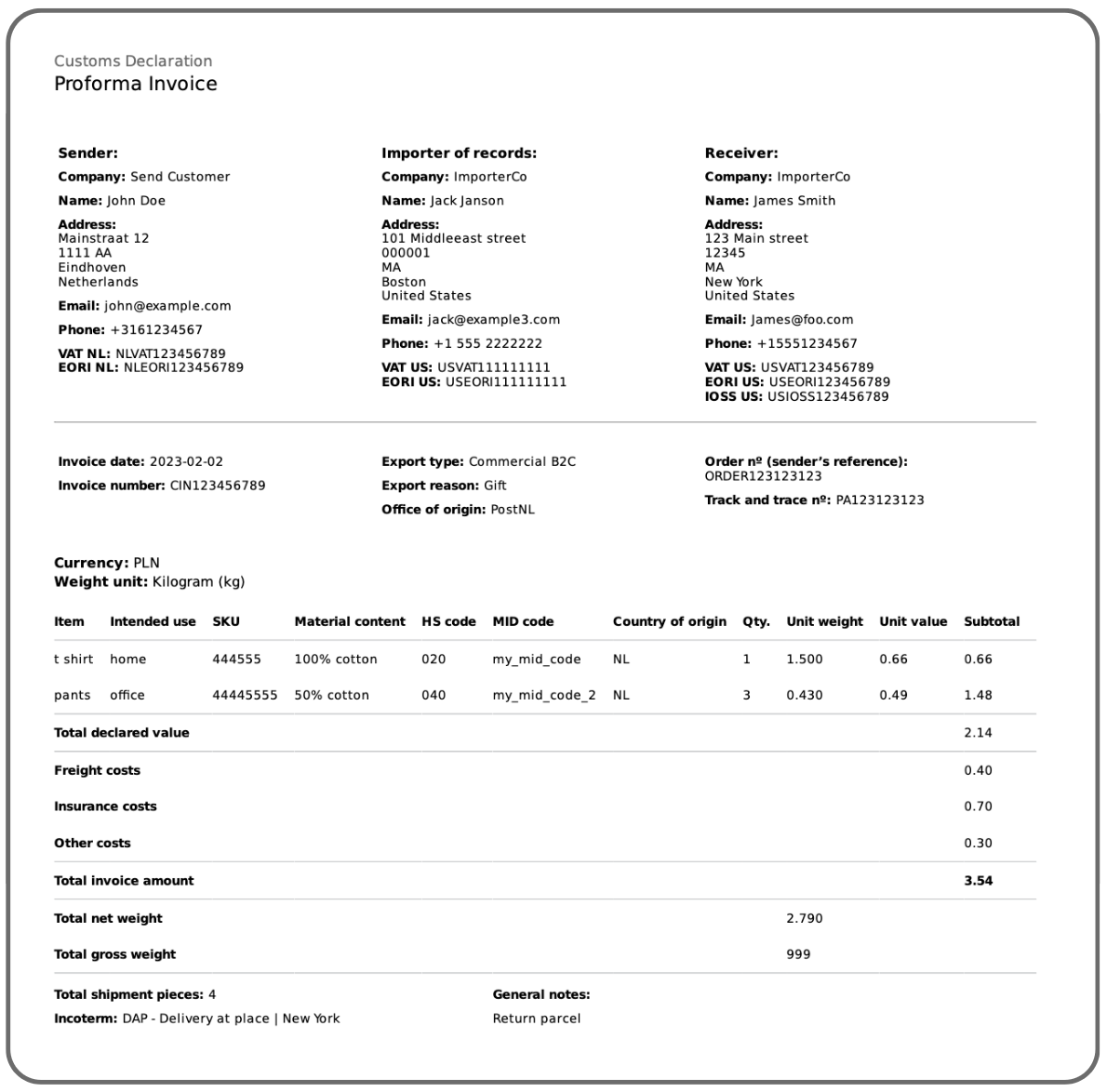
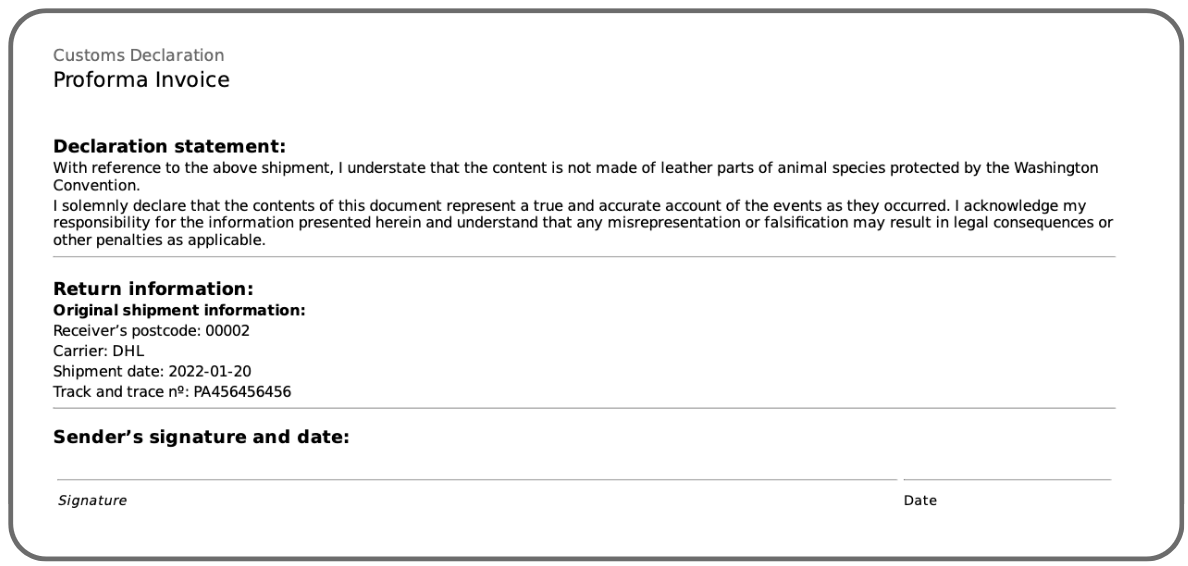
Example of a commercial invoice, Proforma invoice, CN22 or CN23 form
The commercial invoice, Proforma invoice, CN22 form, and CN23 form look exactly the same in the Sendcloud example below.
Page 1
Page 2
How to download or print customs documents
With Sendcloud, you can download and print your pre-filled customs documents directly from your account.
Step 1: Configure your printer settings
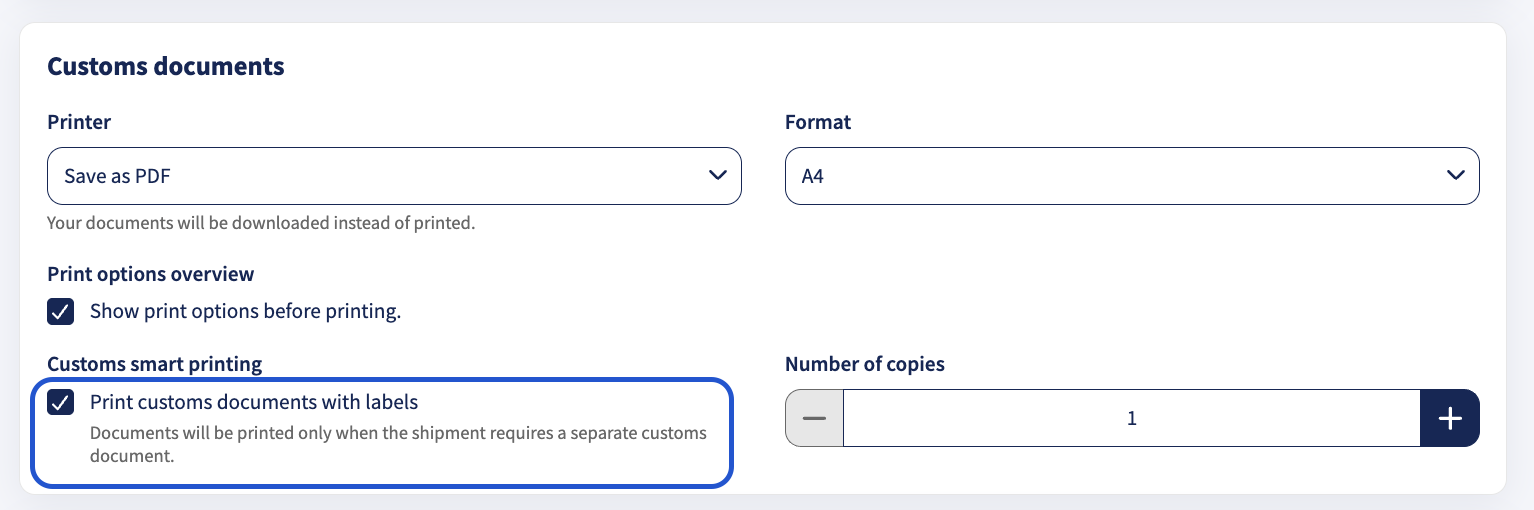
To automatically download or print your pre-filled customs documents when creating a label:
- In your Sendcloud panel, go to Shipping > Printing options > Customs documents.
- Enable Print customs documents with labels.
- Select your printer, document format, and number of copies.
If no printer is selected, the customs documents will be downloaded in PDF format.
💡 Good to know: Your print settings are saved locally. If you use a different computer, you'll need to configure the printer again.
Step 2: Describe the items in your international order
When shipping internationally, it's important to provide the details of each product in your shipment.
Go to the Items section of an incoming order or the manual shipment creation form in your Sendcloud account. Fill in the following information for each product:
- Item description
- Origin country
- Unit value, unit weight, and number of units
- HS Code (6–8 digits)
- SKU (optional)
- Intended use ★ Beta
- Material content ★ Beta
- MID Code ★ Beta
To add another item, click + Add item and enter its details.
Important: If you don't enter the required product details, your international order will display an error and you won't be able to create the shipping label.
How many items can an international shipment include?
How many items can an international shipment include?
The maximum number of items depends on the carrier and customs document type.
- Postal carriers (e.g., PostNL, Correos, Royal Mail, bpost, Deutsche Post) allow a maximum of 5 items per commercial invoice.
- Other carriers (e.g., DPD, DHL, UPS) allow a maximum of 99 items per commercial invoice. To ship more than 99 items, you must create a new shipment.
- CN23 documents: A maximum of 5 items applies to both postal and commercial carriers.
Important: If you exceed the number of items permitted by the carrier, you'll receive an error. Remove the additional items or select another carrier.
Step 3: Create the label
Once you've entered all the required product details:
- Go to Shipping > Orders > Incoming orders.
- Find your order and click the eye icon to open its details.
- Click Create label when ready.
Your customs documents will now be printed automatically. If the printer isn't available, the documents will be downloaded instead.
Once the label has been created, you can view the shipment by clicking the eye icon in the Created labels tab.
Step 4: Download your customs documents again
Your customs documents remain available in the label details view, so you can download them again whenever needed.
- Go to the Created labels overview.
- Find your order and click the eye icon to open its details.
- Click Actions.
- Select Download customs declarations from the dropdown menu.
Upload your own customs documents via the API
If you use the Sendcloud API, you can also upload your own customs documents in PDF format and attach them to your shipments.
Using the Upload a customs document API endpoint, you can upload additional documents that will be forwarded to the carrier alongside the customs documents generated by Sendcloud.
Important: Uploading customs documents via the API is currently supported for DHL Express only.
For technical instructions and requirements, see the Upload a customs document API documentation.
Paperless Trade
Some carriers support Paperless Trade. In these cases, customs documents are automatically sent digitally to the carrier, so you don't need to print them.
Read more about Paperless Trade in our article Send your customs documents digitally via Paperless Trade.
Related articles
→ Things to take into account when shipping internationally