
Purpose: Learn how to use checkout rules to show or hide Dynamic Checkout delivery methods based on conditions such as postal code, parcel size, order value, or metadata.
What are checkout rules?
Checkout rules show or hide delivery methods in your Dynamic Checkout when an order meets the conditions you set. This way, your customers only see the delivery methods that fit their order.
To use checkout rules, you first need to configure Dynamic Checkout. Checkout rules work with any integration, but a rule can only check information that your integration sends at checkout, such as the weight, destination country, or order value.
Why use checkout rules?
- Improve customer satisfaction by streamlining your checkout process.
- Display only relevant delivery methods.
- Get more flexibility and control over your checkout page.
Set up your checkout rules
Create a checkout rule
- Go to Settings > Checkout rules.
- Click Create new rule.
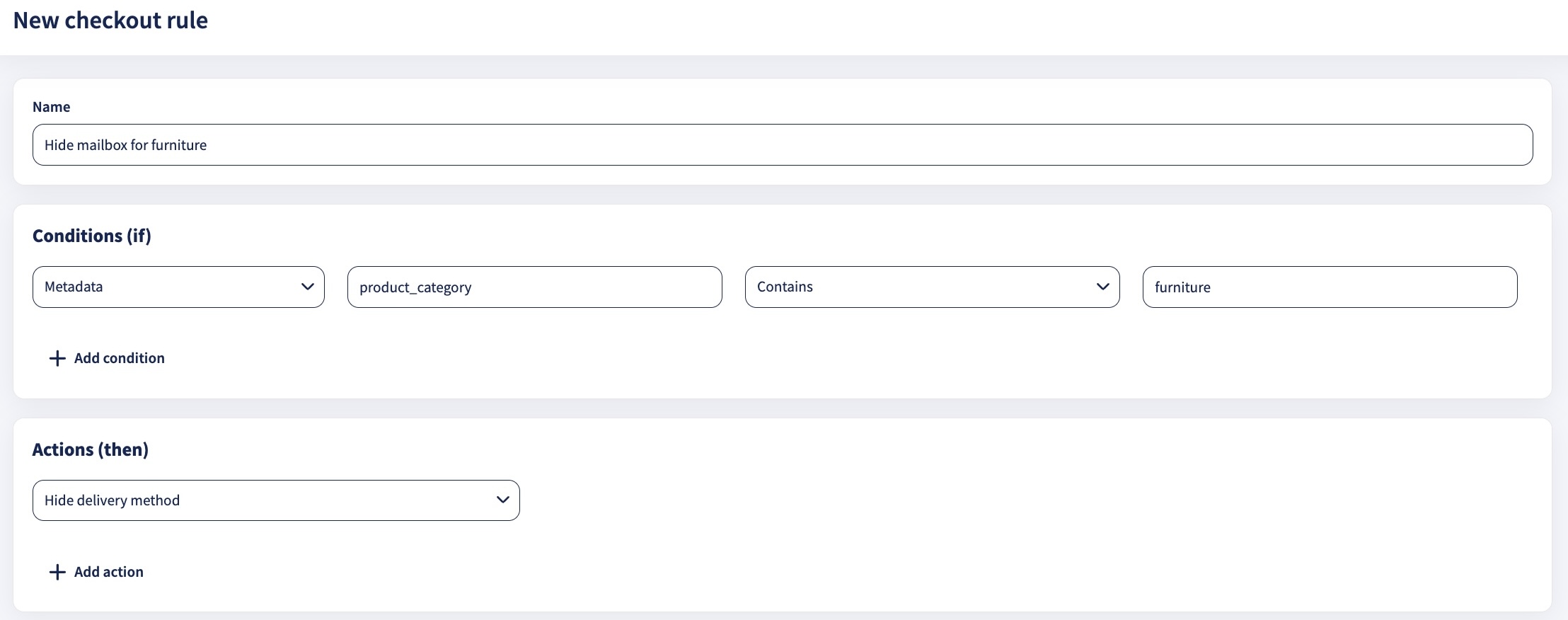
- Enter a Name for the rule.
- Under Conditions (if), choose a condition, for example Postal code or Weight (grams).
For the Metadata condition, also enter the Property name. Learn more in Show or hide delivery methods based on metadata. - Choose an operator, for example Is, Less than, or Greater than.
- Enter the value to match, for example 12345 for a postal code.
- Under Actions (then), choose Hide delivery method or Show delivery method.
- Click Save.
A saved rule has no effect until you apply it to a delivery method and publish your configuration.
Apply the rule to a delivery method
- Go to Settings > Dynamic Checkout.
- Click the delivery method you want to change.
- Scroll down to the Checkout rules section.
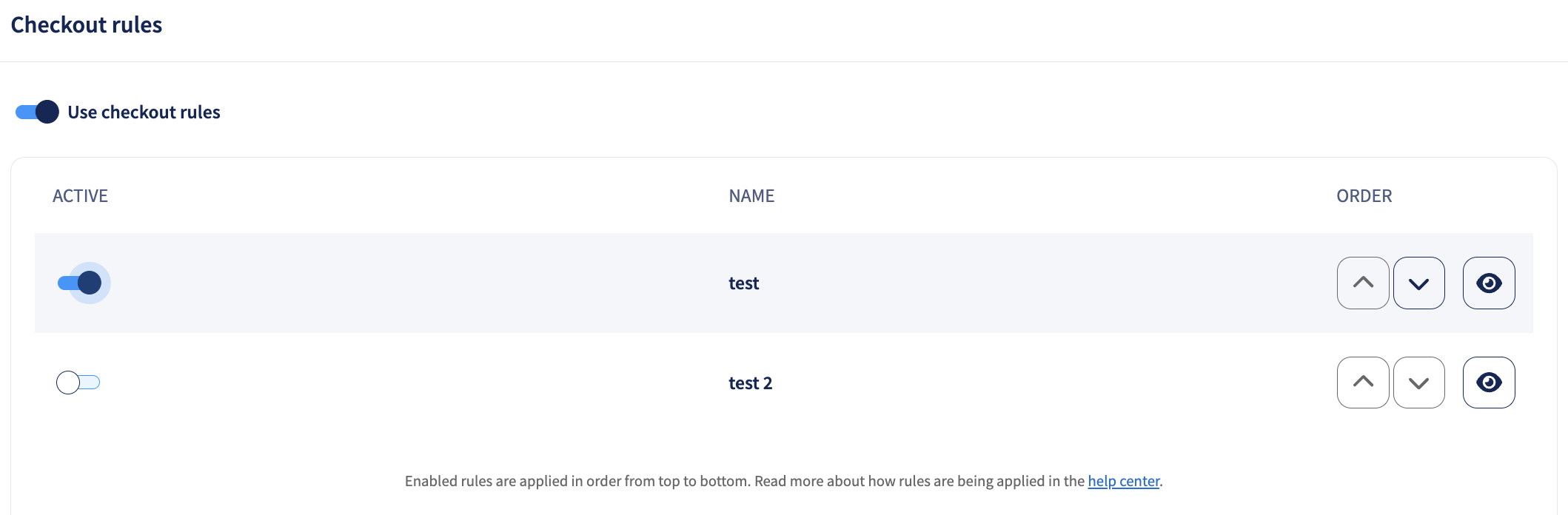
- Select the rules you want to apply to this delivery method.
- Click Save changes.
Publish your configuration
- Go back to the Dynamic Checkout page.
- Click Publish configuration to activate the rules.
Changes can take up to 15 minutes to show in your store.
Edit or delete a rule
To edit a rule:
- Go to Settings > Checkout rules.
- Find the rule and click Edit.
- Change the condition, operator, value, or action.
- Click Save.
- If the rule is applied to a published delivery method, go to Dynamic Checkout and click Publish configuration again so the changes take effect.
To delete a rule, go to Settings > Checkout rules, find the rule, and delete it. Sendcloud automatically removes a deleted rule from all delivery methods it was applied to.
Available conditions
You can use these conditions in your checkout rules:
| Condition | Operators | Use it to |
| Postal code | Is / Is not / Contains / Does not contain / Starts with / Ends with / Pattern match / Regex match | Show or hide delivery methods based on the postal code of the destination address. |
| Parcel width | Is / Is not / Less than / Greater than / Greater or equal than / Less or equal than | Filter delivery methods by parcel width. |
| Parcel height | Is / Is not / Less than / Greater than / Greater or equal than / Less or equal than | Hide delivery methods for oversized parcels. |
| Weight (grams) | Is / Is not / Less than / Greater than / Greater or equal than / Less or equal than | Limit delivery methods based on the parcel weight. |
| Total order value | Is / Is not / Less than / Greater than / Greater or equal than / Less or equal than | Set delivery options based on the order value, for example free shipping above a certain amount. |
| Metadata | Is / Is not / Contains / Does not contain / Starts with / Ends with / Pattern match / Regex match | Show or hide delivery methods based on any metadata you send at checkout, such as a product category. Learn more in Show or hide delivery methods based on metadata. |
Show or hide delivery methods based on metadata
Metadata is extra information about the cart or order that your checkout sends to Sendcloud, such as a product category or a promo code. Each piece of metadata is a key with a value, for example the key product_category with the value furniture.
With the Metadata condition, you choose which key a rule checks and which value it should match:
-
Property name: the key your checkout sends, for example
product_category. - Operator: how the value is compared, for example Is or Contains.
-
Value: the value to match, for example
furniture.
Example: You don't want to offer mailbox delivery for furniture. You send product_category with every checkout request and create this rule:
IF Metadata product_category IS furniture THEN Hide delivery method Mailbox
Category and category are two different keys, so the property name in your rule must match the key your checkout sends exactly.Rules created with the Checkout metadata condition
Rules that used the Checkout metadata condition were automatically converted to the Metadata condition, with the property name checkout_metadata. They keep the same operator and value and work the same way, so you don't need to change anything.
Send metadata to your checkout
If you use the Dynamic Checkout API, send metadata with the Generate a list of delivery options endpoint. Each request can include:
- Up to 5 keys.
- Keys of up to 64 characters.
- Values of up to 128 characters.
If a request goes over these limits, the API returns an error.
checkout_metadata. If you use one of these endpoints, keep sending your value as checkout_metadata, and your rules keep working as before.Examples of checkout rules
Show or hide delivery methods based on postal code
IF Postal code IS X THEN Hide delivery method X
IF Postal code IS X THEN Show delivery method X
If you offer many delivery options, such as standard, express, and same-day delivery, checkout rules make sure your customers only see the options that fit their situation. For example, if a customer lives close to your store, you can show only the most cost-effective delivery option.
IF Postal code PATTERN MATCH [AB,PA,FK,KA,HS,IV,KW,ZE] THEN Hide delivery method X
Use this rule to hide certain delivery methods for remote areas in the Scottish Highlands, for example. Learn more about pattern matching.
Show or hide delivery methods based on parcel dimensions
IF Parcel length GREATER OR EQUAL THAN 100, AND Parcel width GREATER OR EQUAL THAN 50, AND Parcel height GREATER OR EQUAL THAN 20, THEN Hide delivery method X, Y, Z
For example, use this rule to show some delivery methods only when the parcel fits through a letterbox.
Show or hide delivery methods based on metadata
IF Metadata product_category IS furniture THEN Hide delivery method X
IF Metadata promo_code REGEX MATCH ^FREESHIP THEN Show delivery method X
Use metadata rules for anything your checkout knows about the order, for example to hide a delivery method for bulky product categories, or to show a free delivery method for a promo campaign.
Text matching in checkout rules: Pattern match vs Regex match
When you create checkout rules for text-based conditions, such as Postal code or Metadata, you can choose between Pattern match and Regex match. Both options match text values, but they offer different levels of flexibility and complexity. For the Metadata condition, both always check the value, not the property name.
Pattern match
Pattern match is a simple way to match text with the wildcard *. You don't need any technical knowledge to use it: put a * wherever "anything" can go.
-
gift*matches anything that starts with gift. -
*giftmatches anything that ends with gift. -
*gift*matches anything that contains gift.
How it works
-
*matches any number of characters. - Pattern match is case-sensitive. For example,
gift*matchesgift_box, but notGift_box.
Examples
| Condition | Pattern | Matches |
|---|---|---|
| Postal code | 10* |
1011, 1023 |
Metadata (gift_option) |
gift* |
gift_wrap, gift_box |
Metadata (product_bundle) |
*bundle |
Summer-bundle, Starter-bundle |
When to use Pattern match
- Simple, single-value checks.
- Basic wildcard needs.
- When you want a case-sensitive match.
- When the format doesn't need validation.
Regex match
Regex (regular expressions) is a more advanced and flexible way to match text. It can do things Pattern match can't, such as:
- Match several options at once, for example 10 OR 11 OR 12.
- Ignore uppercase and lowercase, for example match "gift", "GIFT", and "Gift".
- Check an exact structure, for example 4 digits followed by 2 letters.
- Match only the start or end of a value, for example values that end with "-bundle".
How it works
Regex uses special characters to define patterns, such as:
-
|means or. -
^means starts with. -
$means ends with. -
\dmeans any digit. -
(?i)means ignore uppercase and lowercase.
Examples
| Condition | Regex | Matches |
|---|---|---|
| Postal code | ^(10|11|12) |
Postal codes that start with 10, 11, or 12 |
Metadata (gift_option) |
(?i)gift |
gift, GiftBox, GIFT |
Metadata (product_bundle) |
-bundle$ |
Values that end with "-bundle" |
Metadata (promo_code) |
^SUMMER\d{2}$ |
SUMMER10, SUMMER21 |
When to use Regex match
- You need to check several options in one rule.
- You want a case-insensitive match.
- You need to validate a strict format or length.
- You need complex text patterns.
- The value must appear at the start or end of the text.
Choose the right method
| Use Pattern match if | Use Regex match if |
|---|---|
|
|
Practical examples where Regex is more powerful
| Scenario | Description | Regex | Why Regex is better |
|---|---|---|---|
| Several postal code prefixes (NL) | Hide a delivery method for NL postal codes that start with 10, 11, or 12. | ^(10|11|12) |
Pattern match checks one prefix per rule, so you would need three rules (10*, 11*, 12*). Regex combines them in one rule. |
| Dutch postal code format | Match 4 digits and 2 letters, for example 1234AB. | ^\d{4}\s?[A-Za-z]{2}$ |
Pattern match can't check the exact structure or number of characters. Regex checks the exact format: 4 digits, an optional space, and 2 letters. |
| Case-insensitive metadata | Match "gift" or "free" in any capitalization. | (?i)(gift|free) |
Pattern match is case-sensitive, so you would need a rule for "gift", "Gift", "GIFT", and so on. Regex handles all of them in one rule. |
| Match the end of a value | Match values that end with "-bundle". | -bundle$ |
Pattern match finds "bundle" anywhere in the text. Regex can require it at the end. |
| Structured promo codes | Match codes with exactly 3 letters and 2 digits, for example ABC12. | ^[A-Za-z]{3}\d{2}$ |
Pattern match can't check letter and digit patterns or the number of characters. Regex checks the exact format every time. |
Tips for using Regex
- Start simple, then add complexity.
- Use
^and$to anchor the start or end of the text. - Add
(?i)for case-insensitive rules. - Use a backslash
\to escape special characters. - Test your patterns with a tool like regex101.com.
- Keep internal notes on complex expressions so your team understands them later.